> Updated for version 6.0.30
Markdown lets you format text (headings, bold, lists, links, images, tables) by writing a few simple signs, or by clicking in a visual editor. In Celestory, it is the format of **Text** variables and of the **Format text** block: you prepare a rich text once, then show it to the player.
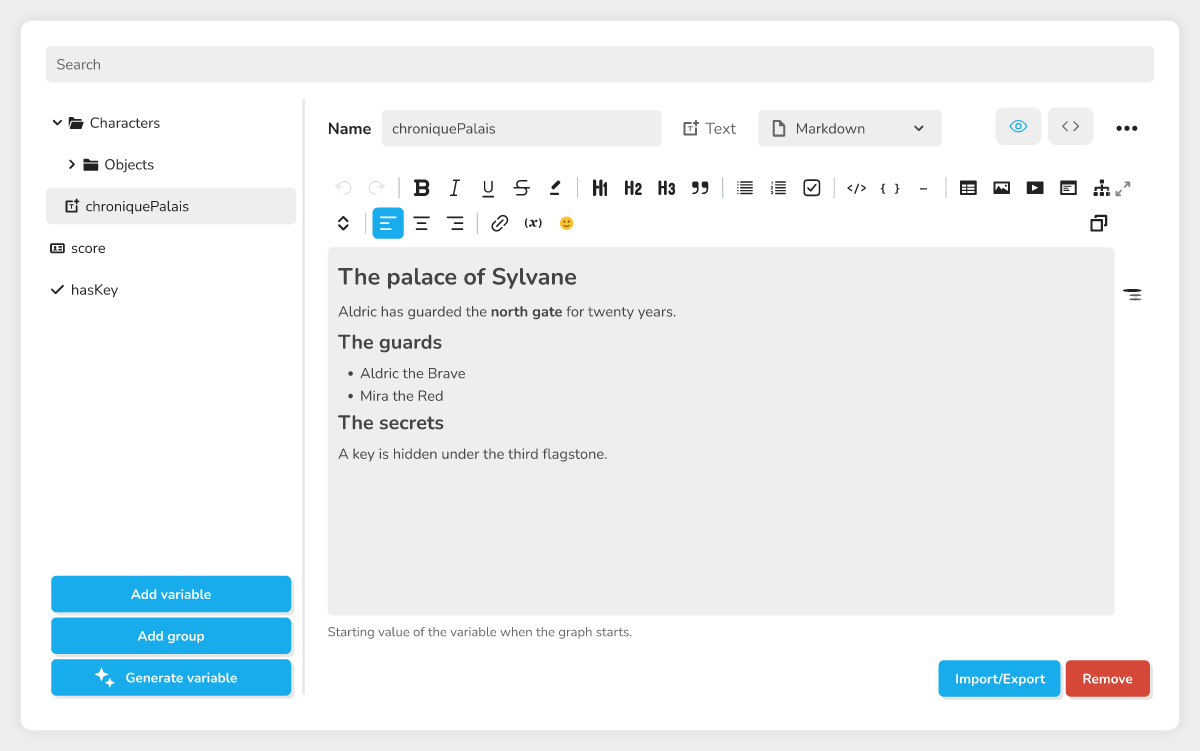
*A Text variable open in the Variables window, in the Visual position, with a heading, a list and some bold text.*
## Write a Markdown text in a variable
A new **Text** variable is always Markdown: there is no switch to turn on. Open the **Variables** window, choose the variable, and write.
The panel has two positions, to the right of the name and the type:
- **Visual**: you edit the text on its rendering, like in a word processor. A small formatting bar appears when you select text (**Bold**, **Italic**, **Underline**, **Strikethrough**, **Highlight**, **Inline code**, **Insert a link**); headings, lists and quotes are added with the `/` menu or the Markdown shortcuts described below;
- **Source**: you see the Markdown as it is written, with a toolbar (**Heading 1** to **Heading 3**, **Quote**, **Bold**, **Italic**, **Strikethrough**, **Code**, **Insert a link**, lists).
What you type in one position is in the other at once, with no loss. In **Visual**, type `/` to open **Insert a block**: headings, lists, **Checklist**, **Quote**, **Code block**, **Divider**, **Table**, **Image**, **Video or sound**, **HTML preview**, **Diagram**, **Collapsible menu** and **Link**. Markdown shortcuts work too: `# ` at the start of a line makes a heading, `- ` a bullet, `1. ` a numbered list, `> ` a quote, and `**bold**` turns bold as soon as you type the last star.
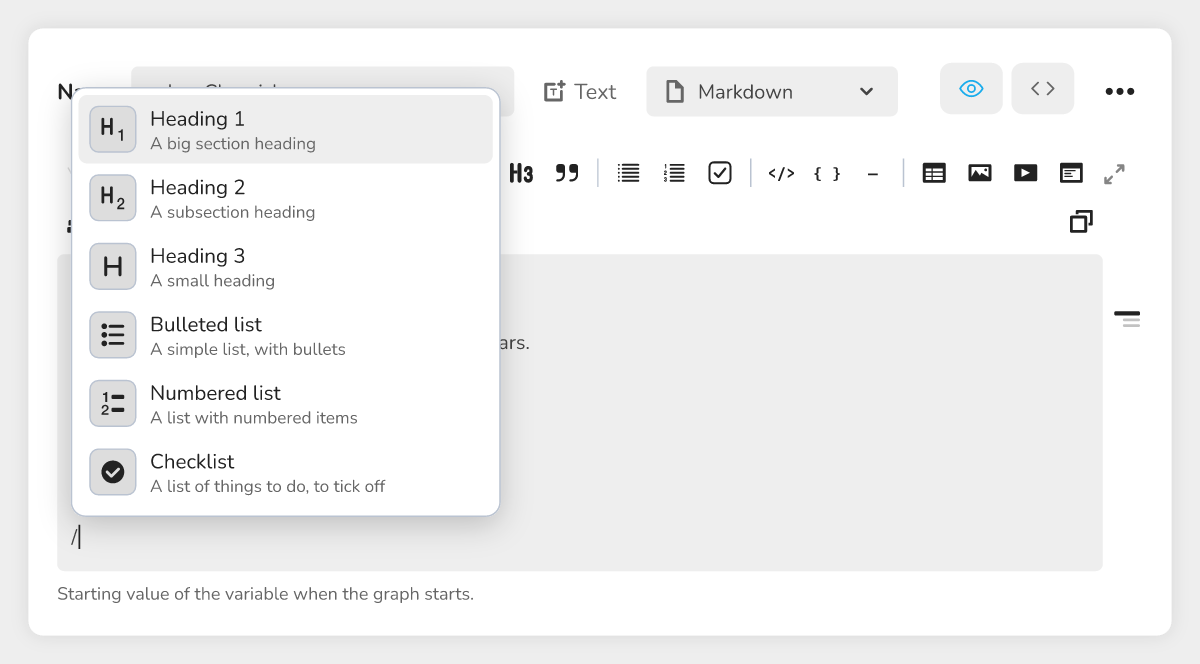
*The "Insert a block" menu open after typing "/".*
If a text holds formatting that the visual editor cannot reproduce without changing it (for example a list inside a quote), a message asks you to edit it in **Source**. When a text has several headings, an outline of the headings appears next to the editor.
> 🔺 **Note:** the **Format** menu (next to the type) recognizes on its own a text that is a CSV table, an SVG drawing, an HTML page or JSON, and then offers a suitable editor. You can force **Text**, **Markdown** or another format instead of **Automatic**.
### A text written before Markdown
An old plain text is shown as it is written, and nothing is changed until you touch it. As soon as you change it in **Visual**, it becomes Markdown: its special characters are protected so that it reads the same. In **Source**, a note "Plain text: it becomes Markdown as soon as it is edited in Visual." reminds you of it.
## What the player sees
A Markdown text is shown formatted when you insert the variable in a text with `{{name}}`, in the **Dialogue**, **Narrator**, **Alert** and **Slide** blocks (Chatbot and Visual Novel), and in the **Notification** block. The **Variable** element of a menu shows it formatted too. A Text variable that is not Markdown is inserted as it is: its `<` or `&` characters are shown as text, never as code.
Variable values are protected the same way inside a Markdown text: they cannot inject HTML.
## Cheat sheet
| To get | Write |
|---|---|
| A heading (three levels) | `# Title`, `## Title`, `### Title` (levels 4 to 6 are shown as level 3) |
| Bold, italic, strikethrough | `**bold**`, `*italic*`, `~~strikethrough~~` |
| Underline, highlight | `text`, `text` |
| A list | `- item` or `1. item`, and `- [ ] task` for a checkbox |
| A quote, a divider | `> quote`, `---` |
| A link | `[text](https://example.com)` (also `mailto:` and `tel:`) |
| An image | `` |
| A video or a sound | `` (mp4, webm, ogv, mp3, wav, ogg, m4a, or a YouTube or Vimeo address) |
| A table | `\| A \| B \|` then `\|---\|---\|` then the rows |
| A centered paragraph | `text
` (or `right`) |
| A collapsible menu | `::: details Title`, the content, then `:::` (`details open` for an open menu) |
Links only accept web, e-mail and phone addresses; an address without `https://` is completed. Any other kind of address is not clickable: only its text is shown. An image must come from an `http` or `https` address (or be a small image written in the text), otherwise its description is shown instead. Add `#cw=50&ca=center` to the address of an image to set its width (25, 50, 75 or 100) and its alignment (`left`, `center`, `right`); the visual editor does it for you. A video never starts by itself.
Code blocks written `html preview` are shown as a page with no script, and those written `mermaid` as a diagram. Any other HTML is shown as text.
## The Format text block
The **Format text** block builds a text from values. Its **format** input is edited with the same editor (**Visual** and **Source** positions), and its text is always Markdown.
1. Write your text and, where you want it, `{{firstname}}`: in the visual editor, the **Variable** command (`/` menu) inserts `{{x}}` and selects the x so you can type the name.
2. An input of the same name appears on the block; under the editor, "Values to fill: {{firstname}}" lists the detected inputs.
3. Connect the values to fill: text, number, boolean, object, selection or date.
The **text** output is a Markdown text. An inserted text that is itself Markdown keeps its formatting; a plain text is protected so it is read as plain text. Connect the output to a display block so the player sees the formatted result.
## Limits
A text of more than 20,000 characters, or crowded with formatting signs, is shown as written, without formatting (message "This text is too long or too heavy in formatting to be rendered").
## See also
- [🟦 Format text](https://documentation.celestory.io/hc/celestorydoc/articles/en-blocks-format-text-6fc966)
- [Injecting a variable into a text](https://documentation.celestory.io/hc/celestorydoc/articles/en-discover-celestory-injecting-a-variable-into-text-double-curly-brac-f1b110)
- [Styling without writing CSS](https://documentation.celestory.io/hc/celestorydoc/articles/en-discover-celestory-styling-without-writing-css-a3805a)
- [Single select and multiple select variables](https://documentation.celestory.io/hc/celestorydoc/articles/1795347784-single-select-and-multiple-select-variables)