
🗄️ Sovereign Database (Baserow)
⬜ Baserow
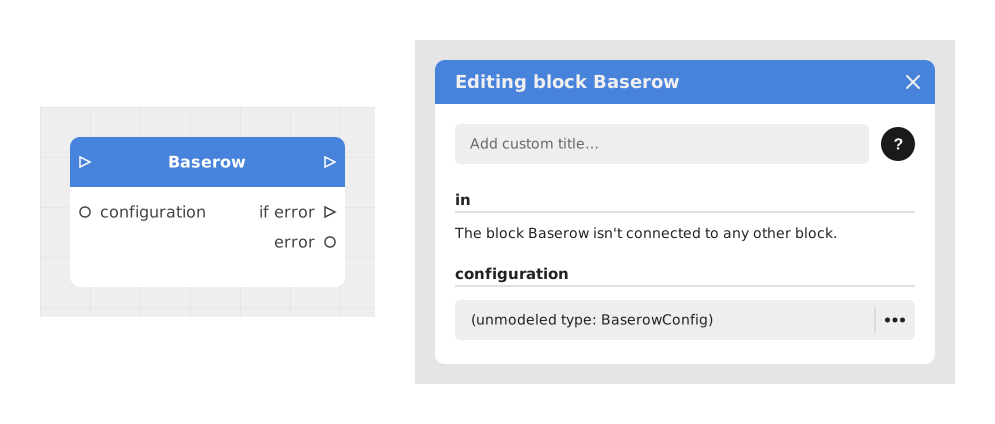
The Baserow block allows you to connect your Celestory project to a Baserow database (a free, open-source alternative to Airtable) to read, modify, add or delete rows in a table.
In practice, this block can create a new row, read an existing one, modify it, delete it, or even upload a file to it (these actions are commonly called "CRUD", for Create/Read/Update/Delete) — much like having Celestory fill in or look up your Baserow spreadsheet on your behalf.
📥 Entries
- in (Trigger): Triggers the execution of the block. Must be linked to a previous block to activate the action.
- config (Object): Main configuration of the block, including:
- Database: The Baserow workspace containing your table.
- Table: The specific table to use.
- Operation: Action to be performed among:
- Read: Retrieves a row (by id, or by a filter on the columns if no id is provided).
- Create: Adds a new row with the values provided.
- Update: Modifies an existing row (requires an id).
- Delete: Deletes a row (requires an id).
- UploadFile: Sends a file to a file-type column of an existing row.
- id (String): Unique identifier of a Baserow row (required for Update, Delete and UploadFile operations; optional for Read).
- filter: [Column Name] (Dynamic, Read only): A filter field appears for each column of the table; it is used to search for a row when no id is provided (every filled-in value must match).
- [Column Names] (Dynamic): Fields corresponding to the columns of your Baserow table, appearing automatically for Create and Update operations (read-only columns, such as computed fields, do not appear). Allow you to define the values to insert or modify.
- [File Field Name] (Dynamic, UploadFile only): A File-type input appears for each "file" column of the table; it receives the file to send.
📤 Outings
- out (Trigger): Activates when the operation with Baserow is successfully completed.
- onError (Trigger): Activates in case of error (connection failed, row not found, etc.).
- error (String): Contains the error message in case of failure.
- id (String): Unique identifier of the created or read row (available after a Create or Read operation).
- [Column Names] (Dynamic, Read only): Outputs corresponding to the columns of your Baserow table, available after a Read operation. For a "collaborator" field, two extra outputs appear automatically ([field].id and [field].name).
- [File Field Name] (Dynamic, UploadFile only): Output containing the uploaded file, once the upload is complete.
💡 Example of use
Scenario: Add a new customer to a Baserow table
- The user fills out a form in the app with the customer's information (name, email, phone).
- The data is validated and sent to the Baserow block.
- The Baserow block is configured as follows:
- Database: MyCRM
- Table: Customers
- Operation: Create
- Name: Dupont (plug in the variable containing the entered name here)
- Email: dupont@example.com
- Phone: +33123456789
- The block sends the request to Baserow and creates a new row in the table.
- The out output is triggered, and the id output contains the identifier of the created row. If it fails (e.g. invalid token), the onError output is activated and error contains the details of the problem.
⚙️ Technical Details
- System requirements: A Baserow API token must be entered beforehand in the Integrations menu of Celestory (along with, if needed, the « Baserow base URL » of a self-hosted instance — defaults to https://api.baserow.io). Without this, the block will not be able to communicate with your database.
- 🔺 Enter this URL without a trailing slash:
https://baserow.example.com/makes the connection fail. The « invalid baserow credentials » message then comes from the Celestory API, even if your credentials are right. - Dynamic variable management: The inputs and outputs corresponding to the columns of your table are generated automatically as soon as you have chosen the Database, the Table and the Operation.
- Limits: The Read operation only ever returns a single row at a time (the first one matching the filters), even without an id — it cannot be used to fetch an entire table in one block. With no id and no filter filled in, the first row of the table is returned.
- Data format: Data types (text, number, boolean, etc.) are automatically mapped between Celestory and Baserow. Make sure the values provided match the types expected by your table.
Documented version: v1
Updated on: 23/09/2026
Thank you!