
⬜ Select file
⬜ Select file
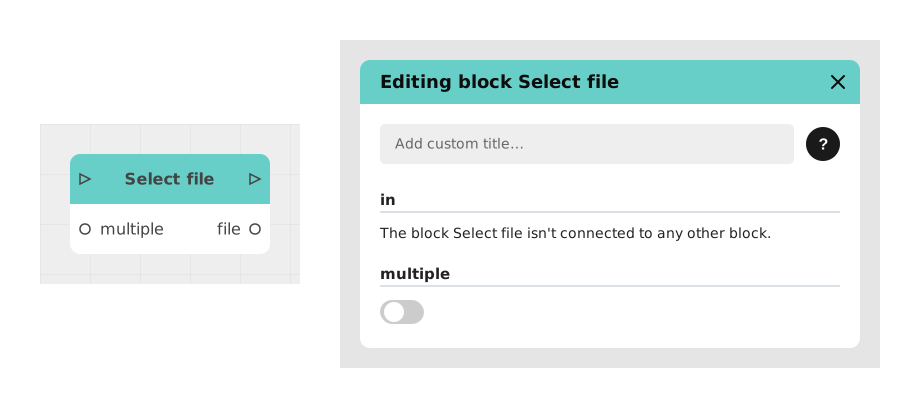
The Select file block allows you to trigger the opening of the device's file picker (browser or native OS) to let the user import one or more files from their device into the Celestory graph.
This block is essential for document import features, such as sending resumes, attachments, backups or media.
📥 Entries
- multiple (Boolean, off by default): turn on to let the user pick several files at once. If off, only one file can be selected.
- No other entry required: the block is activated via the incoming flow and opens the file picker directly.
📤 Outings
- out (Flow): Signal indicating that the selection (and loading) of the file(s) is finished, allowing the flow to continue safely.
- file (File Resource): The file chosen by the user, usable in the graph. Present when "multiple" is off.
- files (List of files): The list of files chosen by the user. Replaces the "file" output when "multiple" is on.
💡 Example of use
Scenario: Importing a user profile photo
- The app displays a screen asking the user to choose a profile photo.
- A "Select Image" button is clicked, triggering the flow to pass to the File Selection block.
- The system file explorer opens, allowing the user to browse and choose a file (eg: profile.jpg).
- Once the file is selected, the block generates the output file containing the resource, and the output out signals the end of the process.
- The flow continues to an image processing block (eg: resizing) or recording in a database.
⚙️ Technical Details
- Security constraints: The block must be triggered by an explicit user action (eg: click on a button) to avoid blocks by browsers or CORS policies.
- Error handling: If the user cancels the selection, the flow can be redirected to an alternative (eg: error message or rollback).
- Multiple selection: Turning "multiple" on also changes the block's output, from "file" (a single file) to "files" (a list of files).
Documented version: v1
Updated on: 23/09/2026
Thank you!