
⬜ Words recognition
⬜ Words recognition
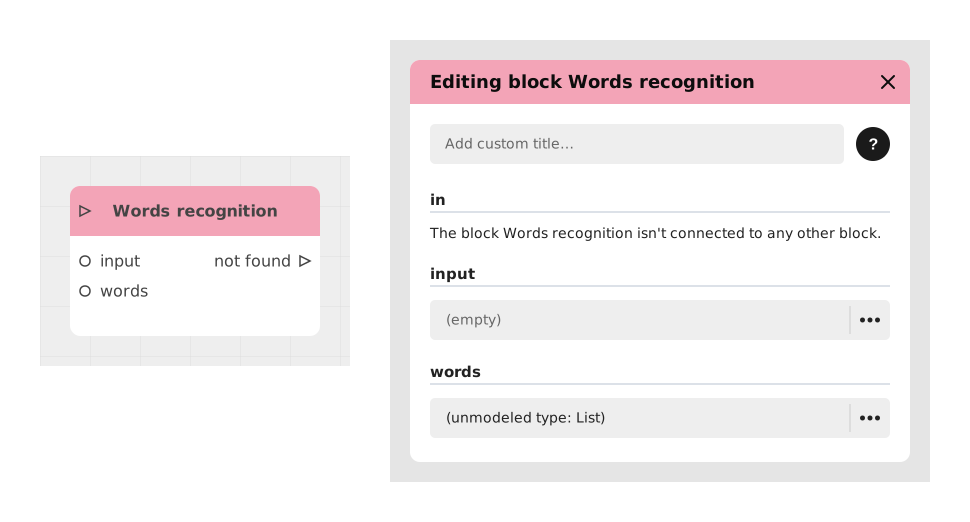
The Word recognition block lets you spot certain words in text typed by the player, and trigger a different action depending on which words are found.
It's very useful for building interactions based on what the player types: for example, answering an open question, or triggering an action based on a typed command.
📥 Inputs
- input (Text): The text to analyze, usually typed by the player (e.g. via a Text entry block).
- words (Tag list, constant): The list of keyword groups to recognize. In each group, put together words that mean the same thing (e.g. "hello", "hi", "hey").
📤 Outputs
- output_name (Flow): Output triggered when the entered text matches one of the keyword groups defined in the words input. One output is created automatically for each group.
- not_found (Flow): Output triggered if the entered text does not match any configured group.
💡 Example of use
Scenario: Simplified voice control for an assistant
- The player is asked to type a command via a Text entry block.
- The typed text is sent to the Word recognition block through the input input.
- In the words input, two groups are created:
- Group 1: "hello", "hi", "hey" → greeting output
- Group 2: "goodbye", "bye" → end_conversation output
- If the player types "hello", the flow goes out through the greeting output and triggers a matching response.
- If the player types "thanks", no group matches: the flow goes out through the not_found output and shows a default message.
⚙️ Technical Details
- Keyword setup:
- A group can contain several words or phrases (one per line, using Shift + Enter).
- All the words in the same group trigger the same output.
- The matching is "fuzzy": it tolerates small typos or variations in what the player types.
- Connection needed: This block needs a text source as input (eg: Text entry, Variable, API).
Documented version: v1
Updated on: 23/09/2026
Thank you!