
🟦 Notification
🟦 Notification
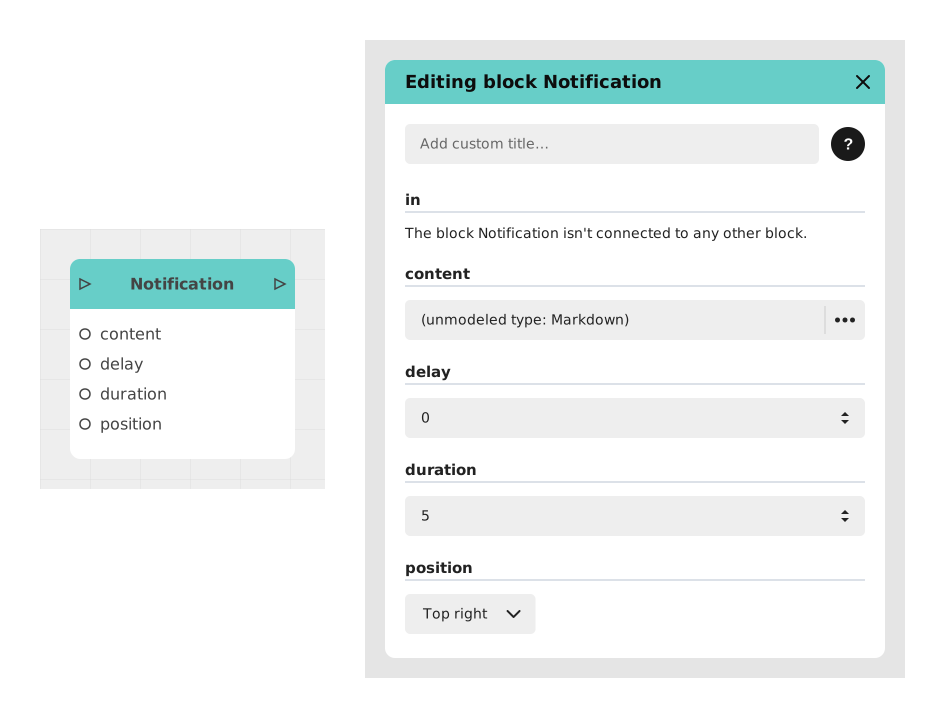
The Notification block allows you to notify the user of an event without interrupting their experience or requiring interaction. It displays a brief message or icon on the screen, which automatically disappears after a set time.
This block is ideal for communicating statuses ("Success", "Saving in progress"), confirmations ("Object found") or contextual advice ("Hint: Use this button").
📥 Entries
- in (Flow): Entry point triggering the display of the notification.
- content (Rich text or Image): The content shown in the notification — formatted text, or an image.
- delay (Number, default 0): Delay (in seconds) before the notification appears after it is triggered.
- duration (Number, default 5): Duration (in seconds) during which the notification remains visible.
- position (Dropdown, default "Top right"): Where it appears on screen, chosen from 9 positions (top / middle / bottom, combined with left / center / right).
- Automatic extra inputs: if the content text contains a tag like {{score}}, an extra input named score appears automatically so you can plug in the value to display at that spot in the text.
📤 Outings
- out (Flux): Output point activated immediately after the display instruction (does not depend on delay or duration).
💡 Example of use
Scenario: Autosave confirmation
- The user fills out a form in an application.
- The system detects a modification and triggers an automatic save.
- The flow activates the Notification block with the text "Backup completed".
- Notification is configured with:
- duration = 1.5 seconds
- position = Bottom right
- The notification appears briefly at the bottom right of the screen while the user continues typing.
⚙️ Technical Details
- Localization: The content field uses Celestory's localization system to make translation easier.
- 🔺 Valid variable names: only unaccented letters, digits and the underscore (a-z, A-Z, 0-9, _) are recognized. A name containing an accent, a hyphen or a space ({{Prénom}}, {{my-score}}, {{FirstName}}) is not detected: no entry is created, no error message appears, and the placeholder is displayed as-is on screen. Case matters: {{firstname}} and {{FirstName}} are two distinct entries.
- Flexibility: The 9 available positions let you make notifications discreet (screen corner) or more prominent (center), depending on your needs.
- Continuous flow: The out output is activated immediately, allowing a smooth sequence of actions without waiting for the display to end.
Documented version: v1
Updated on: 23/09/2026
Thank you!