
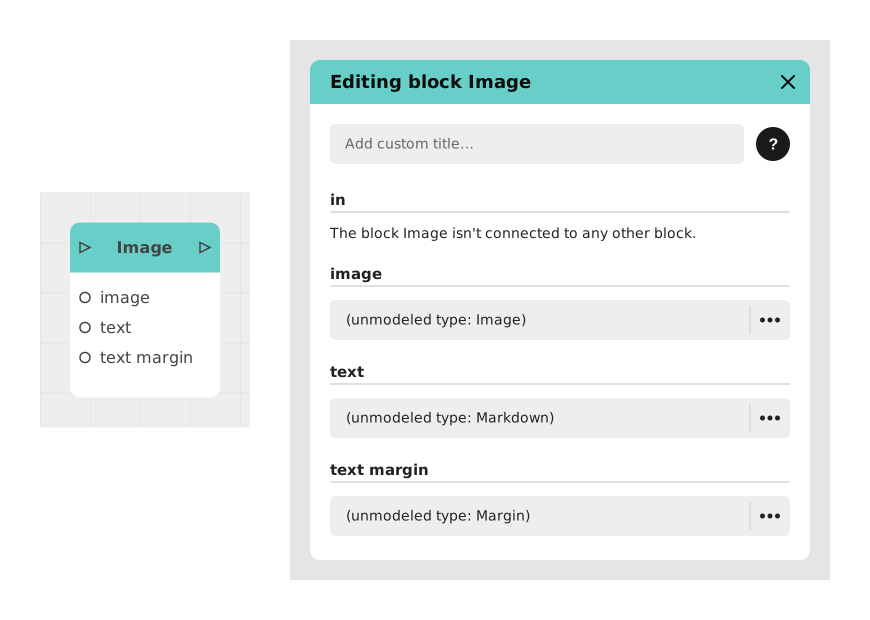
The Image block allows you to display a simple image in the flow of your application or chatbot, generally accompanied by optional descriptive text. Ideal for illustrating an object, a photo or an illustration important to the user.
📥 Entries
- image (Image): The visual media file to display on the screen (JPG, PNG, etc. formats).
- text (Markdown Text): Formatted text accompanying the image (caption, narrative context). Supports bold, italics, etc.
- margin: Spacing around the image (top, bottom, left, right) for better visual rendering. Defaults to 0.
📤 Outings
- out (Stream): Activates to move to the next block as soon as the image is displayed on the screen.
💡 Example of use
Scenario: Presentation of a product in an e-commerce chatbot
- User asks for details about a specific product.
- The chatbot retrieves product information via an API.
- The Image block is used to display the product photo with a descriptive caption.
- The image is displayed with Markdown text: "New 2024 model – Available in 3 colors".
- The flow continues to a choice block to add the product to cart or return to the list.
⚙️ Technical Details
- Format management: Supports static images (JPG, PNG, non-animated GIF). For animations, use a dedicated block.
- Optimization: Images are automatically resized to fit the user interface without distortion.
Documented version: v1