
📦 Create your SCORM export for your LMS
The Scorm tab of the "Publish project" window generates a package ready to import into your LMS, in the standard of your choice: SCORM 1.2, SCORM 2004, cmi5 or xAPI (Tin Can). Your story becomes a tracked training module: the LMS records each learner's score, success and completion.
What you need
- A Pro plan or higher. With a lower plan, the "Upgrade" button replaces the "Export" button.
- An LMS compatible with the chosen standard. For cmi5 and xAPI, the LMS must provide an LRS (see Create your cmi5 export for an LMS and Create your xAPI export for an LRS).
Export with four settings
Open the Publish window, choose the Scorm tab, then set:
- Module title: the name shown in the LMS. Leave empty to use the project name.
- Standard: SCORM 1.2 (the widest LMS compatibility), SCORM 2004 (finer completion tracking), cmi5 or xAPI (Tin Can) (the modern standards, which send results to an LRS).
- Pass mark (%): the minimum score, from 0 to 100 (70 by default), the learner must reach for the module to be considered passed. It is written into the package for SCORM 1.2, SCORM 2004 and cmi5.
- Mark the module as completed at the end of the story: off by default. When the story reaches its end, the LMS receives the "Completed" status, unless a Send to LMS block has already sent "Passed", "Failed" or "Completed". Without this option or a block, the LMS never sees the module as completed.
Then click Export and import the resulting package into your LMS.
Send the score and success: the Send to LMS block
The score and progress come from the Send to LMS blocks placed in your graph, whatever the standard: you choose where the result is sent (end of a quiz, last scene...). This block sends a score converted to a percentage and a status (Passed, Failed, Completed, In progress). It only acts in a module exported from this tab and launched from an LMS: in the preview and in the other exports, it is ignored without any error.
Depending on the standard, the pass mark behaves as follows:
- SCORM 2004: the LMS compares the block's score with the export's pass mark.
- SCORM 1.2, cmi5 and xAPI: the "Passed" or "Failed" status chosen in the block is kept first (some SCORM 1.2 LMSs recompute it from the pass mark).
What has been tested
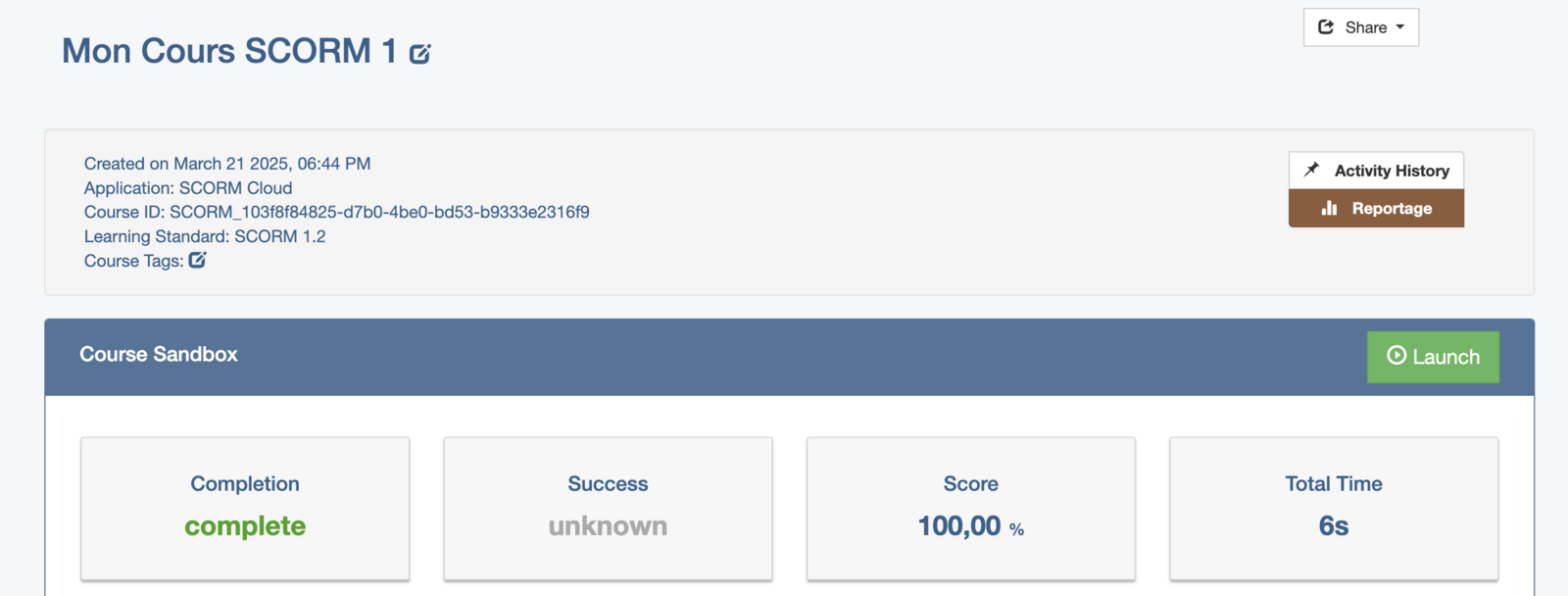
A test module sending a score of 85% with the "Passed" status was imported and launched on SCORM Cloud in all four standards (SCORM 1.2, SCORM 2004, cmi5 and xAPI): the LMS showed completion, success and the 85% score. In xAPI, the initialized, passed and completed statements did arrive in the SCORM Cloud LRS.
Other LMSs have not been tested. The package only lists its entry page in its manifest: SCORM Cloud accepts it, but a stricter LMS might reject it. Import it into a test environment before deploying it to your learners.
What the SCORM format does not do
- It is an exported format hosted by the LMS: you must recreate and reimport it each time you update your project.
- It does not provide granular tracking of the learner. For that, use Celestory analytics (make sure your module's host allows the sending of statistics).
- It does not take into account variables (boolean, numeric, text...), which are a powerful tool for creating simulations. You must use Voltask to retrieve them (local installation possible).
Test your package on SCORM Cloud
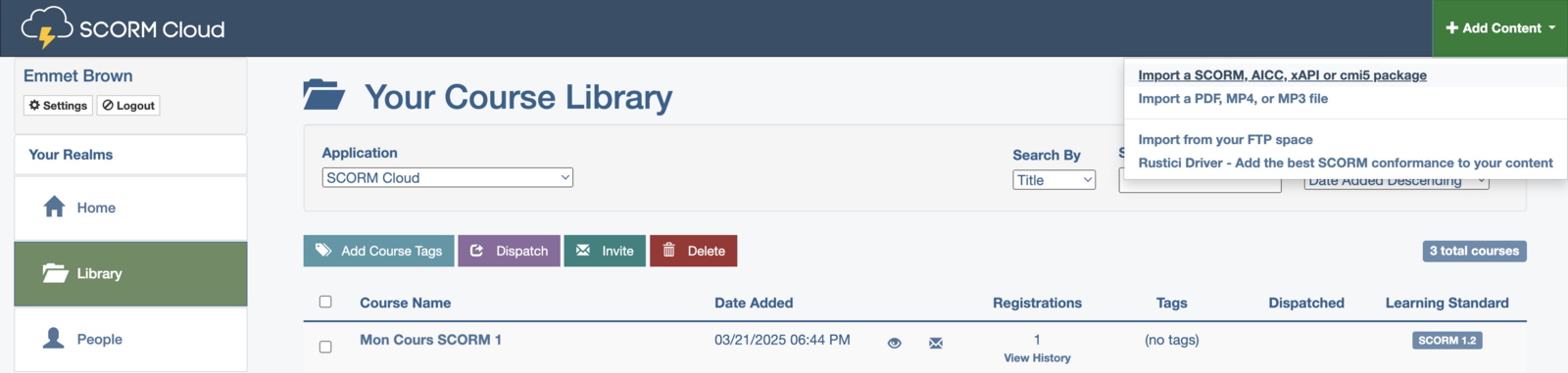
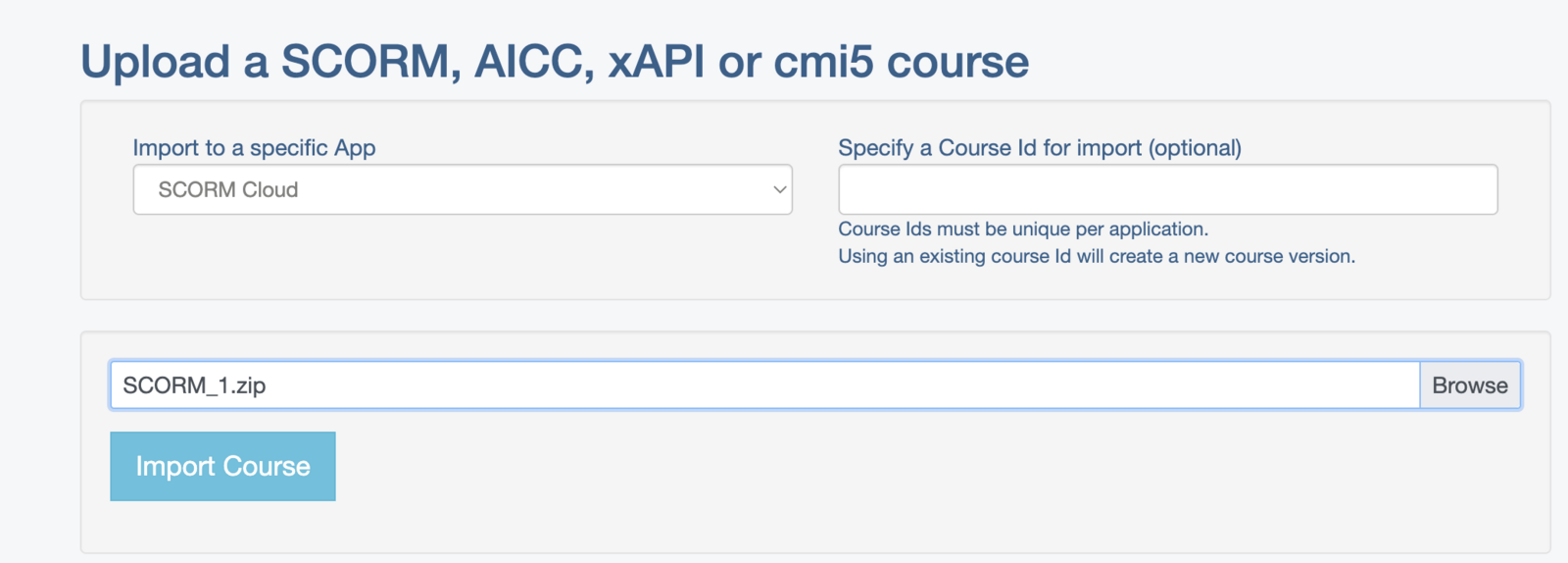
You can try your package on a test site like https://app.cloud.scorm.com/sc/user/Home: import it, click Launch, then finish the module in the new tab that opens.
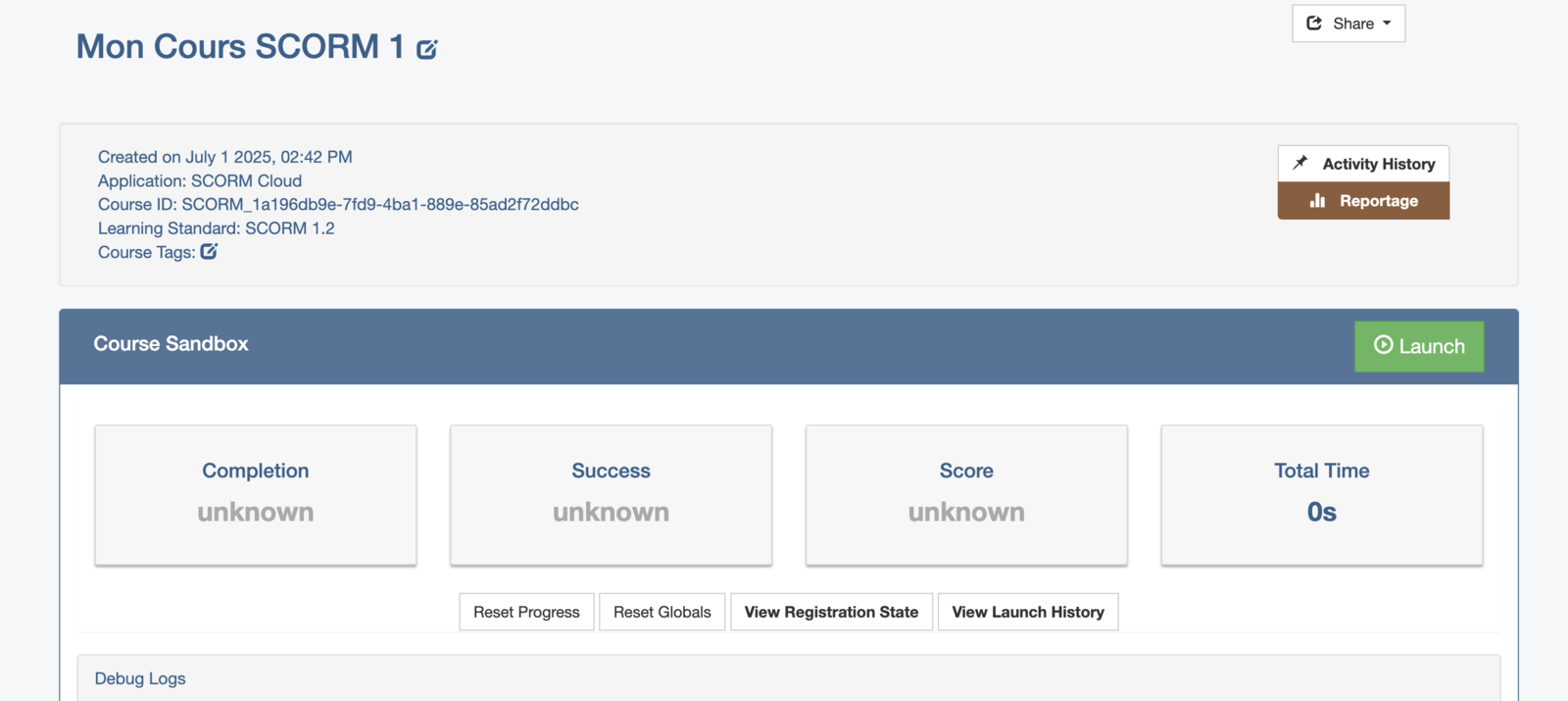
When launching the SCORM test, a new tab appears. Complete the module there so it can close automatically.
Manual method (advanced)
⚠️ This method builds the package by hand from a Web or PWA export, with JavaScript blocks. It is no longer needed with the Scorm tab, which does it for you: do not use it on top of an export from the Scorm tab, since the blocks below replace the API provided by the export. It remains useful if you need a custom manifest.
You can use the sample graph here: https://creator.celestory.io/project/RJ38Dg_qg Only blocks starting with SCORM should be added wherever you want in your graph.
1. Add Javascript Blocks to Trigger SCORM Tracking
Start by copy-pasting the contents of each Javascript block you create: SCORM API
function SCORM_ScanParentsForApi(win)
{
    /*
    Establish an outrageously high maximum number of
    parent windows that we are will to search as a
    safe guard against an infinite loop. This is
    probably not strictly necessary, but different
    browsers can do funny things with undefined objects.
    */
    var MAX_PARENTS_TO_SEARCH = 500;
    var nParentsSearched = 0;

    /*
    Search each parent window until we either:
         -find the API,
         -encounter a window with no parent (parent is null
                or the same as the current window)
         -or, have reached our maximum nesting threshold
    */
    while ( (win.API == null || win.API === undefined) &&
            (win.parent != null) && (win.parent != win) &&
            (nParentsSearched <= MAX_PARENTS_TO_SEARCH)
          )
    {

        nParentsSearched++;
        win = win.parent;
    }

    /*
    If the API doesn't exist in the window we stopped looping on,
    then this will return null.
    */
    return win.API;
}

function SCORM_GetAPI()
{
    var API = null;

    //Search all the parents of the current window if there are any
    if ((window.parent != null) && (window.parent != window))
    {
        API = SCORM_ScanParentsForApi(window.parent);
    }

    /*
    If we didn't find the API in this window's chain of parents,
    then search all the parents of the opener window if there is one
    */
    if ((API == null) && (window.top.opener != null))
    {
        API = SCORM_ScanParentsForApi(window.top.opener);
    }

    return API;
}

window.API = SCORM_GetAPI()
SCORM: Initialize Session + Step 0
const step = 0

//const candidate = celestoryPoints._get("candidate", "")

//const startTime = celestoryPoints._get("date", 0) //YYYY-MM-DDThh:mm:ss.mmmmZ
//const spentTime = new Date() - new Date(start) // float in days ? seconds ?

API.LMSInitialize("")

API.LMSSetValue("cmi.core.lesson_status", "incomplete");
API.LMSSetValue("cmi.core.score.raw", step);   // Saves the user's score
API.LMSCommit("");   // Saves the data
SCORM: Step 1
const step = 70

console.log("raw score to "+step);
API.LMSSetValue("cmi.core.score.raw", step);   // Saves the user's score
API.LMSCommit("");   // Saves the data
Note: You can add as many steps as you like by duplicating the "SCORM: Step 1" block and specifying the percentage reached. The default is 70%, but you can add intermediate steps (e.g., 10%, 20%, 50%).
SCORM: Step 2 + Complete
const step = 100

console.log("raw score to "+step);
API.LMSSetValue("cmi.core.score.raw", step);

console.log("complete course");
API.LMSSetValue("cmi.core.lesson_status", "completed");

API.LMSCommit("");   // Saves the data
SCORM: Finish Session
console.log("Course finished, window closed");
API.LMSFinish("");   // Ends the SCORM session
2. Export your project in Web or PWA format
3. Unzip the downloaded ZIP file (e.g., SCORM_1.zip)
4. Create a folder in the unzipped directory titled nameofthescormmodule (e.g., module1), and move all content inside
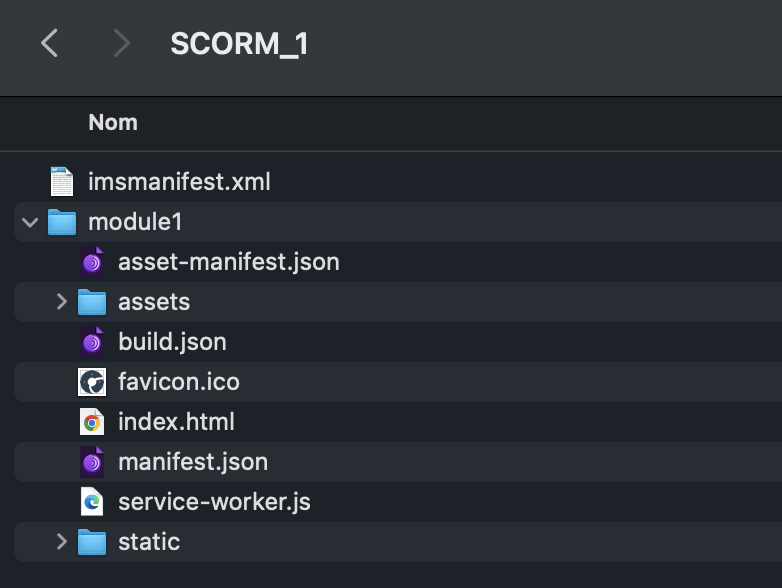
5. Download this XML file imsmanifest.xml and add it to your parent folder.
6. Compress your parent SCORM_1 folder into a ZIP file
Here is an example ZIP file: