Example projects to open, study and reuse.
Explains how to use Google's Gemini with Voltask through the httpRequest block: get an API key from Google AI, put the generateContent URL with the key in the URL section, choose the model and format the request.
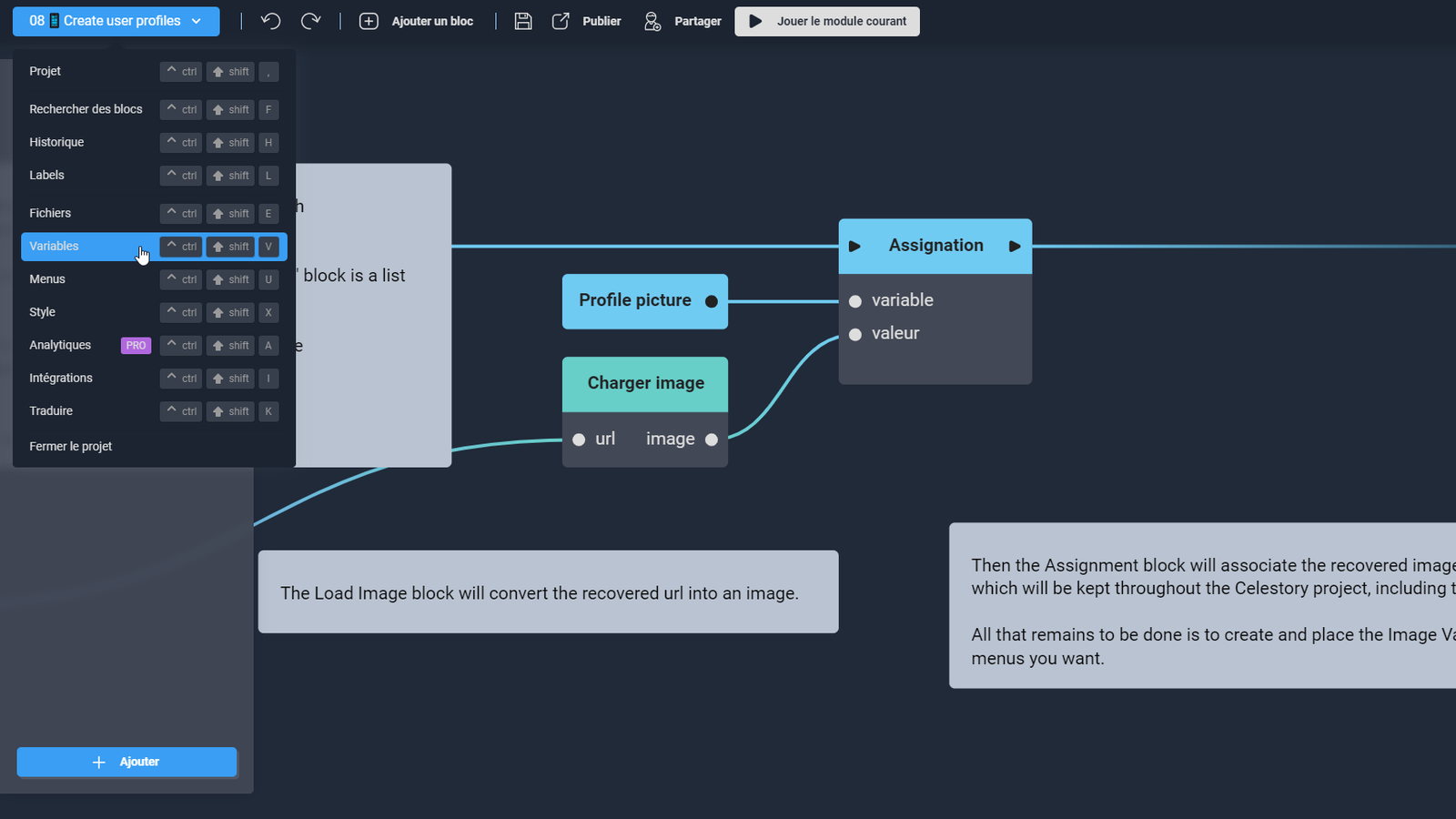
Explains Image variables, which store an image as a project file or a URL. Create one from the main menu under Variables, Add a variable, type Image; display it through a menu layout element or assign a URL from the graph.
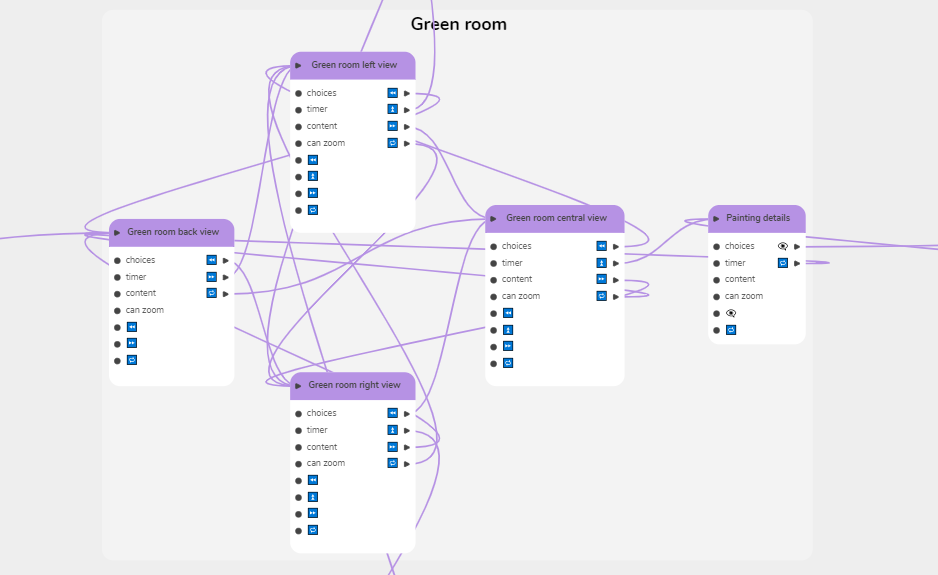
Explains how to build a virtual tour: photos of each view go into Illustrated choice blocks (Display plus Choice), grouped by zone like a plan, with Increment blocks to measure the behavior of virtual visitors.
Explains how to build a learner sheet, an overlay menu showing completion percentage, module validation and the learner profile, from numeric variables. Create one Module per chapter, sub-graphs and variables to measure.
Explains how to use Claude with Voltask: get an API key, set the HTTP Request block (POST to api.anthropic.com/v1/messages with body and headers), then extract Claude's JSON response in Celestory.
Explains how to use Gork, the AI, with the X (twitter) API: requests go through that API, which requires an API key identifying who is using Gork. The article covers generating the key and setting up the API in Celestory.
Serious game example: to start a staging with characters and backgrounds, create a Background block, double-click it, then choose Images and pick a file. Each module of each project has a default background, changeable in Module settings.
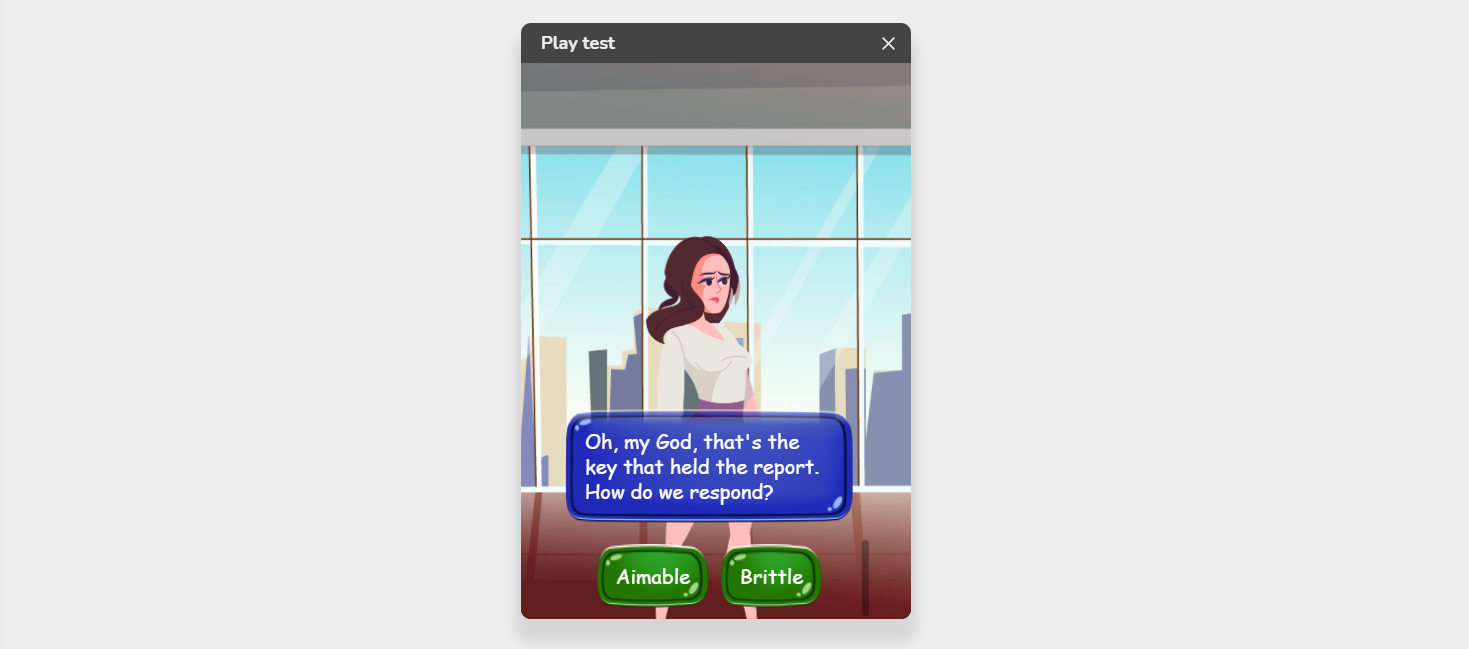
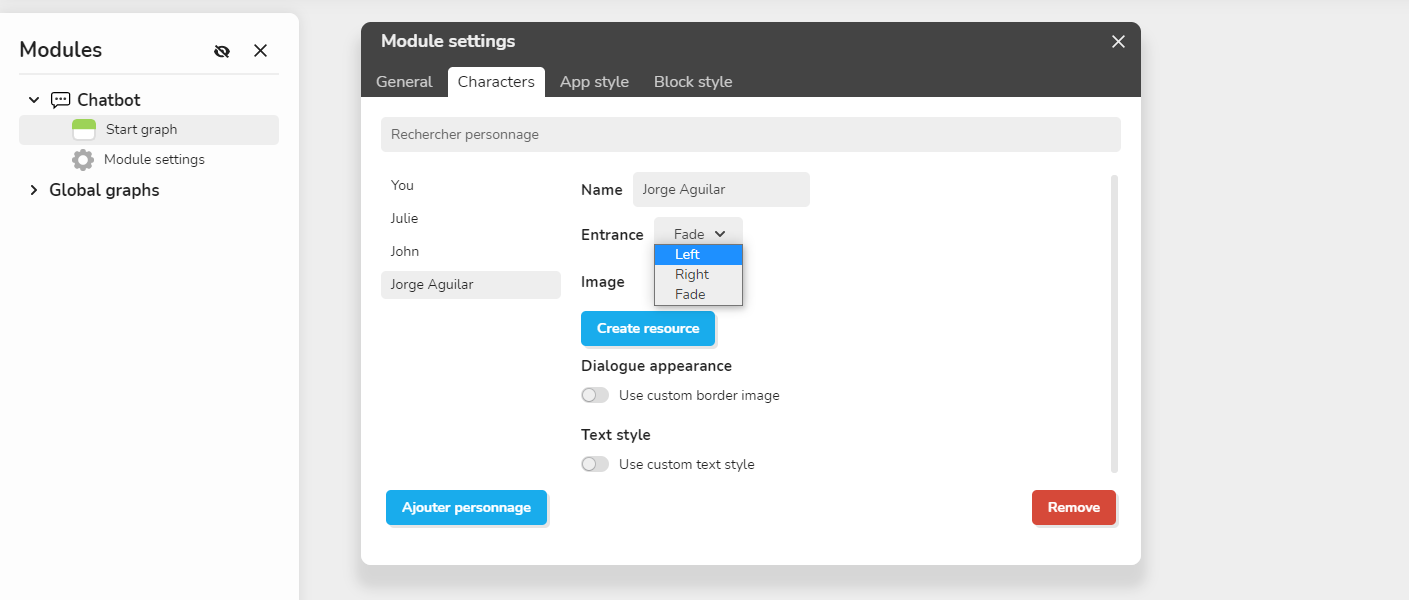
Explains the Character menu in Module settings/Characters, where you modify or create characters from a ready-made library. Rename them to find them easily, since you type their name in the text box of the Dialog blocks to make them appear.
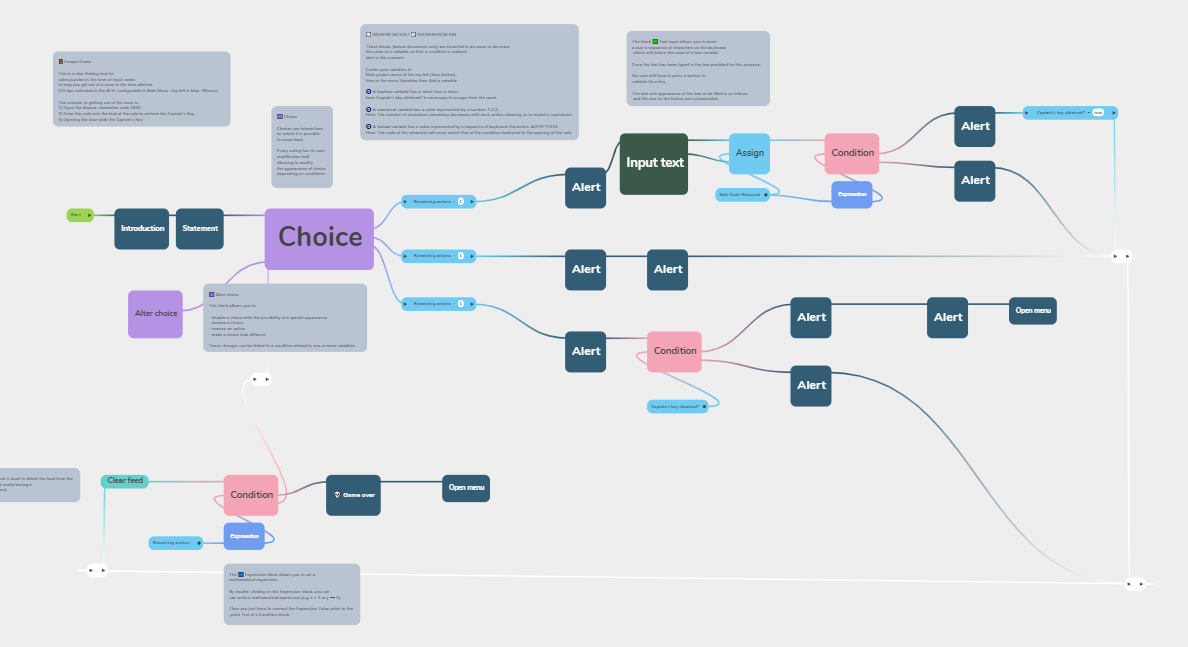
Escape game example: a clue-finding test where the player solves puzzles by entering codes to get out of a room in the allotted time (10 laps shown in the ATH, configurable in Main Menu/Menus). The article gives the solution path of the example.
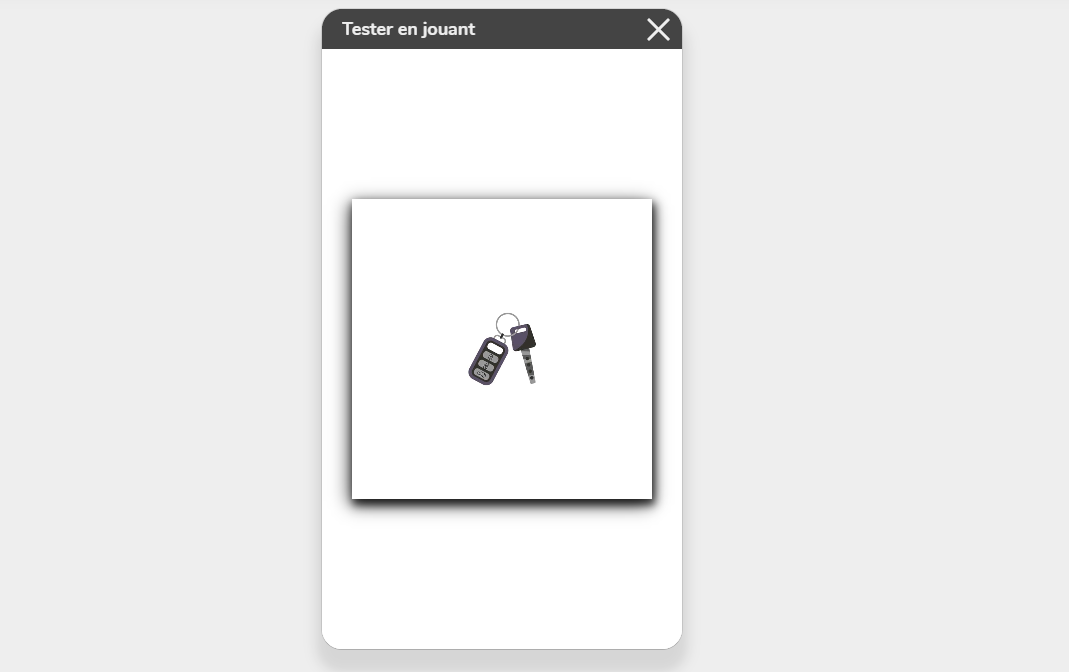
Flash card example using an image and notion memory association technique, where Car Key is paired with Tumbler and their images. It also notes that the CSS block can center the choices and, more generally, modify the design of the module template.
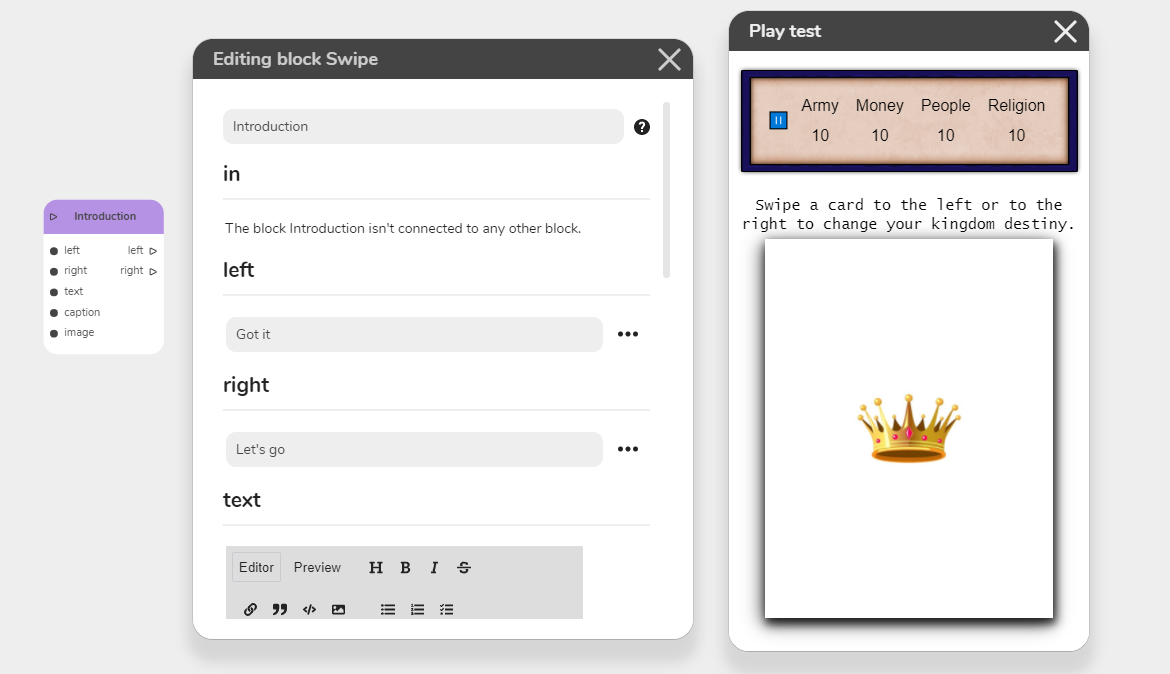
Card game example: the purple Swipe block displays a card the user swipes left or right, each way with a different outcome, like Tinder. A deck lets you build a classic 52-card deck or narrative card games from limited images and text.
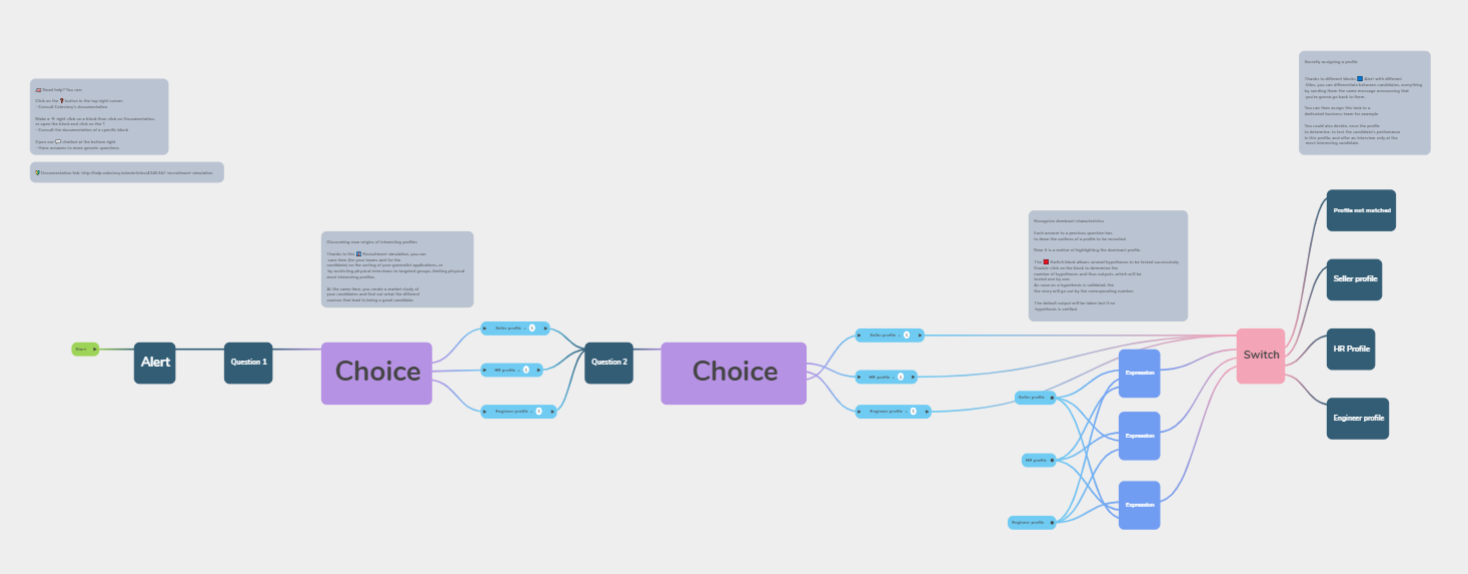
Presents a recruitment simulation example and its advantages: attracting more candidates with an interactive simulation of the position, running virtual interviews to save management time, discovering matching behavioural profiles, and retaining the best candidates.
Explains how to set up payments with the Stripe API. You need a Stripe account and products to sell, plus two other pieces of information from Stripe to gather before configuring Celestory.
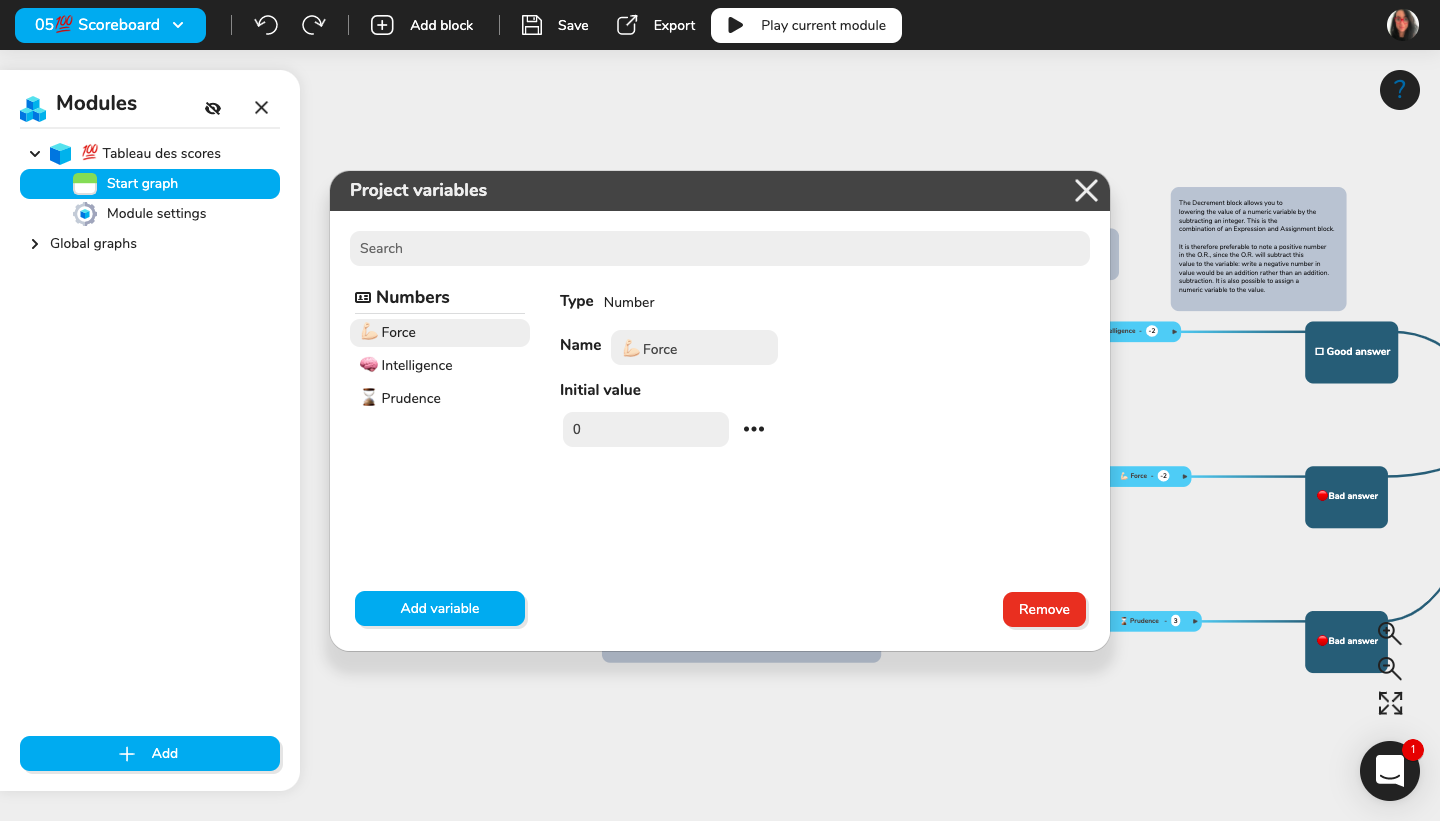
Explains how to build a scoreboard: a block text area where variables are replaced by their value when the flow reaches the block. Create the variables in the Main Menu first; the Alert block suits a simple bubble, the Image block a pictorial background.
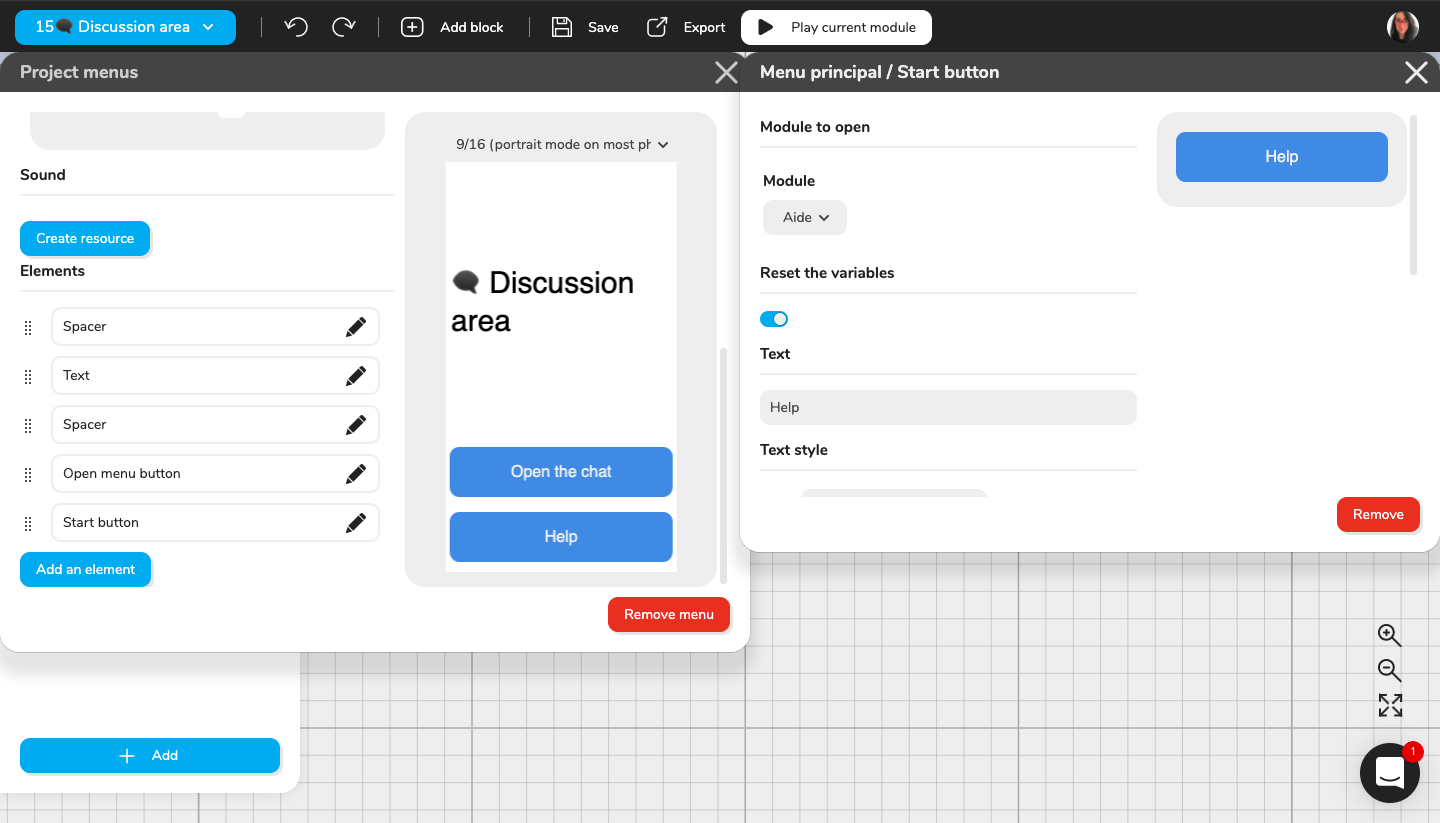
Shows how to create a discussion area by creating a menu, with a Start button titled Help linking from the main menu to the start graph of your start module. In that graph you can then create an automated bot.
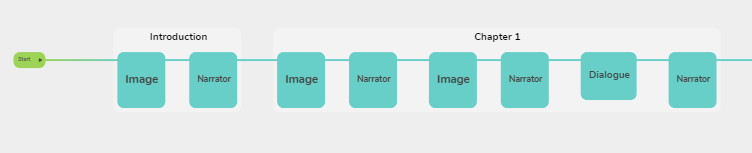
Explains how to build an enriched reading experience close to an ebook, using the Narrator block to control text animations and the Image block for images. The text is displayed as it scrolls, with content grouped in different parts.