Collect the player's answer: text, number, microphone, camera, file.
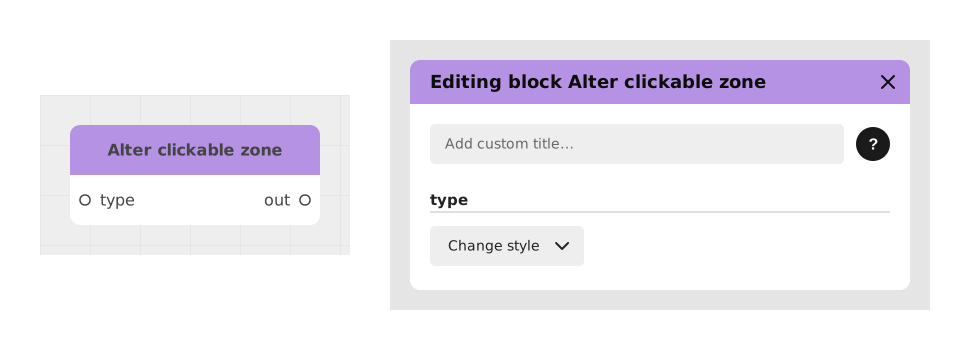
Explains the Alter clickable zone block, which dynamically changes the state, appearance or activation of a clickable area in a visual block. It is designed for transparent areas laid over images, like Alter choice for buttons.
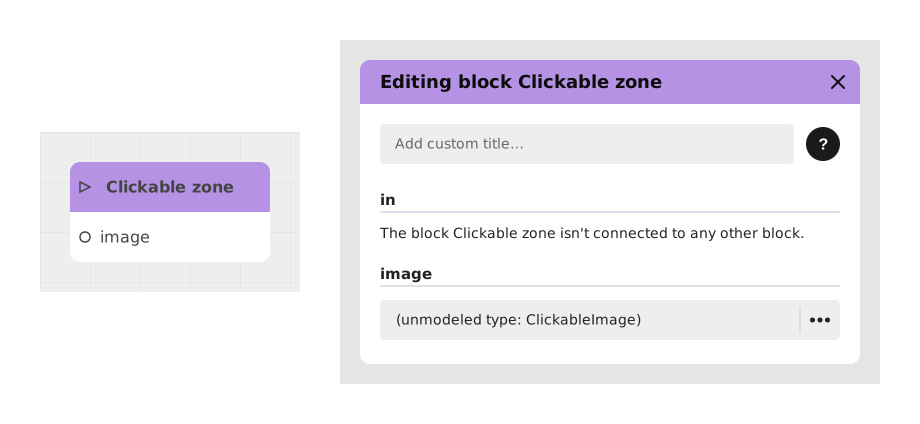
Explains the Clickable zone block, which turns an image into several invisible buttons by marking out areas on it. Suited to a custom illustrated menu or a Point and Click game, with nothing to code.
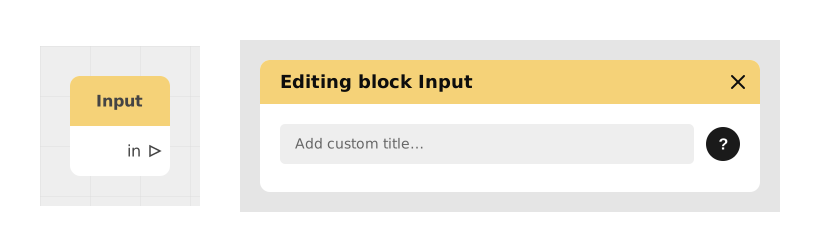
Explains the Input block, which shows a small field where the user types information directly inside the Celestory interface, without a separate window. It blends into the scene, for example in a chatbot-style conversation.
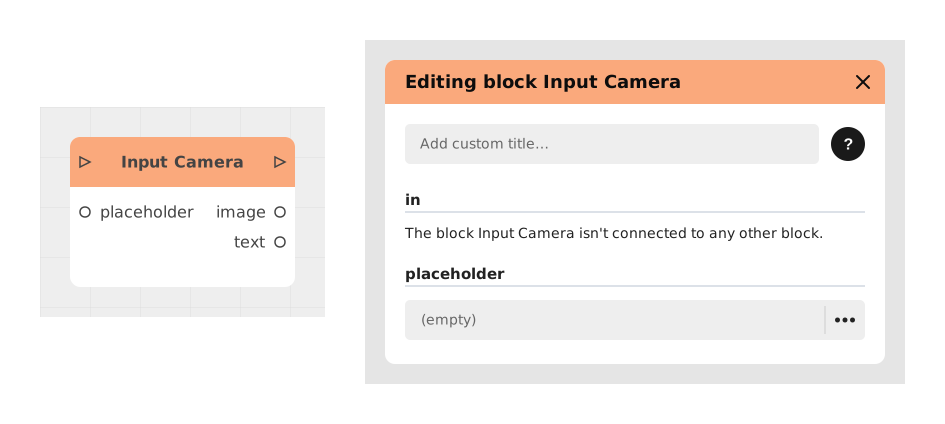
Explains the Input Camera block, which lets the player take a photo with their device camera directly inside the story, with no coding. It takes a placeholder text as input and is reserved for Business subscriptions.
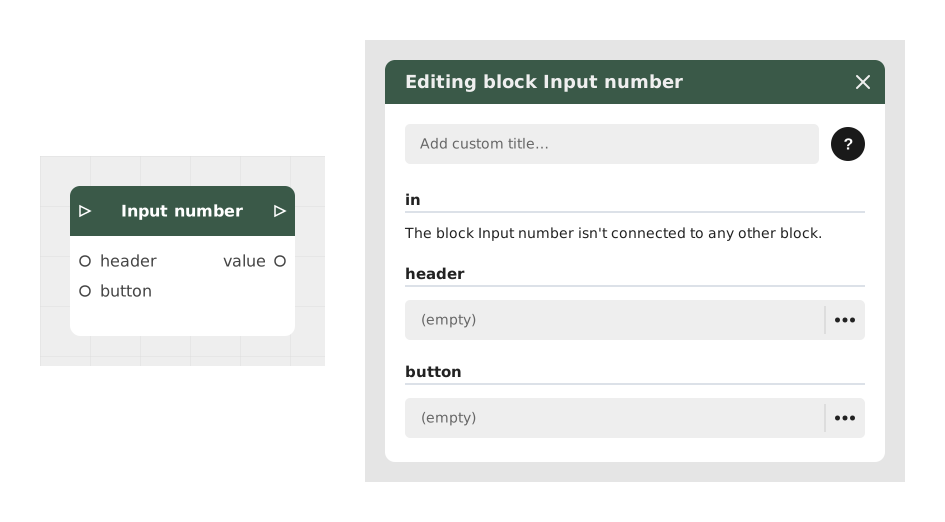
Explains the Input number block, which asks the player for a number in a simple field, for a calculation, a bet, a setting or an age. The numeric keyboard appears on mobile; inputs include a header and a button text (default OK).
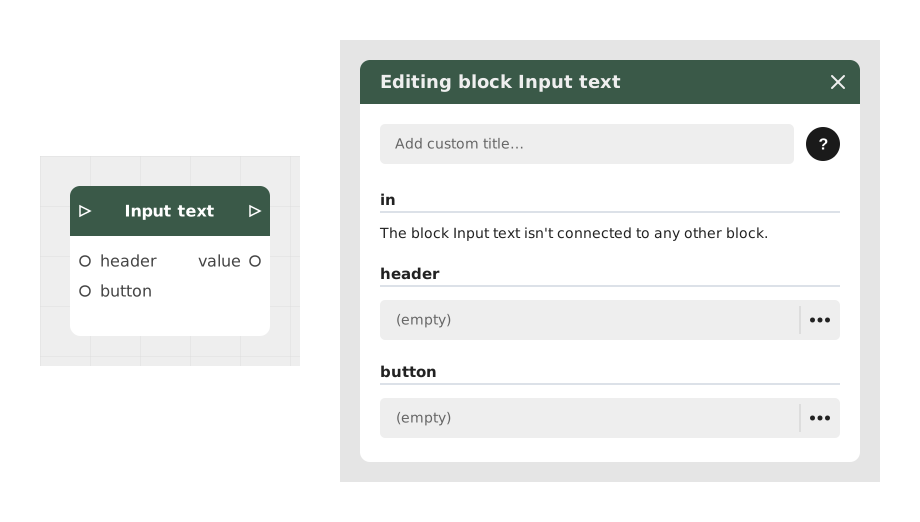
Explains the Input text block, which lets the player type text for a dialogue, a riddle or a sign-up, then reuse it in the story, for example to show the player's name. Inputs include a header and a button text (default OK).
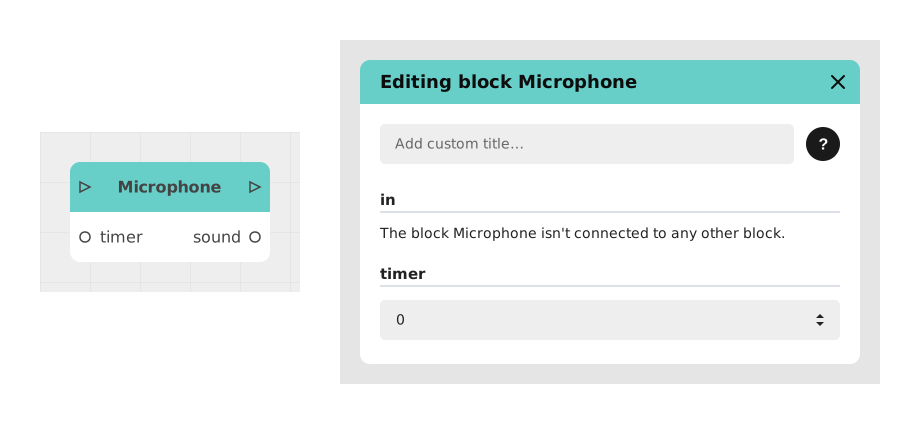
Explains the Microphone block, which records the user's voice or sound through their device microphone. It is available in the Chatbot and Visual Novel templates, and the user is asked to allow microphone access before recording.
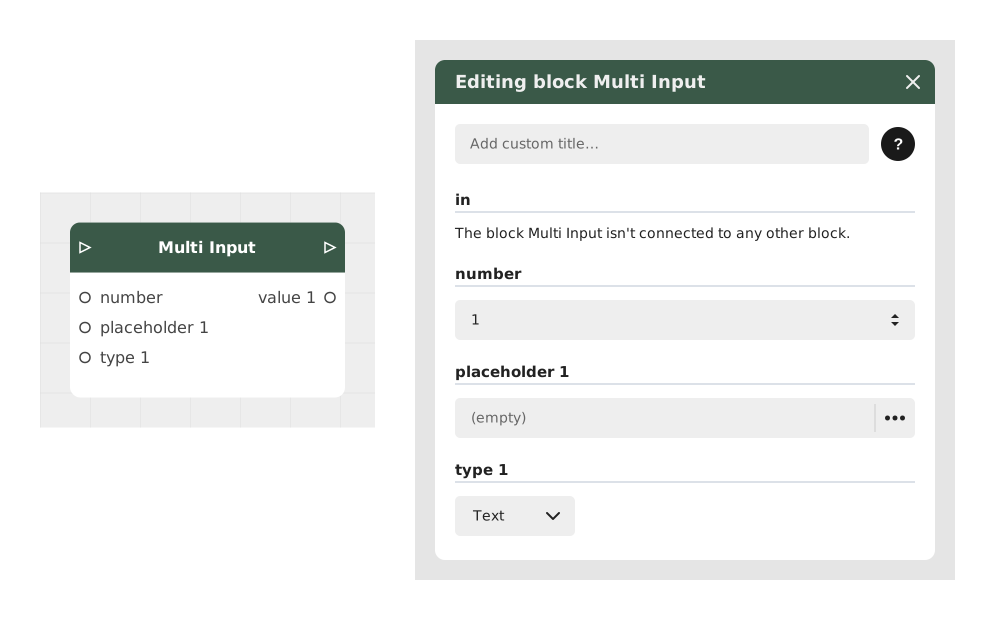
Explains the Multi Input block, which shows several input fields in one form instead of asking for each piece of information in turn. Handy for sign-ups, profiles or questionnaires; the count input sets the number of fields (default 1).
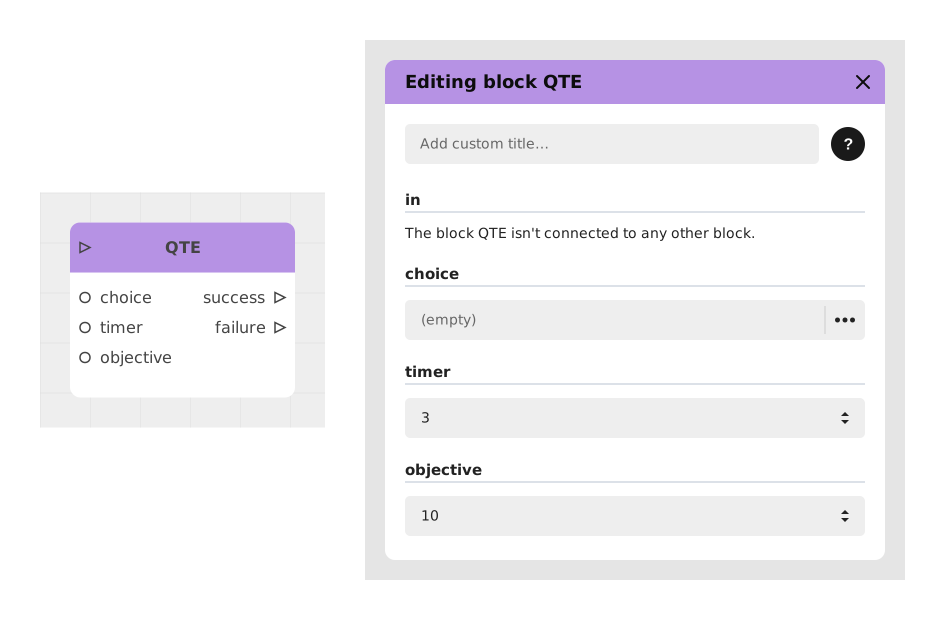
Explains the QTE block (Quick Time Event), a fast timed challenge where the user must act quickly, for example by tapping the screen several times, before a timer runs out or they fail. Suited to tense situations like a fight.
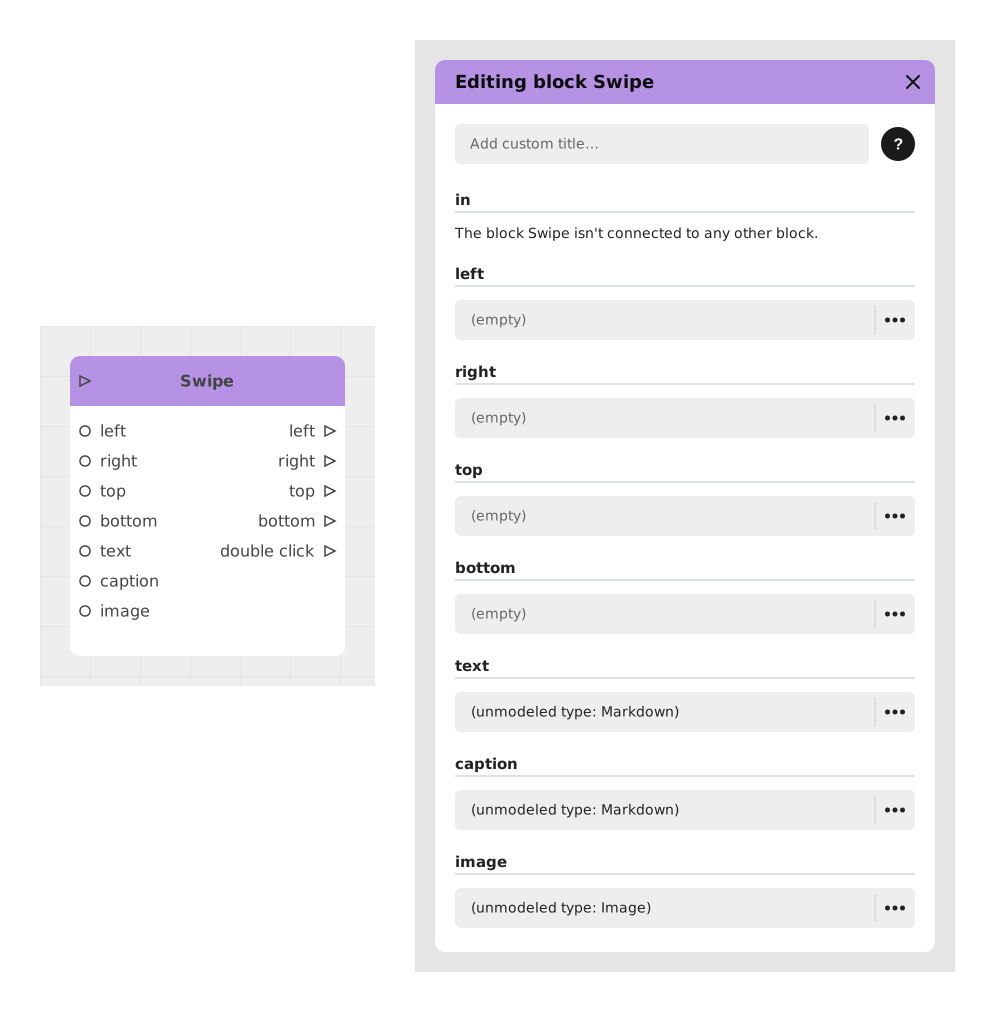
Explains the Swipe block, which displays a card interface (Tinder or Reigns style) where the player decides by swiping left, right, up or down. Its text input holds the main body shown on the card.
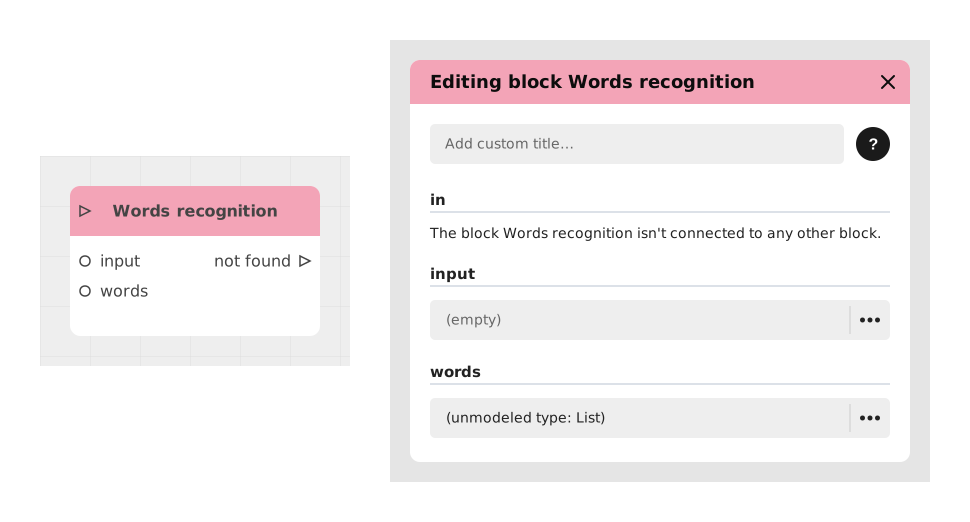
Presents the Words recognition block, which spots keywords in text typed by the player. Inputs: input and words (keyword groups); one Flow output is created per group, plus not found when no group matches.
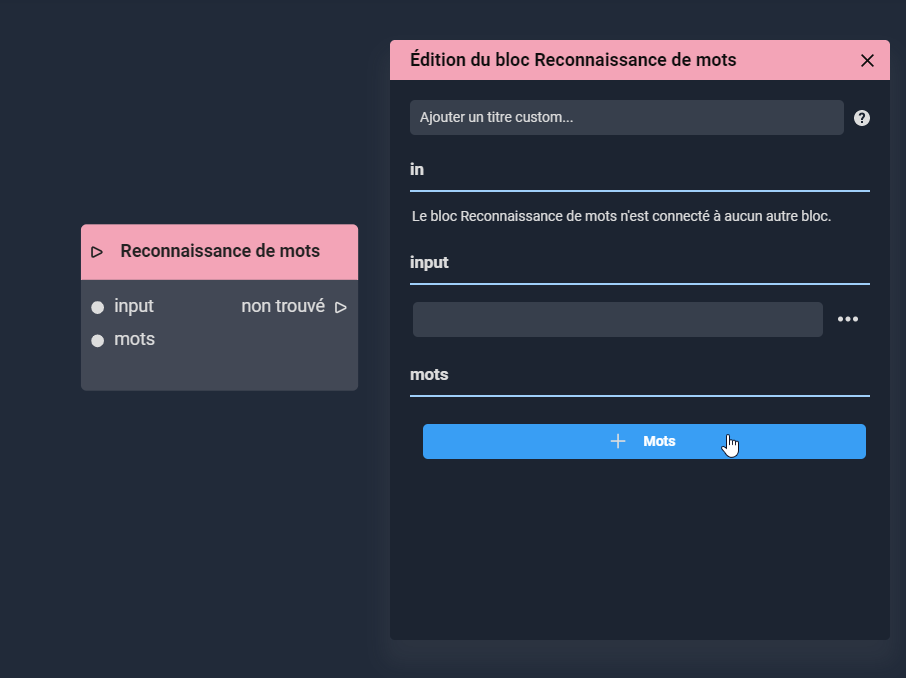
Describes the Word recognition block, which recognizes text expressions and, coupled with a Text input block, the text typed by the user. The Words button adds expressions, and several can be put in one field using Shift + Enter between them.