Open menus, modules and graphs to structure the project.
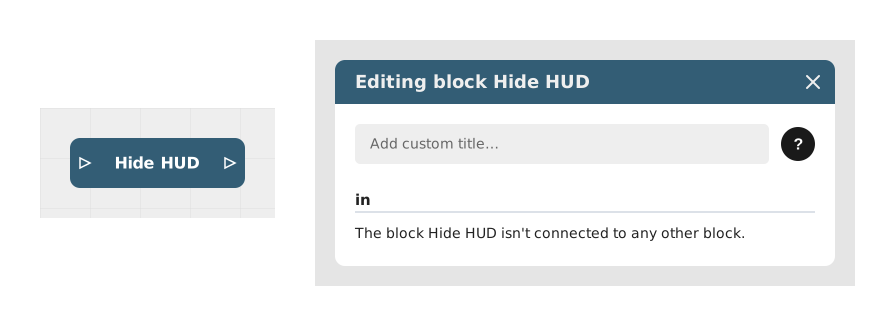
Explains the Hide HUD block, which temporarily or permanently hides the user interface (HUD) of a module, such as menus and navigation buttons. Useful for cutscenes, scene changes or moments needing focus on the visual content.
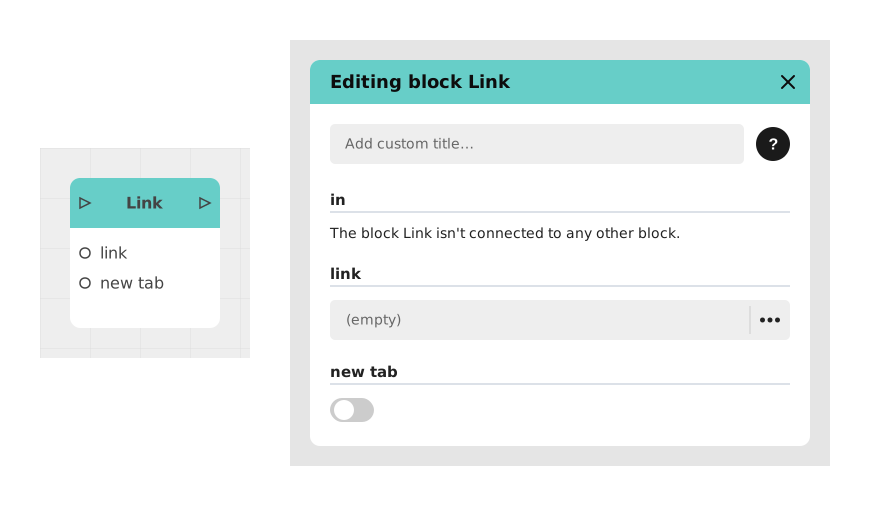
Explains the Link block, which instantly redirects the user to an external web page from a Celestory application. Inputs include the link (full URL) and a newTab Boolean; useful for a corporate site, a payment page or a PDF.
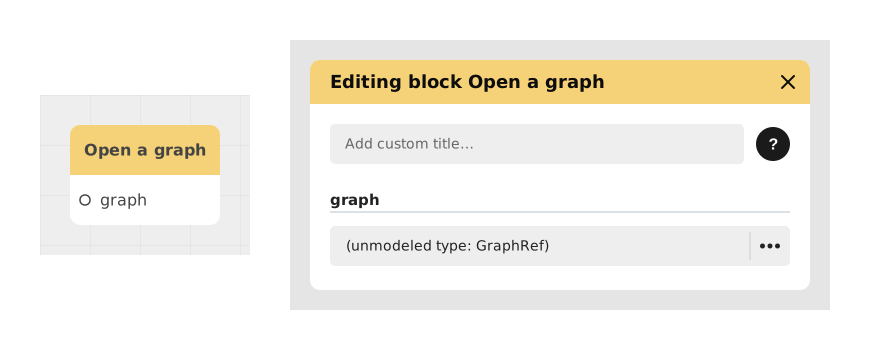
Explains the Open a graph block, which jumps into another graph of the project, like opening a chapter and coming back afterwards. It keeps a project tidy by splitting logic into smaller graphs called from one another.
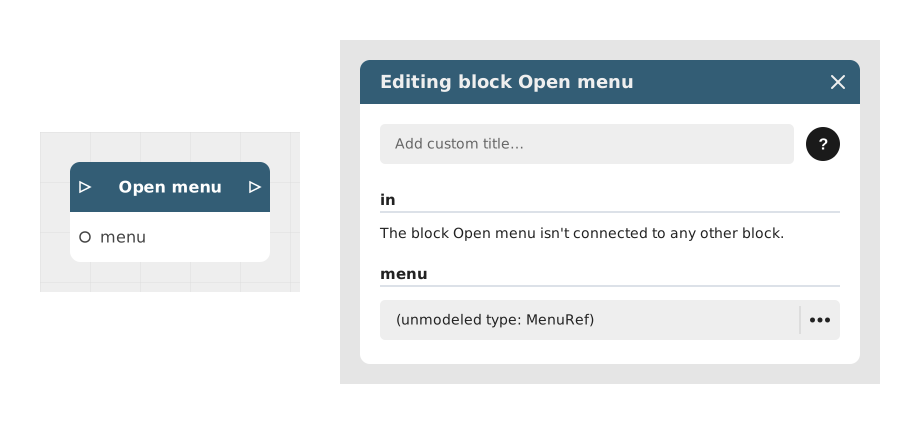
Explains the Open menu block, which displays a preconfigured menu interface in a Celestory project, such as a main menu, an inventory or a custom popup, without interrupting the main flow of the experience.
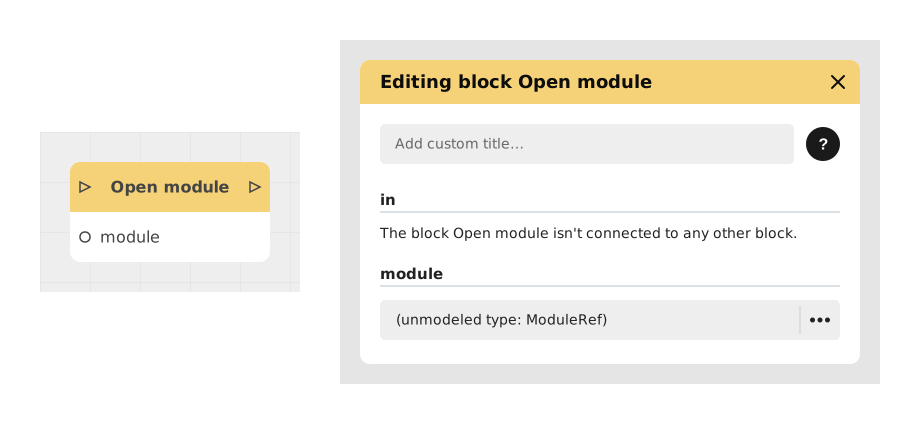
Explains the Open module block, which navigates to the top level of the project tree and changes the Application Module altogether. Modules are often disconnected scenes, such as a Main Menu, a Level 1 or an Evaluation phase.
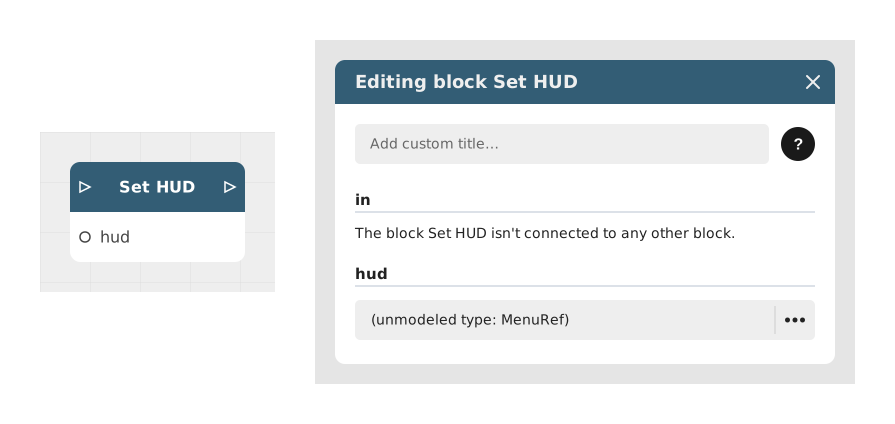
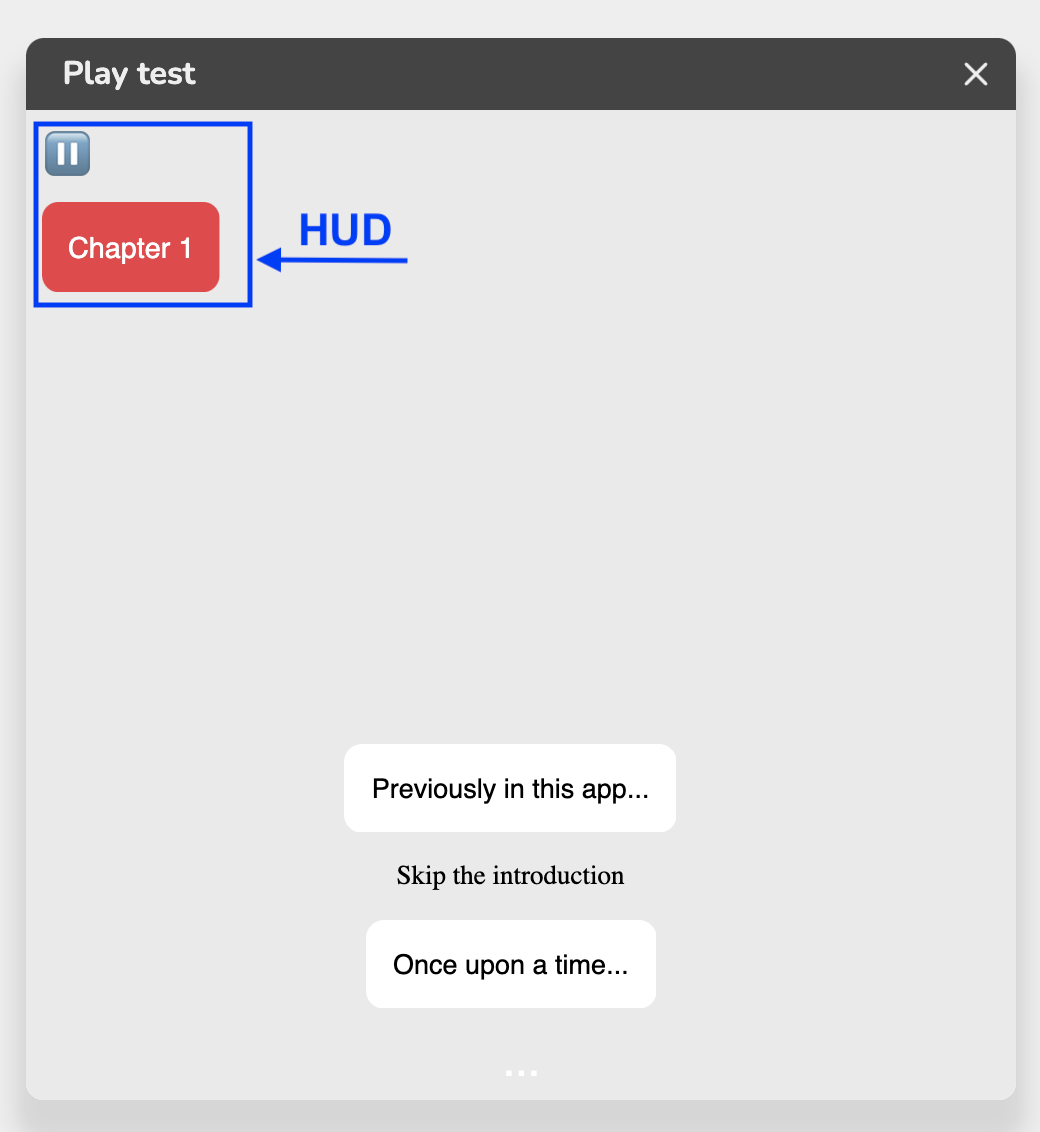
Explains the Set HUD block, which displays a HUD (permanent interface such as a health bar or score counter) over the current scene. The HUD must first be created in the Menus section as a menu of type HUD; the block picks which one to show.
Explains the Set HUD block, which shows a persistent menu at the top of the screen. Create a menu of type HUD from the Blue Menu, add its items, then display it with Set HUD until a Hide HUD block removes it.