Images, videos, music and sound effects.
Explains the Load media from URL block, which retrieves an image, video or sound hosted on the internet through its URL, without storing it locally. Useful for external or regularly updated content that would weigh down the project.
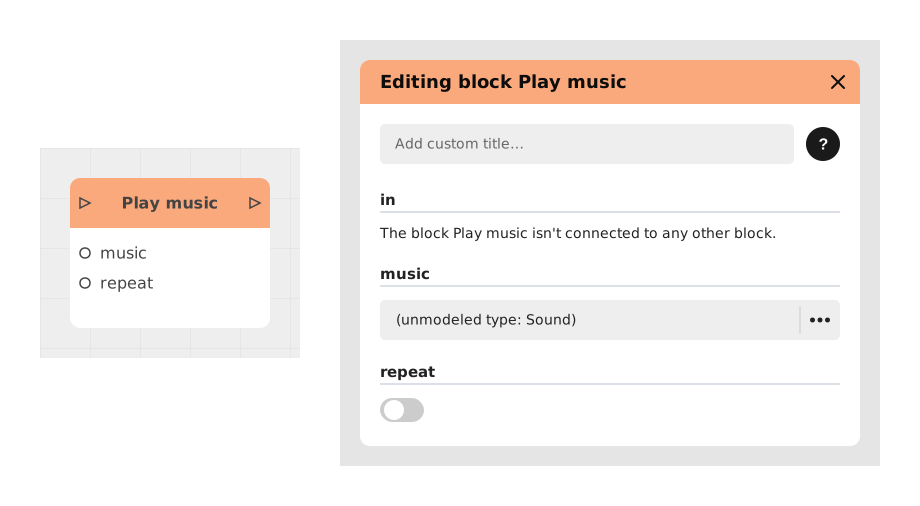
Explains the Play music block, which launches an audio track (mp3, wav) in the background, with an optional auto-repeat. Unlike Play sound, designed for one-off effects, it suits background music and continuous loops.
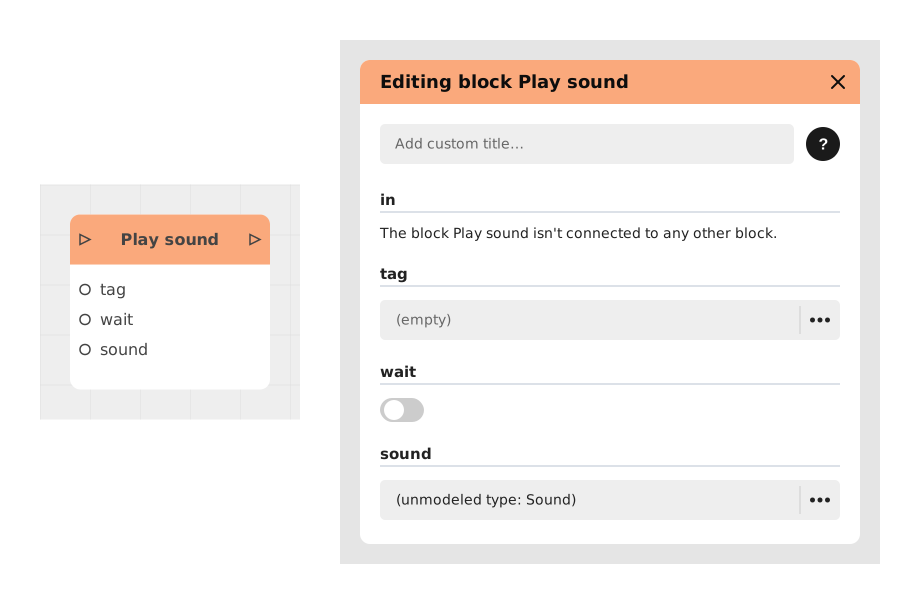
Explains the Play sound block, which triggers a one-off sound effect, noise or voiceover. Options let the flow wait until the sound ends, and a tag lets you stop it later with the Stop sound block.
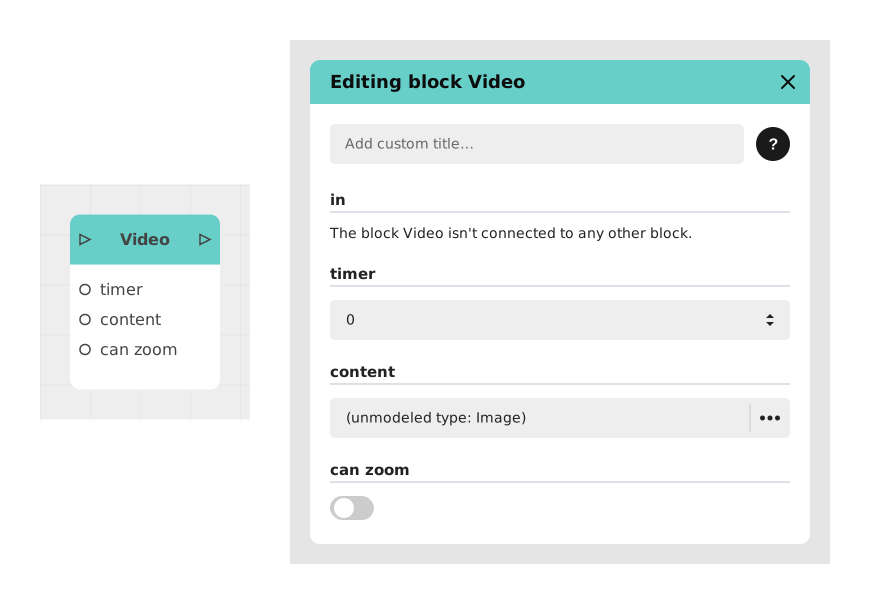
Explains the Video Display block, which shows an image or video imported in the project's resources in full screen, for cutscenes, tutorials or introductions. It pauses interactivity, then resumes when the video ends.
Explains the Video from URL block, which uses a video hosted on another site by giving its web address, instead of importing it. The app stays lighter, and replacing the video on the server updates it in the project automatically.
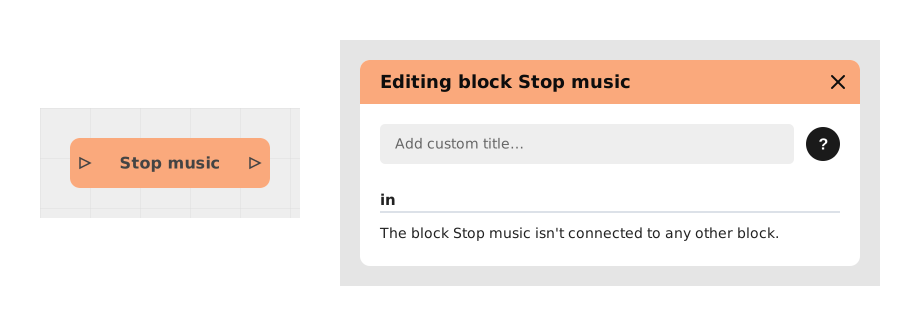
Presents the Stop music block, which immediately stops the background music playing, with no parameter to set. Input: the incoming flow; output: out. Example: end the forest ambiance before a battle scene.
Presents the Stop sound block, which stops a sound launched with Play sound by targeting it through its tag. Input: tag (Text), which must match exactly; output: out. Example: cancel a confirmation sound.
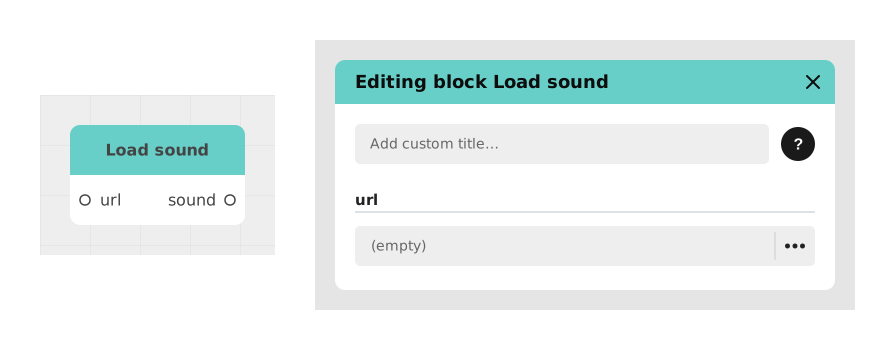
Presents the Load sound block, which fetches a sound from a URL for use without importing it into the project. Input: url (Text); output: sound, ready for Play music or Play sound. Useful for regularly updated audio.
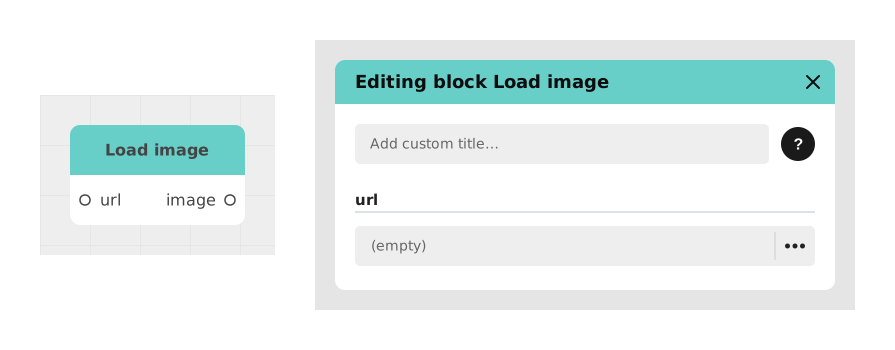
Presents the Load image block, which fetches an image from a URL for use without importing it into the project. Input: url (Text); output: image, ready for an Image or Background block. Useful for images updated regularly.
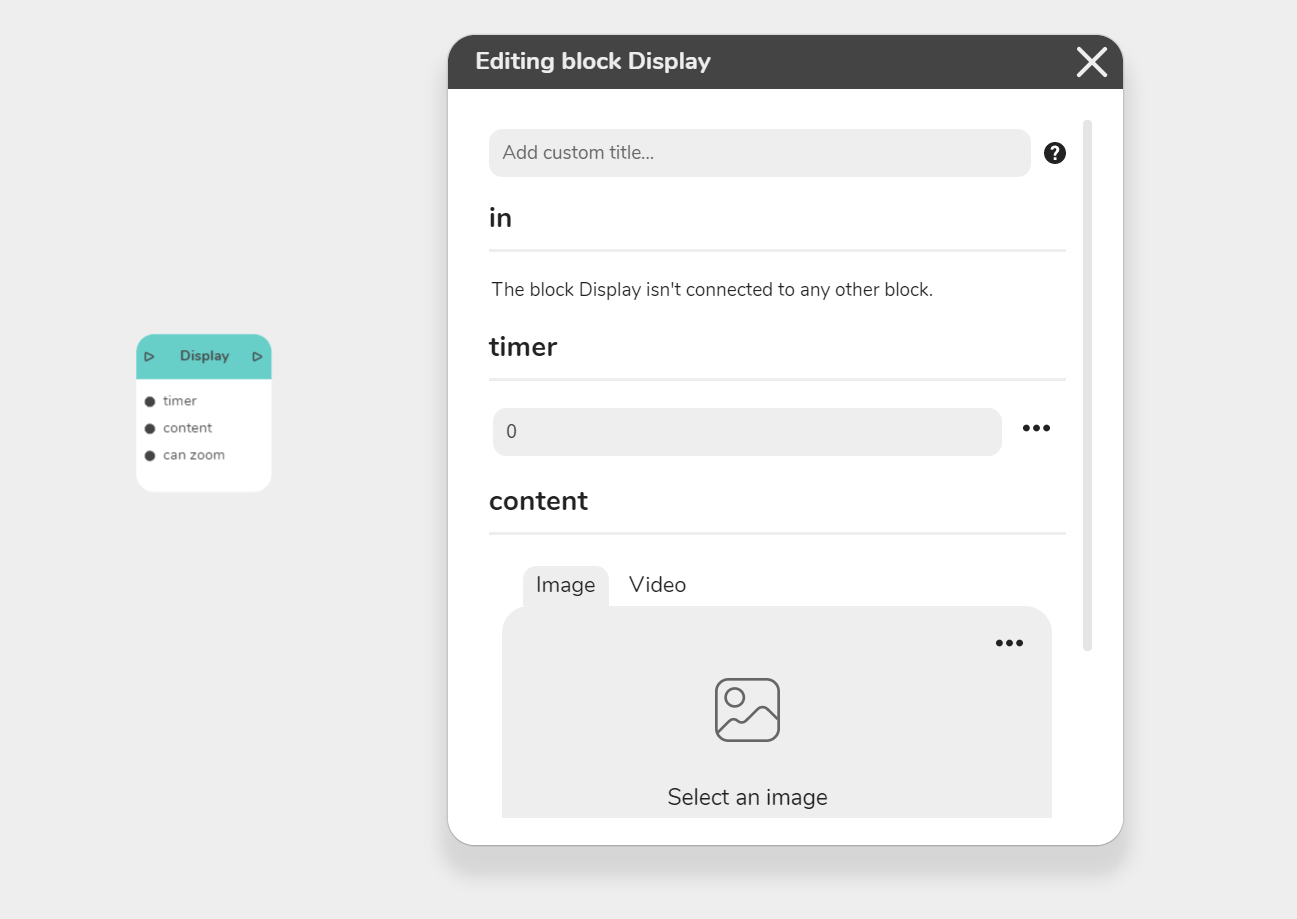
Describes the Video block, which displays an image or video media file full screen. A click by the player makes it disappear and the flow continues; with Enable Zoom on, the player can zoom and must click the cross at the top right to move on.
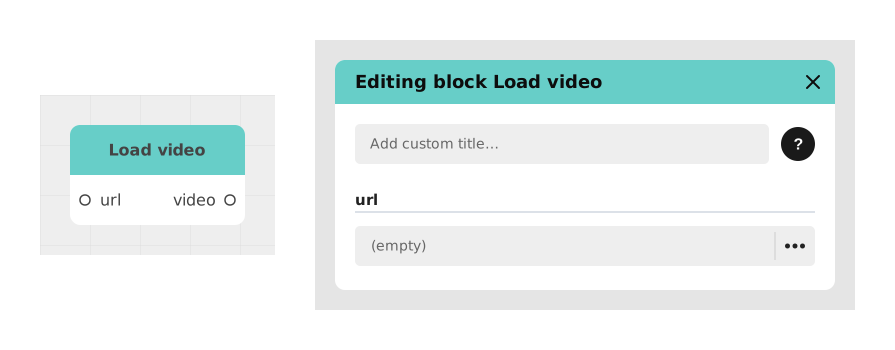
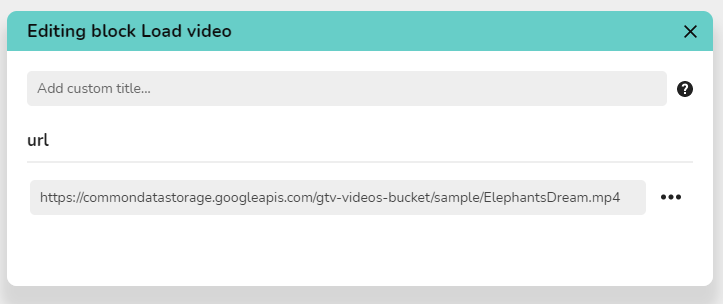
Describes the Load video block, which creates a video value from the direct link URL of a video, to send to another block through a constituent point and display it in the interface. Another article covers showing a YouTube-style player.