First steps, testing and debugging your project.
Catalogues defects that produce no error message: the graph compiles and the validator is green, but the render is wrong. A cheat sheet lists symptom, cause and fix, for example a Stage block used instead of Background.
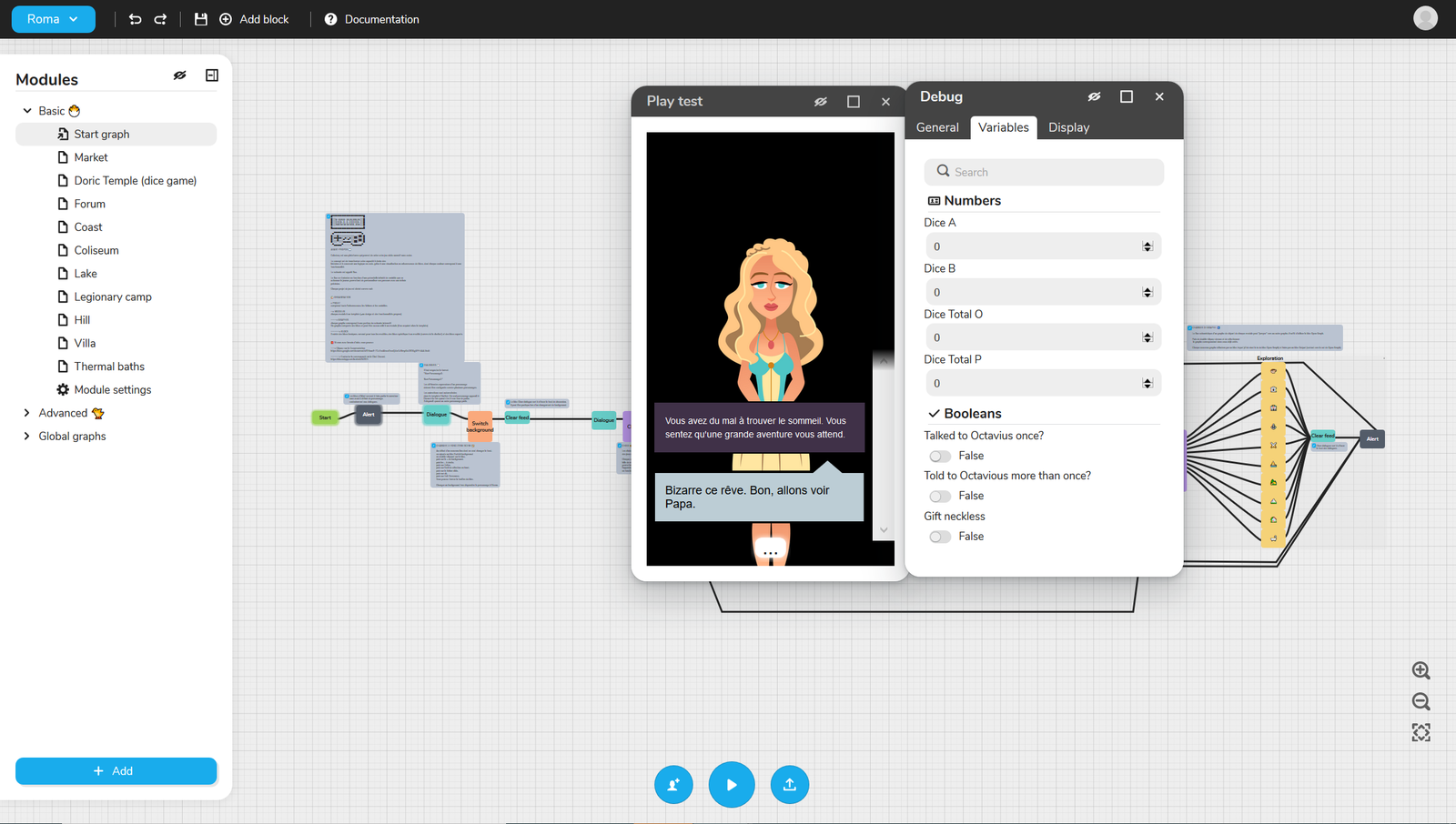
Explains the Play button, which opens a Play Test window with a real-time preview of the game, and the Debug window giving access to the Variables menu, hidden from the player, to see how variables change with each choice.
Compares the four module templates (Chatbot, Visual Novel, Blackbox, Draft) to choose from the start: what each is for, what it provides, why the choice is final, and which two the picker offers (Chatbot and Visual Novel).
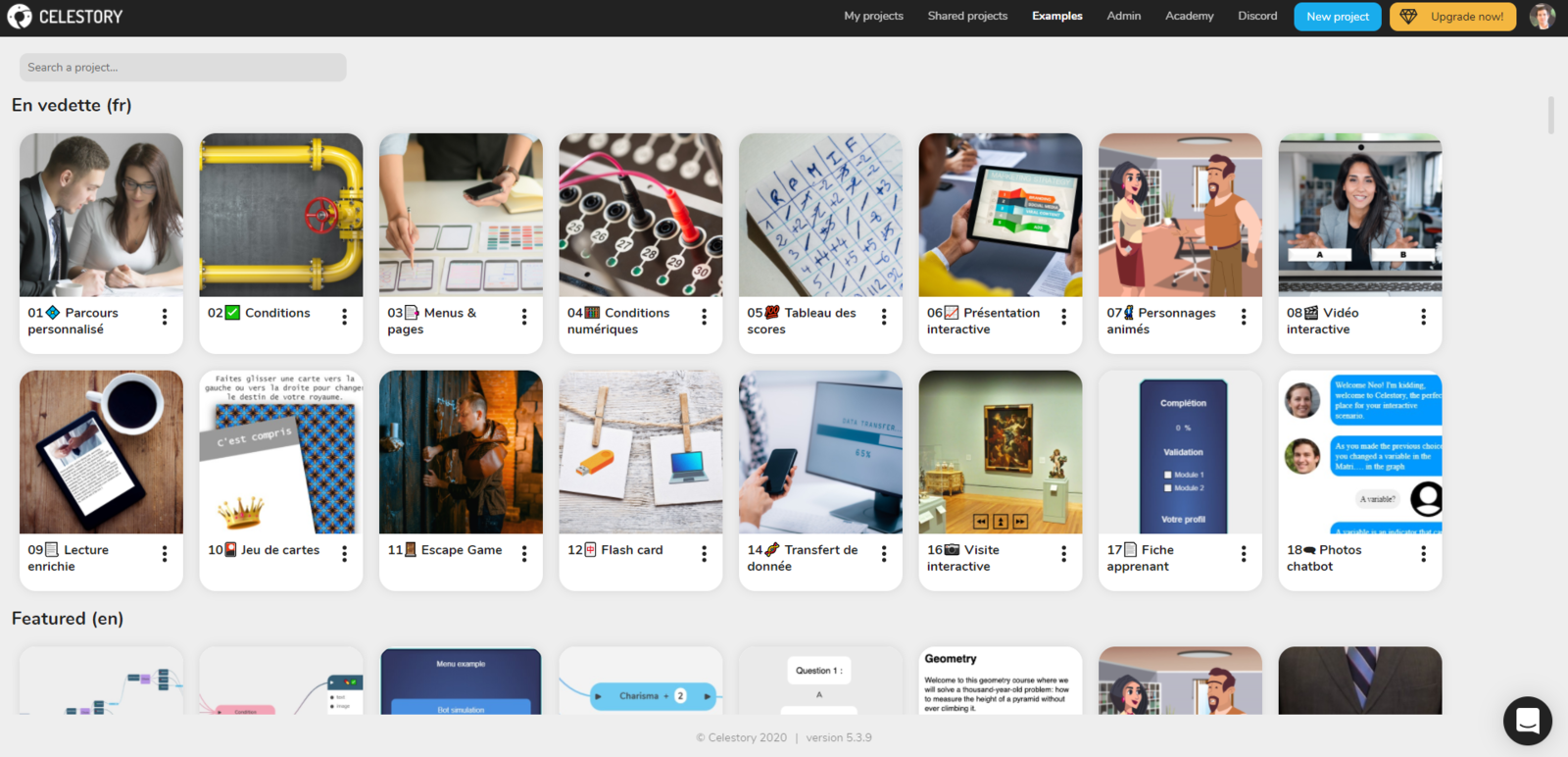
Lists the demo applications to try: Bot, Serious Game, Visual Novel, Cards, Interactive video, Escape Game, Quiz apprenant, Smart E-learning, Virtual tour, Voice over learning, Choose your own adventure and animated characters.
Walks you from the New project button to a first working app: project creation (name required), a start, a displayed sentence and an end, tested in a real player. About 10 minutes, no code and no file needed.
A test routine and debugger guide: save, Play current module, watch the game and Debug windows, close the test window before fixing, repeat. Explains that the test freezes the project state when opened and what Debug shows.
Explains the four nested levels Project, Module, Graph and Block with a theatre comparison (theatre, show, cue sheet, line), and where variables sit. A mental model, not a how-to; about five minutes of reading.
Quick tour of Celestory: an app consists of graphs and their blocks defining the logic, plus menu pages. Explains previewing with Play the current module in the top bar, launching from a menu, and how graphs and blocks work.
Describes the Creator home page, where you create and share projects, find documentation and reach your profile settings. Covers the My projects section: you get administrator rights on each project you create, to modify, share or delete it.
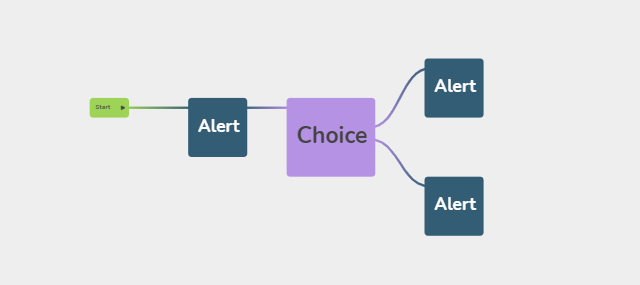
Shows how to add a Choice block to turn a straight story (Start, Dialogue) into a branching one: one question, two buttons, two different continuations, so that the reader decides.