Make characters speak and display text, alerts and notifications.
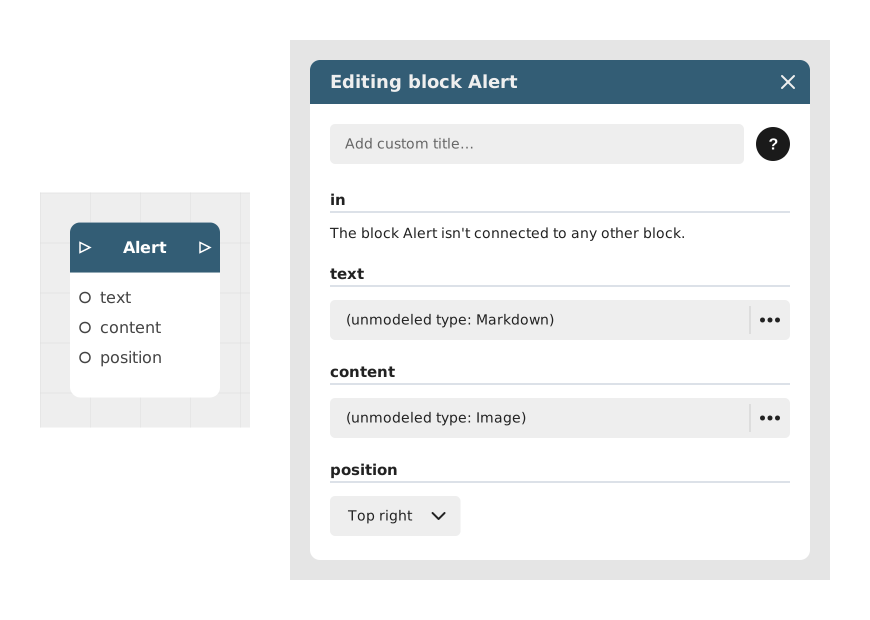
Explains the Alert block, which displays a text message with simple Markdown formatting (bold, italics, links) and an optional image. Its visual behavior differs depending on the template, for instance a distinct bubble in the Chatbot template.
Explains the Clear feed block, which wipes the messages already displayed on screen so the story starts on a clean page. Mainly useful in modules like the Chatbot, to let users restart a discussion without leaving the module.
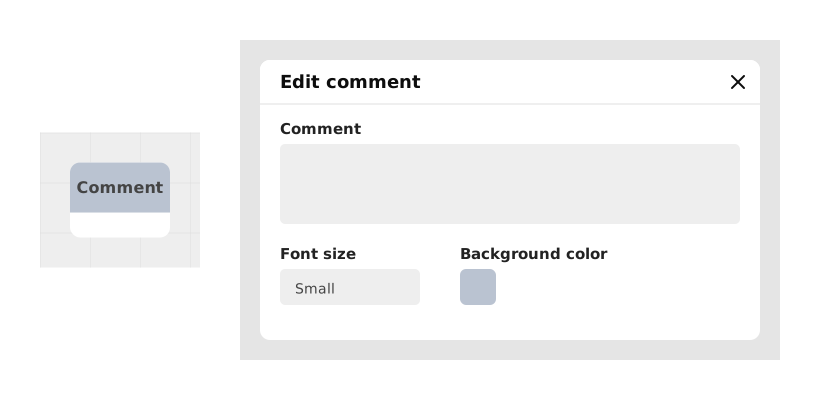
Explains the Comment block, which adds notes, explanations or reminders visible only in the editor. It documents complex logic or marks TODOs, and has no effect on execution or on the final application.
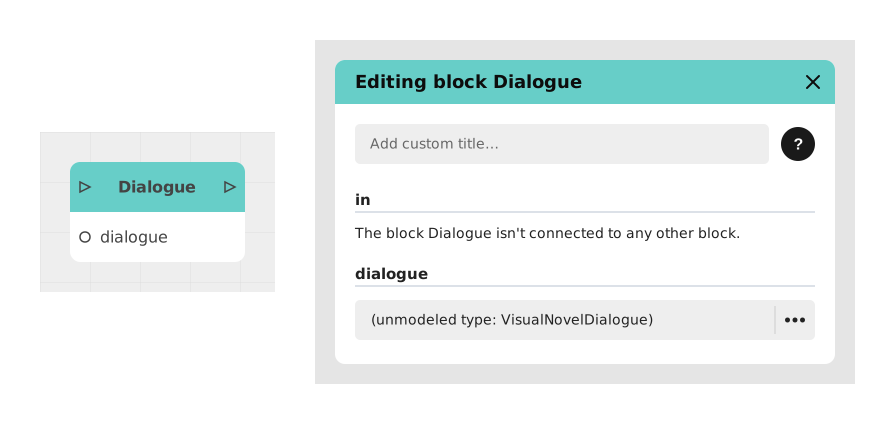
Explains the Dialogue block, which displays a series of messages sent by one or more characters, with media and dynamic variables. It structures text and multimedia exchanges in narrative games and chatbots.
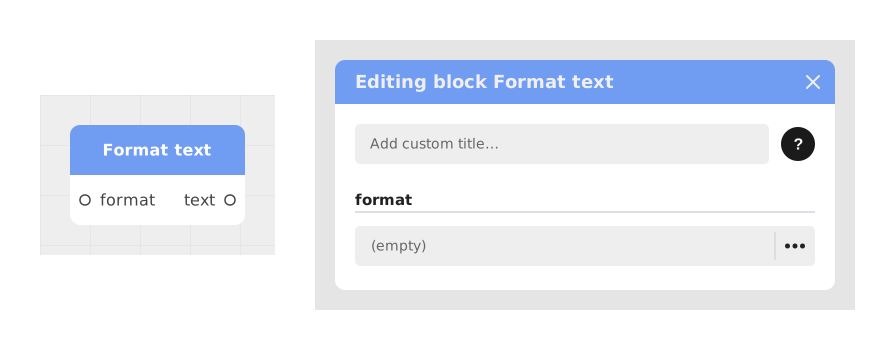
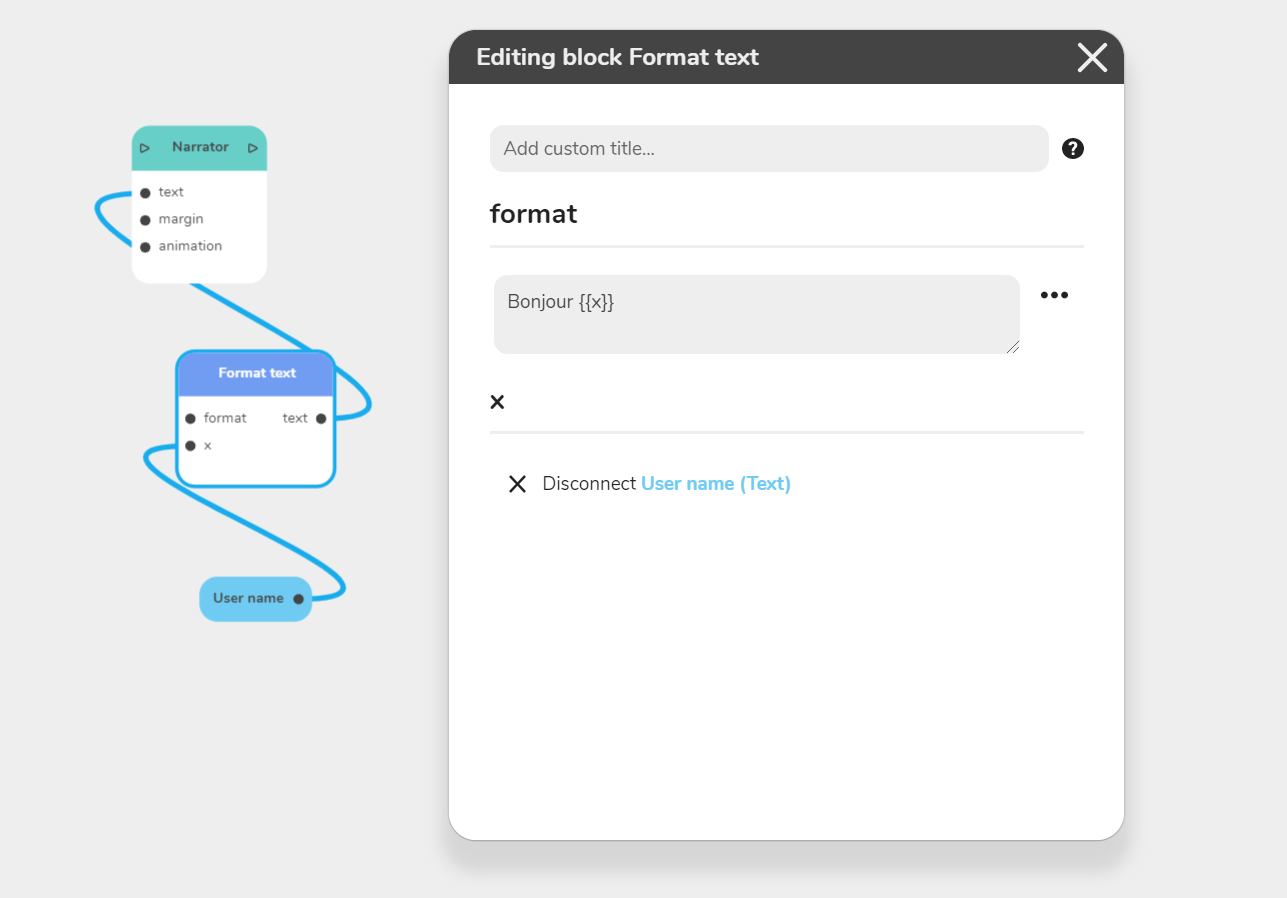
Explains the Format text block, which builds dynamic sentences by inserting variables into a template text, for example Hello {{FirstName}}, you have {{Score}} points. It avoids manually concatenating several texts.
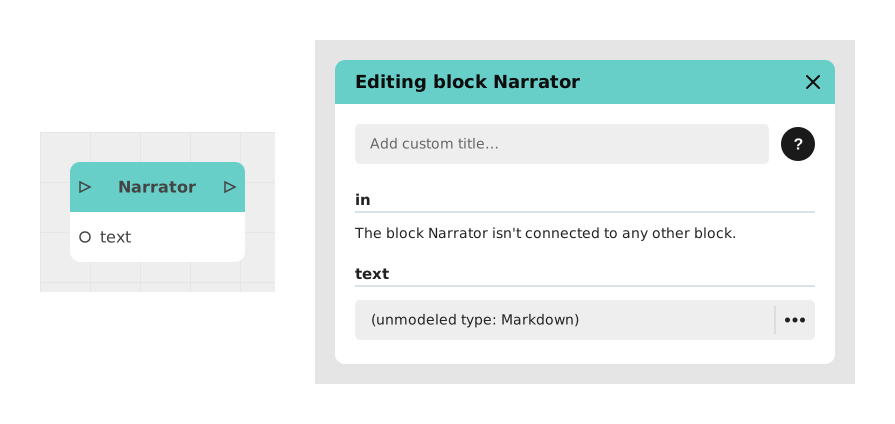
Explains the Narrator block, which simulates real-time message writing (typewriter effect) in a Chatbot or Messaging format. It adds dynamism and realism, making the user feel the system is composing the message.
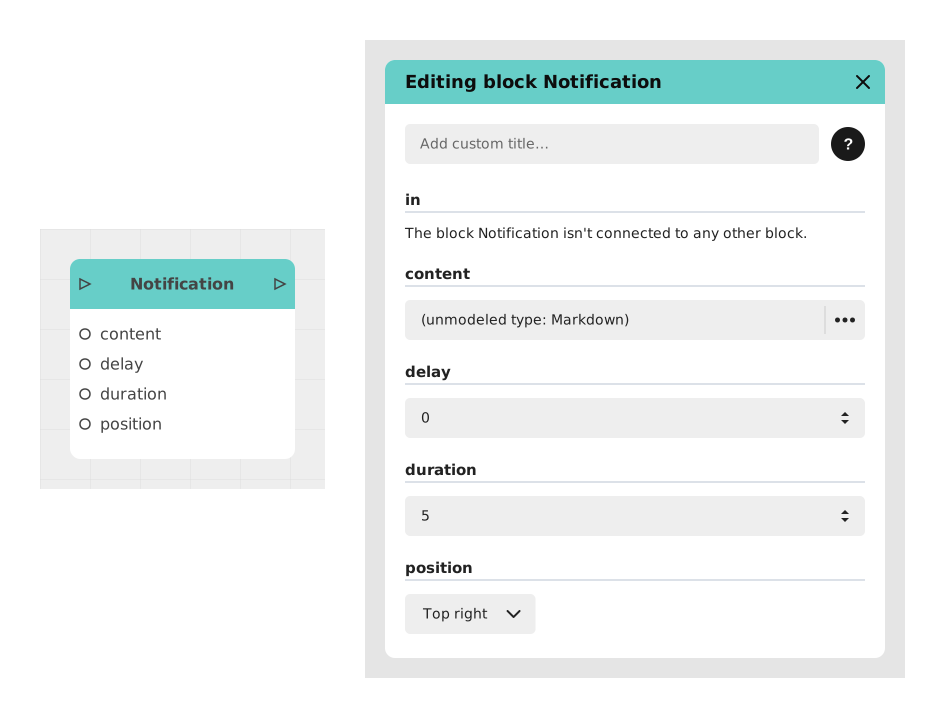
Explains the Notification block, which informs the user of an event with a brief message or icon that disappears after a set time, without interrupting the experience. Suited to statuses, confirmations or contextual hints.
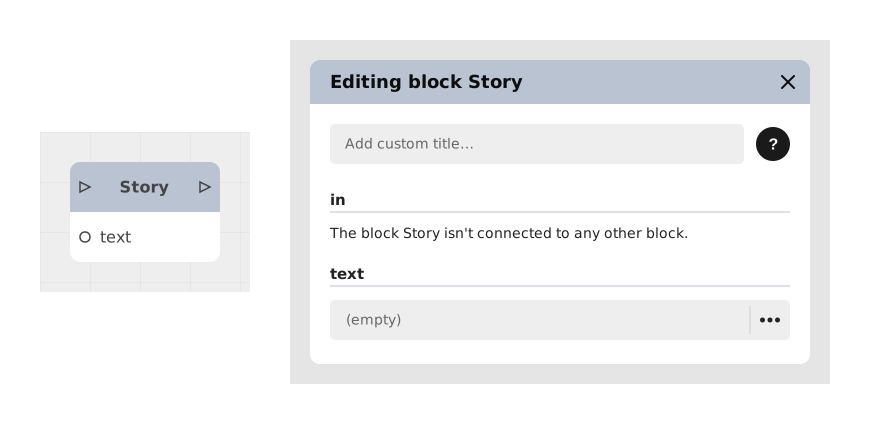
Explains the Story block, which displays a long narrative text of several paragraphs to the player all at once. Unlike the Narrator block, it avoids splitting a long text into a chain of small blocks; the text is a multiline input.
Presents the Slide block, a full-screen panel over the stage with image or video, Markdown text and a button, pausing the story. Inputs: in, text, content, continue (default OK), plus {{variables}}; output follows the click.
Explains the Text Format block, which replaces variables written between double curly braces {{ }}: each creates a point with that name to link to the matching variable block. Variables can be numeric or textual; other blocks with a text stack share this capacity.