A guided tour of the editor and its panels.
Explains how to export a module or isolated graph to a ZIP file (data.json plus a files folder) from Project, Import/Export modules, and how to import it into another project, including what happens on a naming conflict.
Describes the right-click Blocks menu with shortcuts to favorite blocks, editable through More Blocks, then presents the basic blocks such as Start, Story and Assign with their role and how each one is used in a graph.
Explains the History window (Cmd/Ctrl + Shift + H), a clickable list of recent actions sharing the Undo/Redo stack, which lets you jump back several steps at once. Covers what an entry includes and grouped actions.
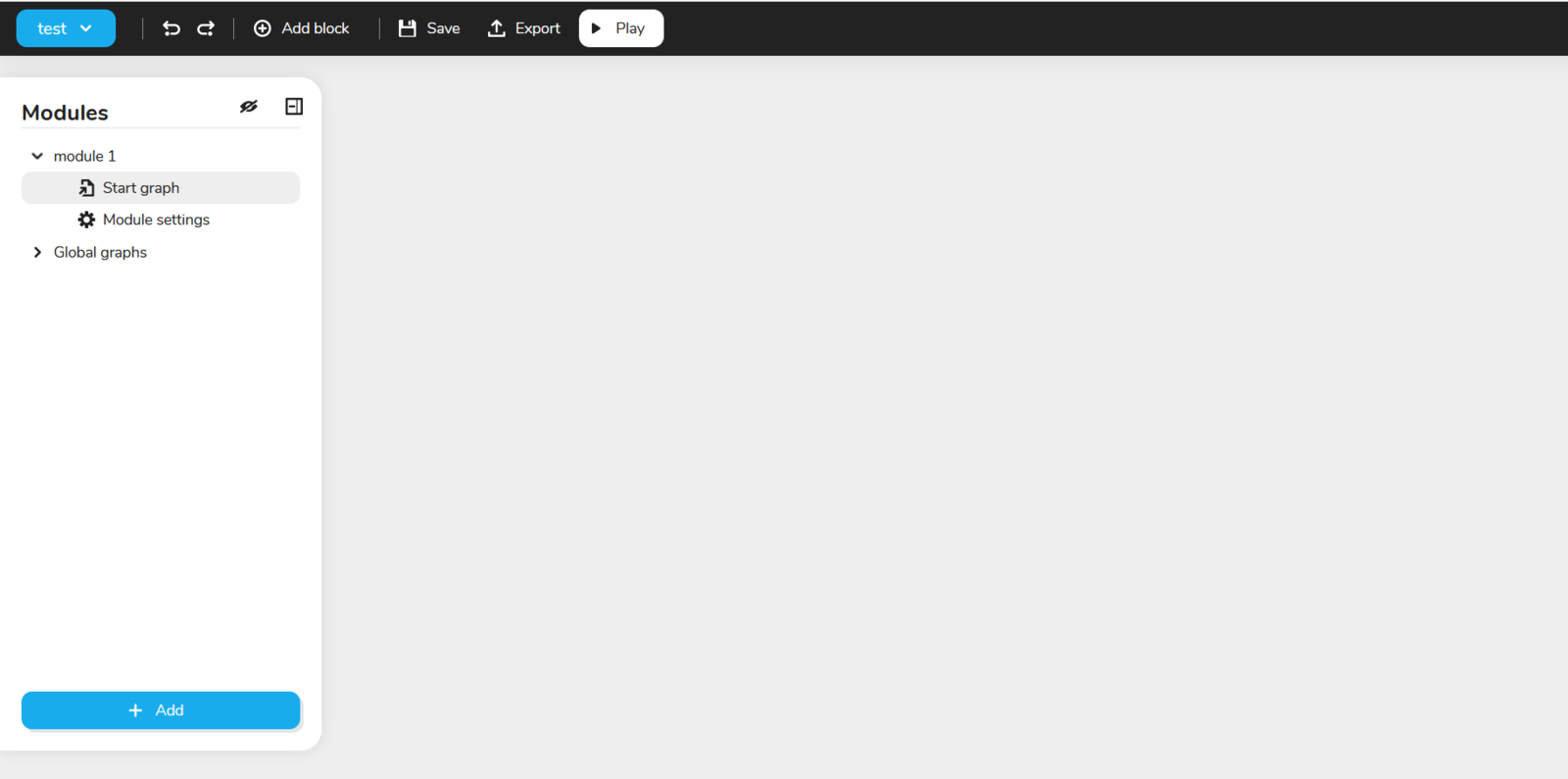
Tour of the Creator interface: top bar, modules panel on the left and central canvas, plus floating windows for editing blocks, files and variables. Describes each area and menu to get comfortable from the first session.
Explains the anatomy of a block: how to add one (Add block or right-click), what each color means (red redirections, blue variables, purple choices, green foreground media and others), and the input and output points.
Warns about legacy blocks that accept any wiring and show nothing, with the proven trap of the Stage block used instead of Background for a full-screen background, and a method to spot other legacy blocks.
Lists the Creator keyboard shortcuts (Cmd on macOS, Ctrl elsewhere): editing in the graph (save, undo, copy, group, Blackbox), moving around the canvas (zoom, fit, pan) and opening tool windows. Disabled while typing.
Warns that Celestory never saves on its own: no auto-save, no indicator and no warning on closing. Explains the habit of pressing Cmd/Ctrl + S often and before testing, and where the icon-only Save button sits in the top bar.
Explains the Block Editing Window, opened by double-clicking a block (a single click only selects it): custom title, one section per input point, disconnect buttons and the ? icon linking to the block's documentation.
Defines the wire, the curved line linking a point on one block to a point on another, which alone decides what happens after what and what each block receives. Also settles the vocabulary of the triangles and circles found on blocks.
Describes the Labels window (Cmd+Shift+L or the Labels entry of the main menu): name and colour labels, then stick them on as many blocks as you like across any graph. Explains creating a label with Add in the left panel, with a random colour.
Describes the graph interface, Celestory Creator's main workspace, built on nodes like an infinite mind map. Data and the user's journey travel through Links connecting the Blocks, and the article covers navigating the infinite canvas.
Lists the Creator keyboard shortcuts: in the main menu, search Ctrl+Shift+F, history Ctrl+Shift+H, files Ctrl+Shift+E, variables Ctrl+Shift+V, style editor Ctrl+Shift+X; in the toolbar, undo Ctrl+Z, redo Ctrl+Y and save Ctrl+S.
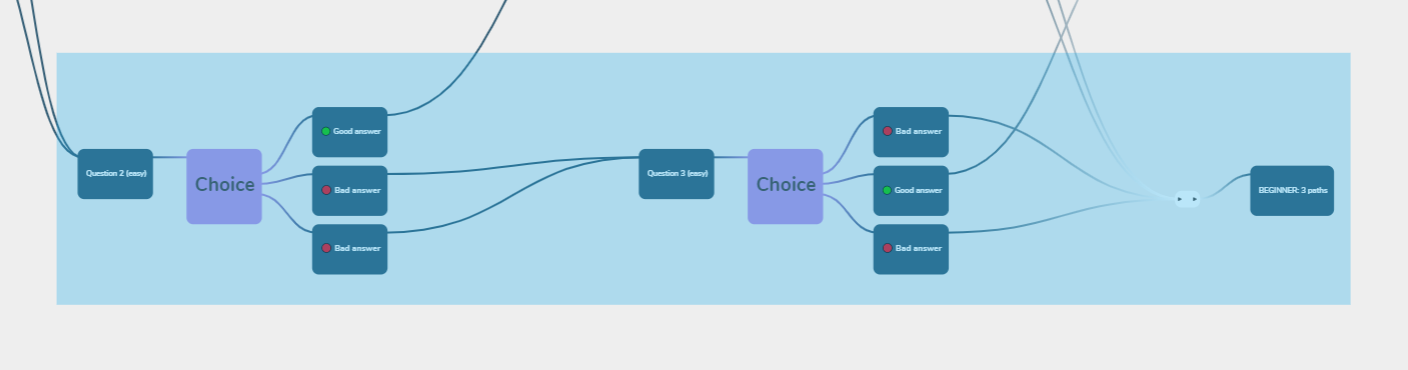
Explains how to group blocks: hold the MAJ key and draw a selection rectangle, right-click and choose Group selection, then double-click the group to rename it. To ungroup, right-click the group and click Remove selection.
Describes the Block search window, opened with Cmd/Ctrl + Shift + F, which finds a block across the whole project once it has over a hundred blocks. Results appear as you type, matching block name, type (Dialogue, Alert, Choice) and attached label.
Describes the Translations window (Cmd+Shift+K or the Translate entry of the main menu), where you manage the project's languages: add them, track their progress and move the text to translate through a file. The translation itself is done in a .po file.
Compares the two ways of organising a graph that becomes unreadable past forty blocks. A group is a coloured frame that changes nothing in the app; a blackbox moves blocks into their own graph that you call with a single block.