
Updated for version 6.0.30
Two-factor authentication adds a second step to signing in: after your password, you type a 6-digit code shown by an authenticator app on your phone. Even if someone knows your password, they cannot get in without your phone. This article explains how to turn it on and off, and what to do if you lose your phone.
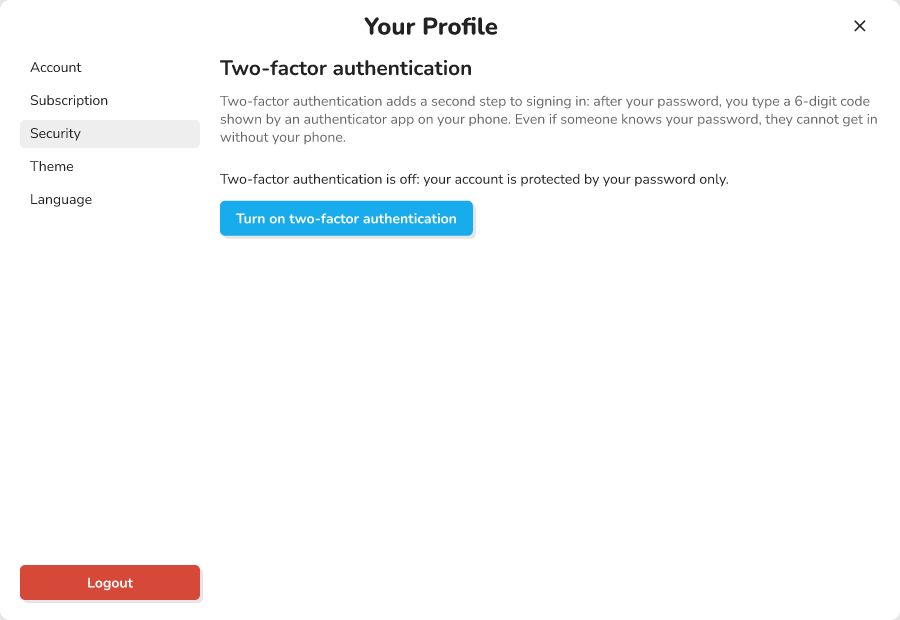 the "Two-factor authentication" section of the "Your Profile" window, "Security" tab, with the "Turn on two-factor authentication" button
Where to find two-factor authentication
On the home screen, click your profile picture at the top right (its tooltip reads "Open your profile") to open the "Your Profile" window, then click the Security tab. The Two-factor authentication section shows whether the protection is on or off.
🔺 Note: the Security tab does not appear on self-hosted servers that sign users in without a password.
Before you start
You need an authenticator app on your phone, for example Google Authenticator, Microsoft Authenticator, Aegis or 2FAS. It shows a 6-digit code that changes every 30 seconds. You also need your account password.
Turn on two-factor authentication
- In the Security tab, click Turn on two-factor authentication.
- Type your account password, then click Continue.
- In your app, add an account by scanning the QR code.
- If you cannot scan, type the Setup key into the app by hand (the Copy the key button copies it).
- Type the 6-digit code the app shows right now.
- Click Turn on.
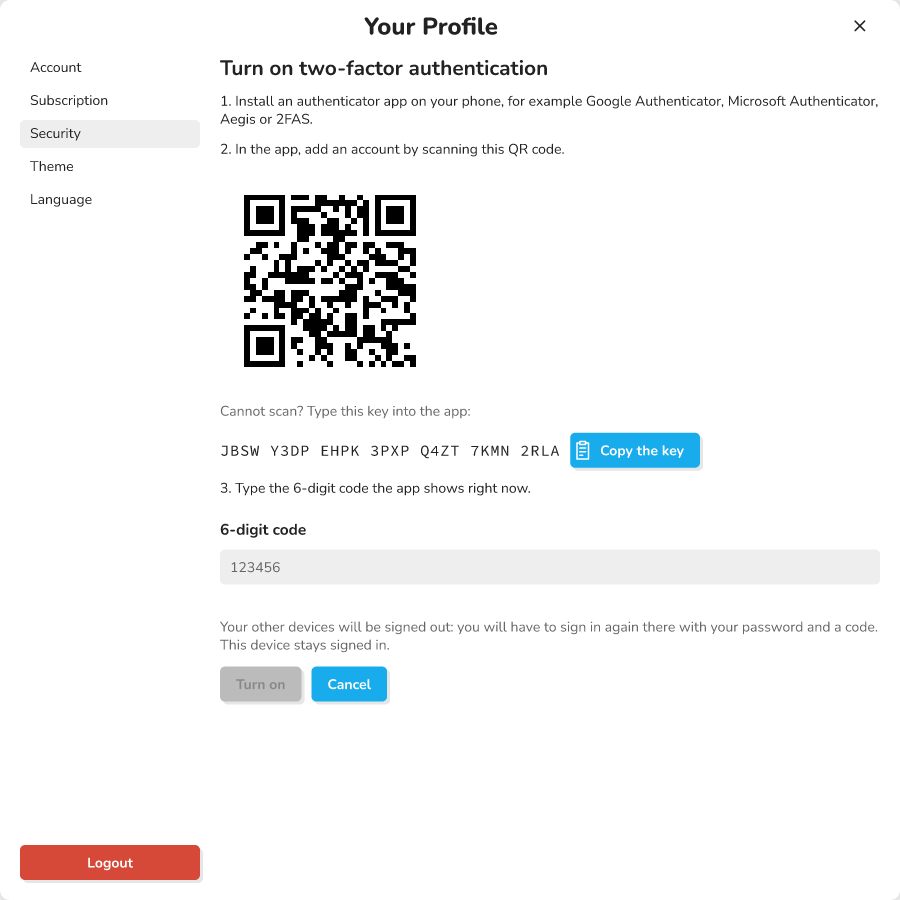 the setup screen, with the QR code, the setup key and the "6-digit code" field
Your other devices are then signed out: you will have to sign in again there with your password and a code. The device you are using stays signed in.
Keep your recovery codes
As soon as it is turned on, Celestory shows 10 recovery codes (in the form ABCDE-FGHJK). If you lose your phone, each one lets you sign in instead of the app code. Each code works only once.
The codes are shown only once, and closing the page makes them disappear. Use Copy or Download (the file is called "Celestory recovery codes" and contains your email and the date), then keep them somewhere safe: a password manager, a safe, a piece of paper put away. Tick I have kept my codes to be able to click Done.
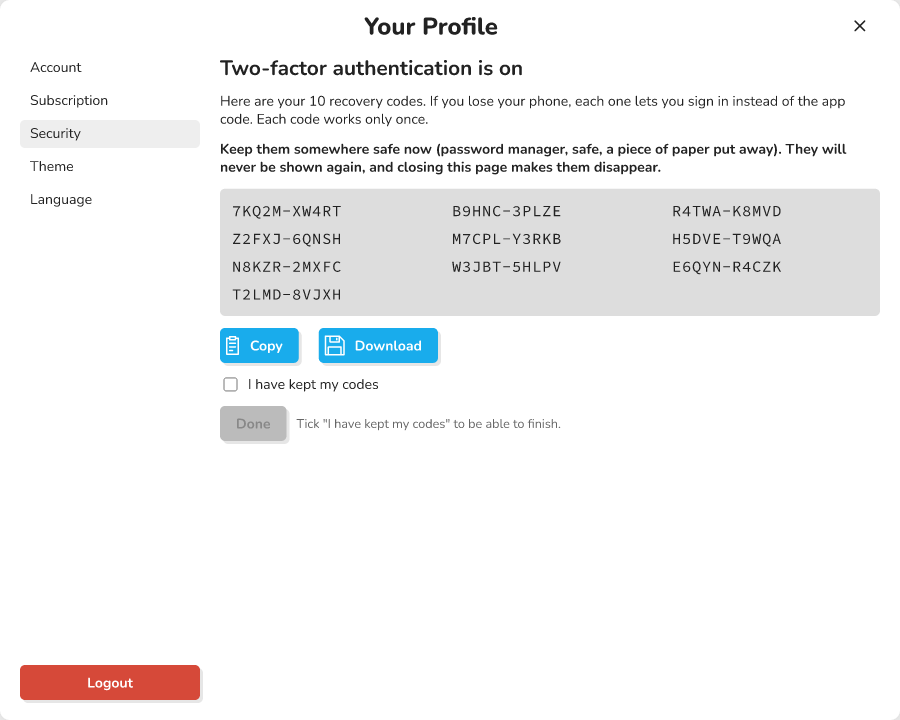 the "Two-factor authentication is on" screen with the list of codes, the Copy and Download buttons, and the "I have kept my codes" checkbox
See how many codes are left
In the Security tab, Celestory shows "You have N recovery codes left". When you have 2 or fewer left, it suggests generating new ones before you run out.
Generate new codes
- Click Generate new recovery codes.
- Type your password and a code (the app code, or a recovery code).
- Click Generate.
The old codes stop working. Your other devices are signed out, as when you turned it on.
Sign in with a code
- Type your email and password as usual.
- A screen asks "Enter the code from your authenticator app". Type the 6-digit code shown by the app.
- Click Confirm.
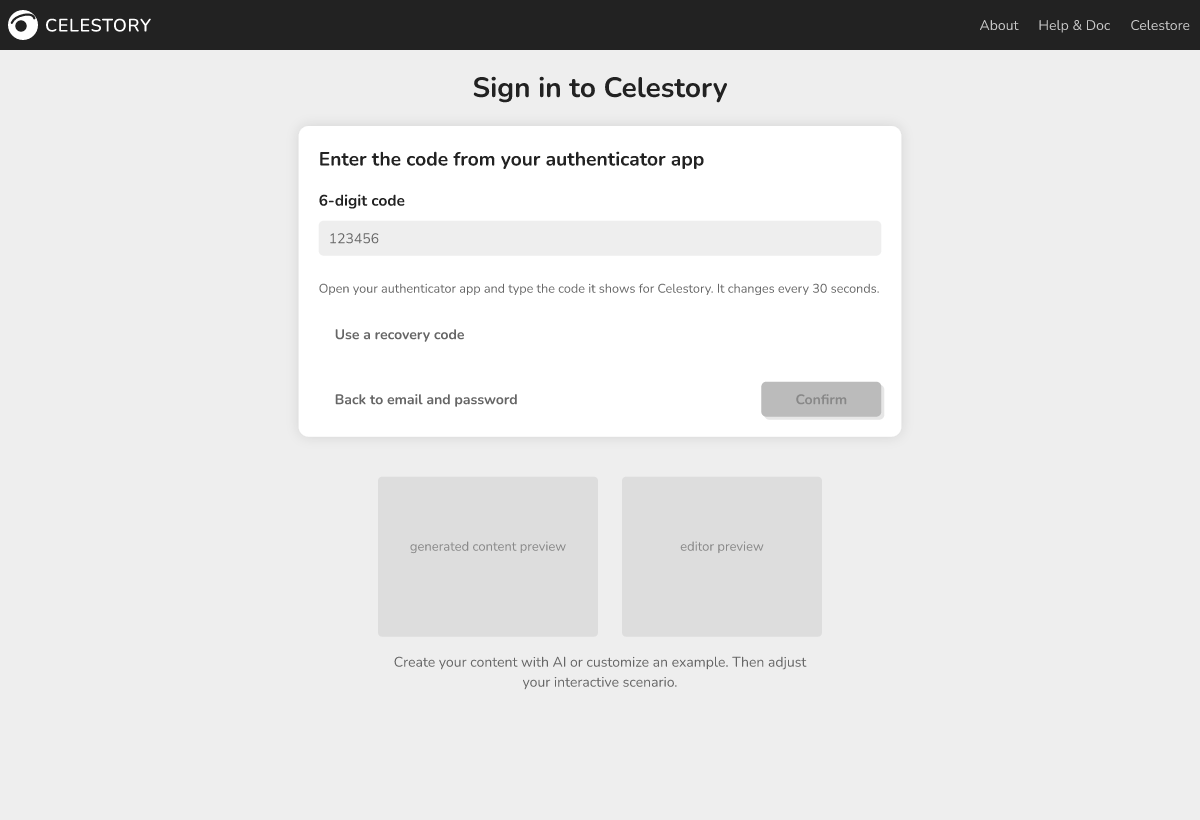 the sign-in screen asking for the 6-digit code, with the "Use a recovery code" link
A code works only once: if you have just used the code on screen, wait for the next one (30 seconds at most) before a second operation.
With a recovery code
Click Use a recovery code and type one of your codes. Capital letters and the dash do not matter. To go back to the app code, click Use the code from the authenticator app. The Back to email and password link takes you back to the first step.
Turn off two-factor authentication
- In the Security tab, click Turn off two-factor authentication.
- Type your password and a code (app code or recovery code).
- Click Turn off.
Your account is then protected by your password only. Your other devices are signed out. If you turn it on again later, you start a full setup again, with a new key and new recovery codes.
Attempt limits and lockouts
To stop anyone from guessing a code, Celestory limits attempts.
| Situation | What happens |
|---|---|
| 5 wrong codes during one sign-in | The verification stops: type your email and password again |
| You wait more than 5 minutes on the code screen | The verification expires, same thing |
| 10 failures in a row (codes, or password when turning on, turning off or regenerating codes) | The account is locked for 15 minutes |
During a lockout, signing in is refused even with the right password, and a message says how long to wait. A success resets the counter, and so does the end of a lockout.
🔺 Note: if you reset your password, two-factor authentication stays on, but all your sessions are signed out.
Troubleshooting
| Message | Solution |
|---|---|
| Wrong code | Wait for the app to show a new code and try again. Check that your phone's clock is set automatically |
| The verification has expired | Type your email and password again |
| Account temporarily locked | Try again after the delay shown |
| Wrong password | Check it; otherwise sign out and use "Forgot password" |
| Two-factor authentication is not available | The server is not configured: see the box below |
| The setup is no longer in progress | Click Cancel, then Turn on two-factor authentication again |
For an error you cannot fix alone, Celestory offers copyable details to send to support (they contain no password or code). See Understanding an error message.
For administrators of self-hosted servers
⚠ Warning: two-factor secrets are encrypted with a key that you give to the authentication server, in the
MFA_ENCRYPTION_KEYvariable (32 random bytes, as 64 hexadecimal characters or as base64, for example withopenssl rand -hex 32). Without this key, nobody can turn on two-factor authentication, and accounts that already turned it on can no longer sign in: the second step is never skipped. Losing or changing the key makes every stored secret unreadable, so keep it like a backup secret. The optionalMFA_ISSUERvariable sets the name shown by the authenticator app ("Celestory" by default).