
Updated for version 6.0.30
Two variable types show a progress or a wait: Percentage (a number from 0 to 100, like a health bar) and Duration (a length of time in seconds, like a delay or a timer). Each has its own visual panel to set the value, and they plug in wherever a number is expected, including a menu Simple gauge.
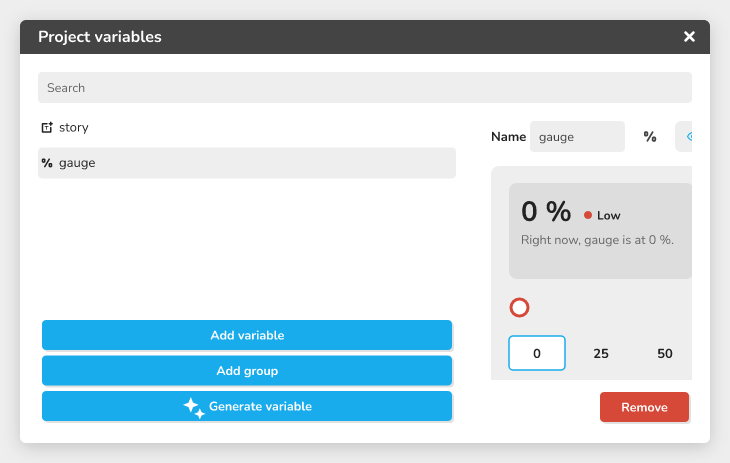 The variable browser with a Percentage variable selected, the gauge panel on the right
What they are for
| Type | Value | Example uses |
|---|---|---|
| Percentage | A number from 0 to 100 | Health bar, training progress, success rate |
| Duration | A length of time in seconds (never negative) | Waiting delay, time limit, timer |
An ordinary Number has no limits. A Percentage stays between 0 and 100, and a Duration stays positive: that is what makes them safer for a gauge or a timer.
Where to find these types
- Open the list of variables and click Add variable.
- Type a name, then open the Type of the variable (can not be changed) menu.
- Choose Percentage ("A number from 0 to 100, like a health gauge or a success rate") or Duration ("A time in seconds, like a timer or a waiting delay").
- Click Add.
⚠ Warning: the type of a variable cannot be changed after it is created. If you make a mistake, create a new variable.
The visual panel sets the initial value, that is the starting value when the graph starts. While the variable has no value, the panel offers to create one (Add a percentage or Add a duration).
Percentage
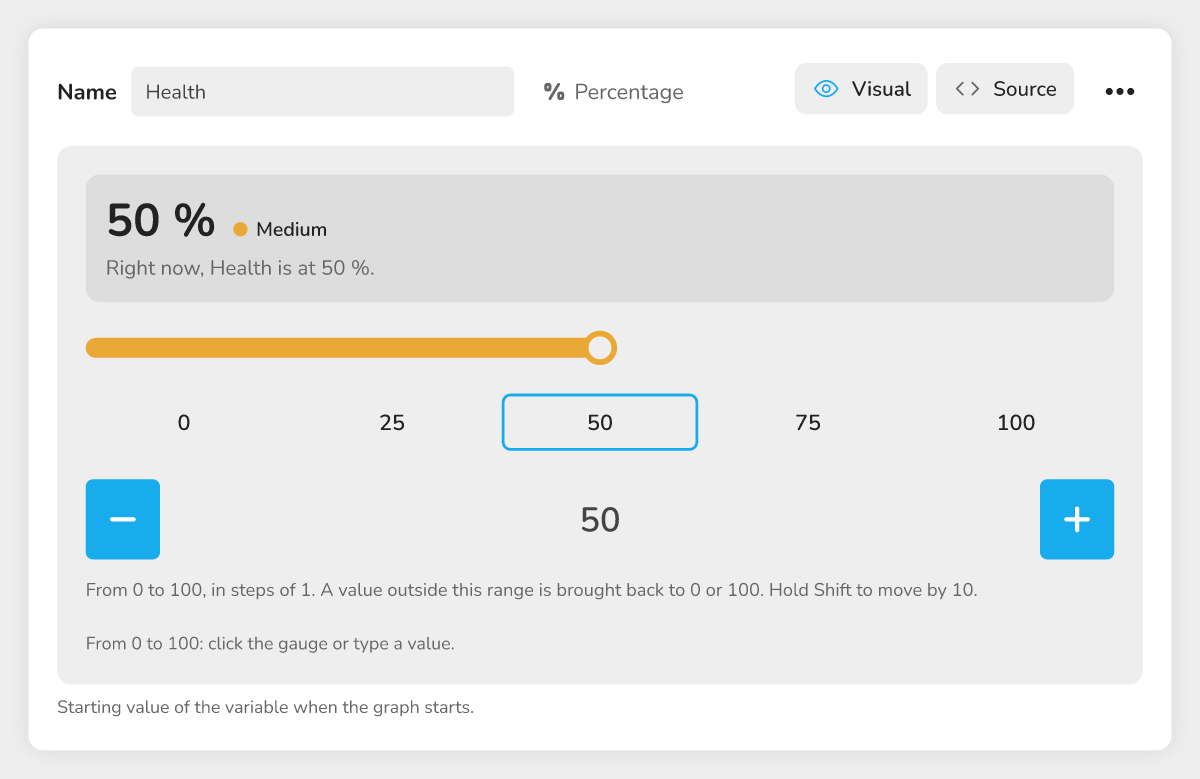 The Percentage panel with the large value, the level, the gauge, the quick values and the field.
The panel shows the value in large type (for example "50 %") with a level: Low under 25, Medium from 25 up to 75, High from 75. A sentence recalls the state: "Right now, Health is at 50 %."
To change the value:
- click the gauge, or drag it;
- click a quick value: 0, 25, 50, 75 or 100;
- type a number in the field, or use the Decrease and Increase buttons (a step of 1 by default, 10 when you hold Shift).
The arrow keys work on the gauge (Home and End go to 0 and 100) and in the field. A value outside the range is brought back to 0 or 100. If the field is empty, the variable keeps its previous value until you type a number.
Duration
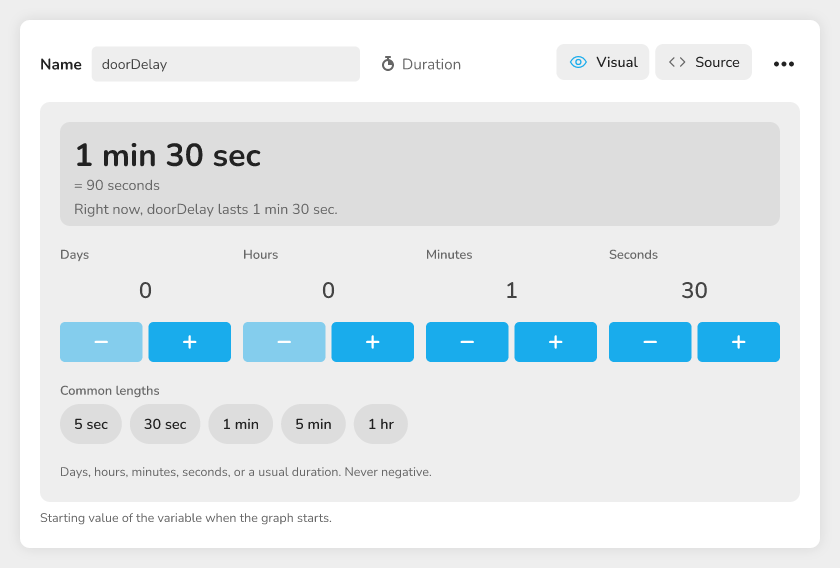 The Duration panel with the Days, Hours, Minutes, Seconds fields and the common lengths
The panel shows the readable duration ("1 min 30 sec"), its total in seconds and four fields: Days, Hours, Minutes, Seconds. Seconds accept decimals, down to the millisecond. The four fields add up: 90 seconds and 1 minute 30 seconds are the same duration, and the panel rewrites them in the shortest form.
Under the fields, Common lengths offers five buttons: 5 sec, 30 sec, 1 min, 5 min and 1 hr. The plus and minus buttons of each field change the value by 1 (by 10 when you hold Shift).
A duration cannot be negative: a negative value is not kept and the panel says so ("A duration cannot be negative, so this value was not kept"). The maximum is 10,000 days.
Using these variables in blocks
Percentage and Duration belong to the number family: they plug in wherever a Number is expected, and a Number plugs in wherever they are expected.
- The Increment, Decrement and Assign blocks can change them.
- A Duration plugs into inputs that read a number, for example the Duration of a Pause block, the timer of a QTE block or the delay of a Notification.
- A Percentage plugs into the operands of an Expression and into the slots of a Format text block. It does not plug directly into a Boolean or Text input: go through an Expression.
- When a block writes a number into a Percentage variable during the run, the result is brought between 0 and 100. A Percentage written into a Number variable becomes a plain number.
- A Duration cannot be an item of a list; a Percentage can.
For calculations, read ➗ Math operations, and to compare values 🔢 Setting up numeric conditions.
A menu gauge driven by a variable
The Simple gauge menu element shows a progress bar (a PRO option).
- In the menu editor, click Add an element.
- In Choose the element to add, choose Simple gauge.
- In Variable, choose the variable to show, for example a Percentage.
- Set Minimum and Maximum.
- Adjust Appearance, Color, Show value and Text style.
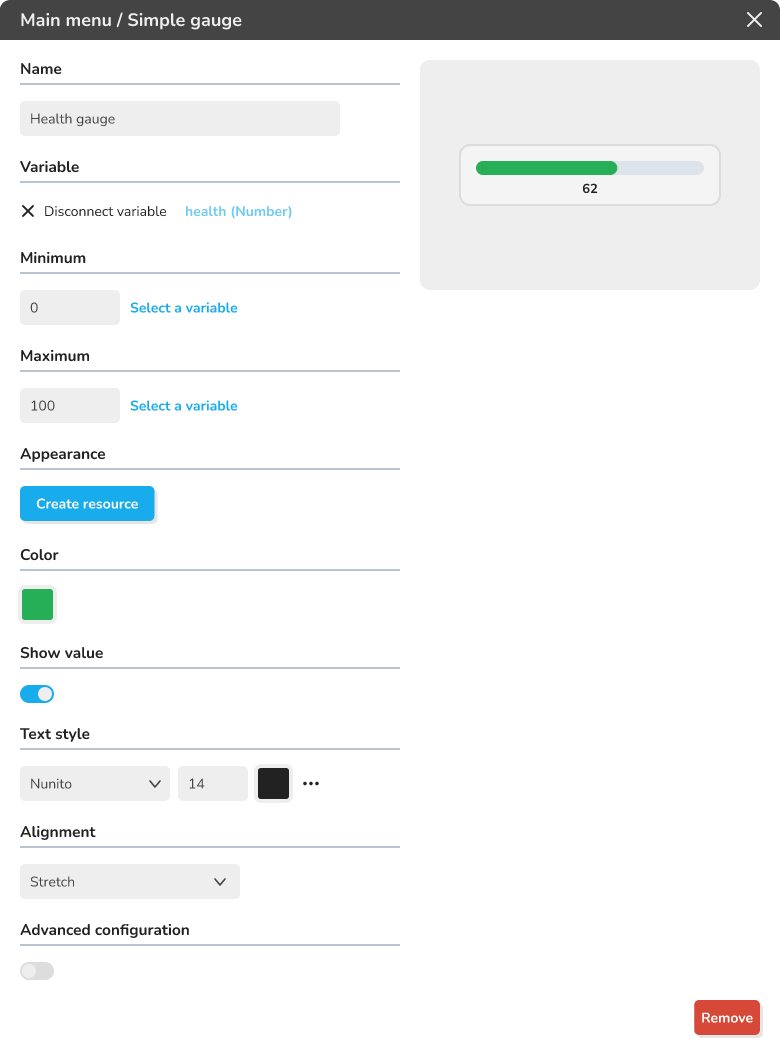 The Simple gauge editor with the Variable, Minimum and Maximum fields
Minimum and Maximum are 0 and 100 by default, which suits a Percentage as it is. Each bound can be a fixed number or a variable of the number family: as soon as a variable is linked, the number field disappears. The gauge then follows the value of that variable. For example, a maximum linked to a Duration "Time limit" adapts the gauge to each challenge.
Good to know:
- if the variable of a bound has been deleted, the gauge goes back to the fixed number;
- if the maximum equals the minimum, the gauge is empty; keep a maximum above the minimum;
- with no variable linked, the gauge shows half full;
- with Show value, the text shows the raw value (60, not 60 %).
Examples
A health bar. Create a Percentage "Health" at 100. Add a Simple gauge linked to "Health", with Minimum 0 and Maximum 100. A Decrement block removes points at each hit, and the gauge goes down with it. The value does not go under 0: during play, a Percentage is always brought back between 0 and 100.
A time limit. Create a Duration "Time limit" at 30 sec with the common length button, then plug it into the Duration of a Pause block or into the timer of a QTE block.
Troubleshooting
| Symptom | Solution |
|---|---|
| I cannot change the type of my variable | The type is final: create a new variable of the right type |
| My value stays at 100 although I typed more | A Percentage is limited to 100: the value is brought back to the limit |
| A negative value is refused | A Duration is never negative: type 0 or a positive number |
| My empty field changes nothing | The variable keeps its value until a number is typed |
| My gauge is empty | Check that the maximum is above the minimum |
| I cannot find the Simple gauge | It is a PRO element: it needs a plan that includes it |