
Updated for version 6.0.30
Celestory can turn an execution of your project into an MP4 video: a file ready to share for a demo, a tutorial or a request to support. The video is created in your browser and stored in the project files.
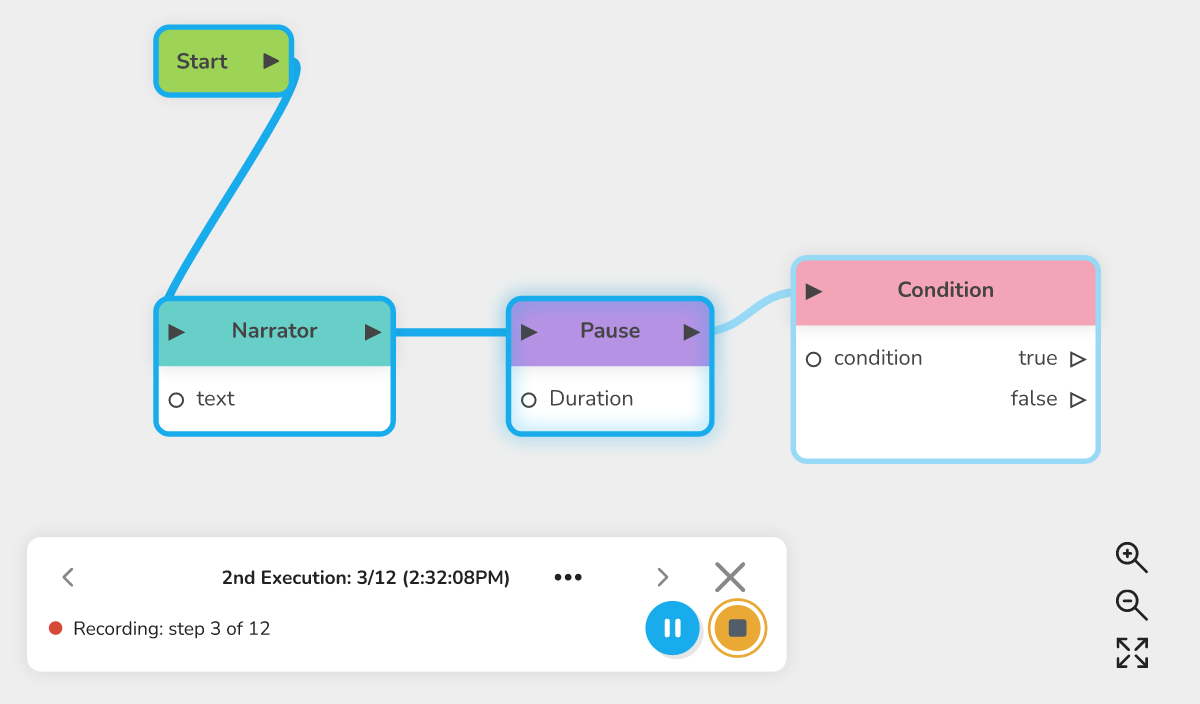 The replay card at the bottom of the graph during recording, with the red dot, "Recording: step 3 of 12" and the pause and stop buttons.
What the video starts from
The video films an execution recorded by the replay. So start by running the player and playing your story, then open the replay (see Replaying the last run on the graph). The video covers the execution shown in the replay card.
It works with the Chatbot player and with the Visual Novel player.
Opening the recorder
- Start Replay last execution (the menu that opens when you hover the Play current module button).
- In the replay card, click More options (the three dots).
- Click Generate MP4.
Celestory opens the player on the first step, at the size it had during your test. If a player is already open, it is reused.
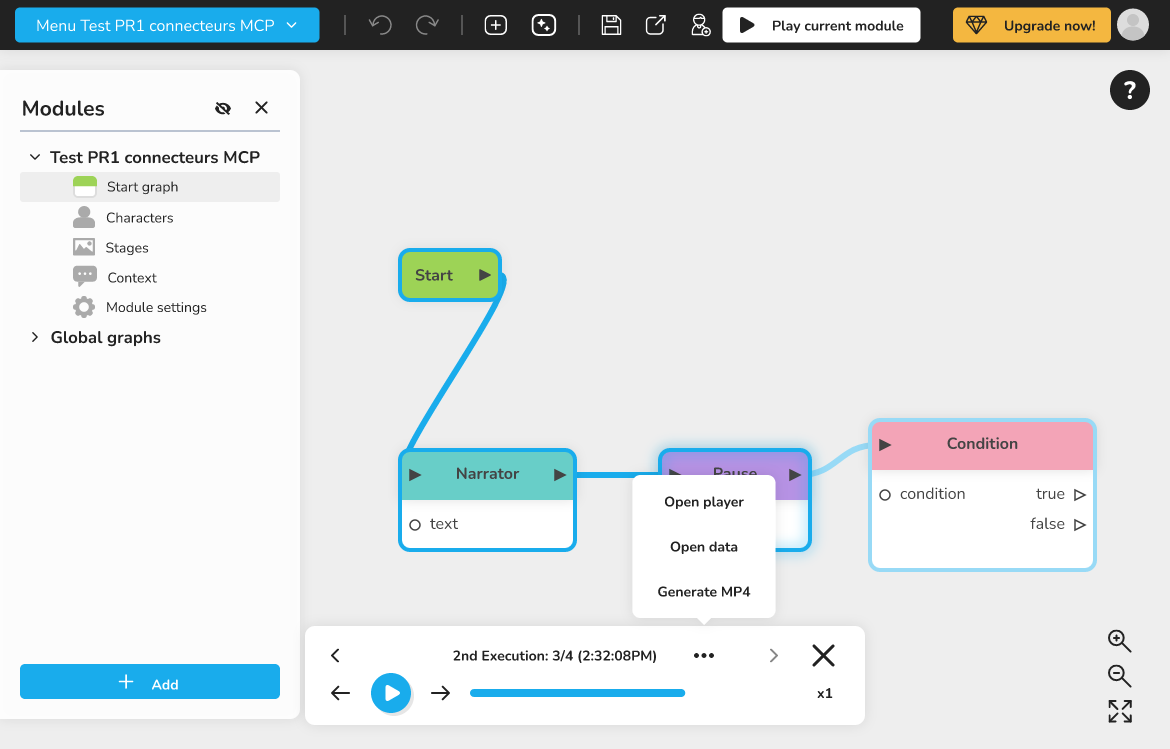 The More options menu with the Generate MP4 entry
Choosing the ratio
The card shows "Choose your ratio, then click Record". The ratio of the video is that of the player window: resize that window before recording to get a vertical, square or horizontal format. The video takes the size of the player, up to 1920 x 1080.
To change your mind, click Cancel: you go back to the replay.
Recording, pausing, stopping
- Click the round red Record button.
- During recording, the card shows "Recording: step 3 of 12". Celestory moves the player along step by step, you do not have to play;
- click Pause the recording to take a break, then Resume the recording: a pause leaves no gap in the video;
- click the yellow square Stop to finish early: the video ends on the last step recorded.
⚠ Warning: keep the player open and visible during recording. If you close it, the recording fails. The replay Close button is greyed out during recording.
Then the card shows "Making the video…" with a progress bar. Clicking Cancel abandons the creation and takes you back to the start screen.
Saving the video
When the card shows "Video ready: 24.5 s", you have two choices:
- Save adds the video to the project files;
- Restart throws the video away and puts the player back on the first step, to record again (for example with another ratio).
After Save, a message "Video added to the project files" shows the file name and its size. Click Show files to open the project files. The file is named replay- followed by the start date and time of the execution, in universal time (UTC) (for example replay-2026-11-15-14-32-05.mp4), at the root of the files. If that name is taken, the storage adds "(1)". You can then download the video or use it like any other project file.
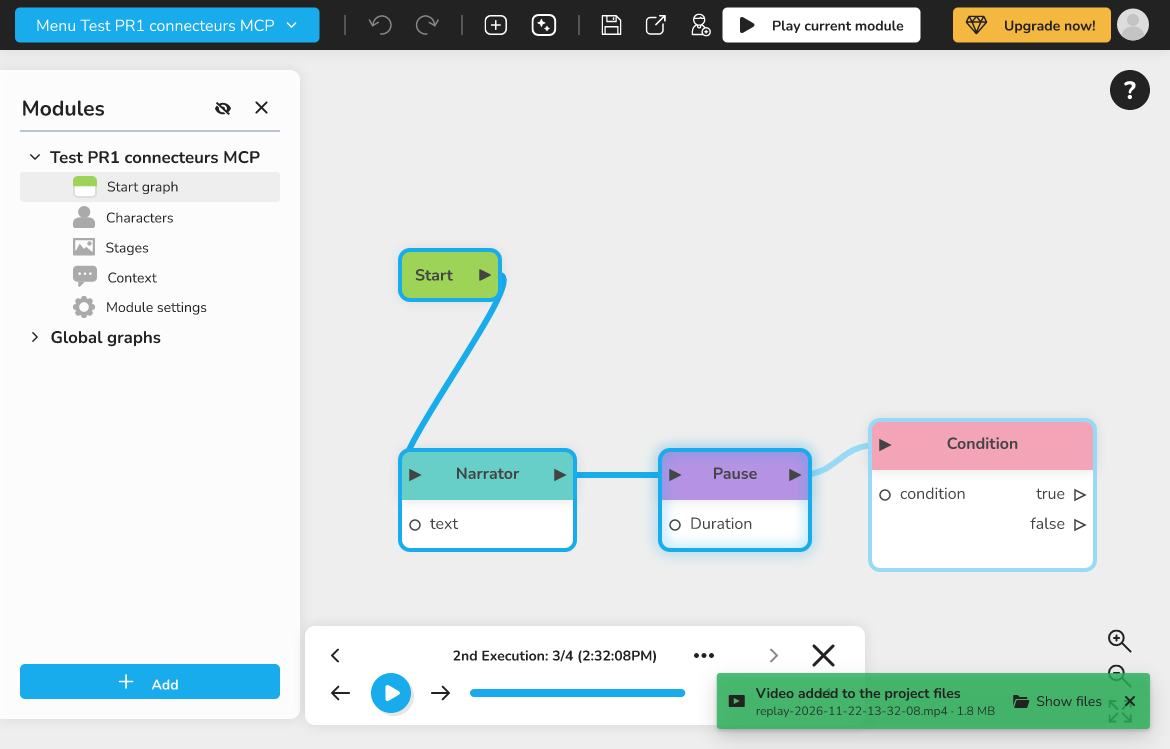 The message "Video added to the project files" with the Show files button
What the video contains
| Feature | Value |
|---|---|
| Format | MP4, created in the browser |
| Frames per second | 30 |
| Maximum size | 1920 x 1080 (smaller if the player is) |
| Codec | H.264, or VP9 if the browser cannot do H.264 |
| Sound | None: the video is silent |
| Duration of a step | The real time of the test, between 1.2 and 4 seconds; the last step stays 2.5 seconds |
Steps are linked by a 0.4 second fade. In a chatbot, the bubbles appear in the scrolling feed; in a Visual Novel, each step is a picture of the scene.
HTML5 pages
An HTML5 page the story goes through is played again behind the scenes and filmed over the player, for as long as it lasted, up to 30 seconds. If the story ends on a page that never hands control back, the page stays for 8 seconds.
Limits
- The browser must be able to encode video (WebCodecs). Otherwise you see "This browser cannot create a video": update your browser or try a recent version of Chrome or Edge;
- the video is made in memory: a very long execution takes time and space;
- the replay only keeps the last 20 executions.
Troubleshooting
| Message | Solution |
|---|---|
| This browser cannot create a video | Use a recent browser, such as Chrome or Edge |
| The video could not be created: an HTML5 page of your story never lets time pass... | Change the page so that it waits with a timer or an animation frame, not with a loop that waits for the clock, then record again |
| The video could not be created: the player was closed during the recording | Keep the player open and start again |
| Any other failure message | Click Copy details for support in the message, then paste the details in your request |
Copy details for support copies the cause of the failure and your browser version. No data from your story is included.