
Updated for version 6.0.30
Want to back up the variables of a project, or reuse them in another one? The Export window packs them into a JSON file, with the type and value of each, and you can then import that file into any project.
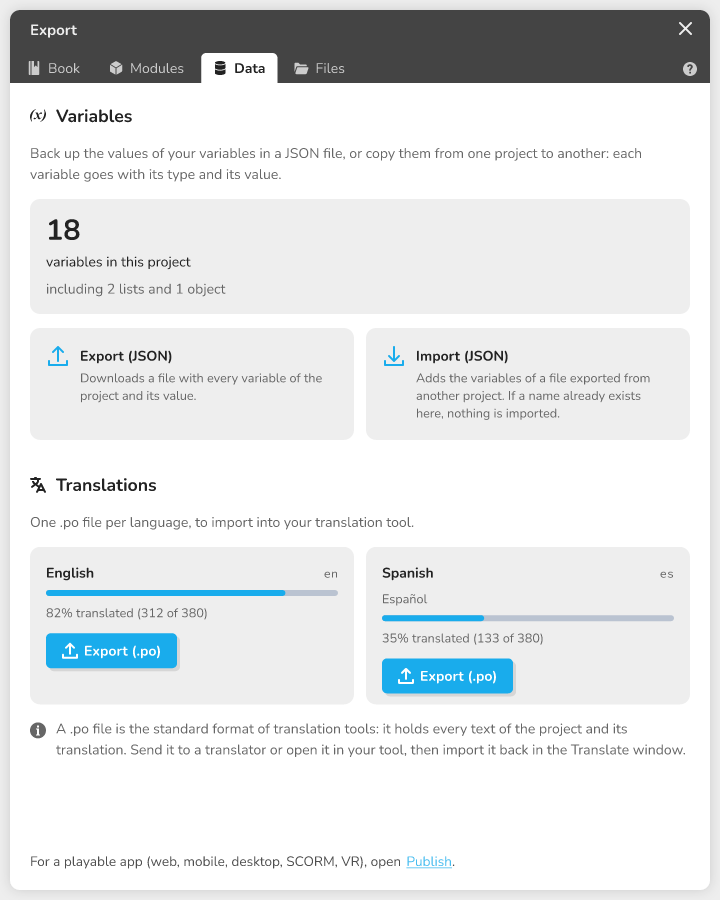 the Export window open on the Data tab, Variables section, with the variable counter and the two buttons Export (JSON) and Import (JSON)
What it is for
- Backing up the values of your variables before a big change;
- copying a set of variables from one project to another (an inventory, scores, settings) without recreating them by hand;
- sharing your variables with a colleague.
Where to find it
- Open the main menu, then click Export (shortcut Cmd + Shift + S on Mac, Ctrl + Shift + S on Windows and Linux);
- choose the Data tab;
- find the Variables section.
The section shows how many variables the project has and, if there are any, how many are lists and objects. If the project has no variable, a message invites you to create some in the Variables window of the main menu, or to import a file.
Exporting variables
- Click Export (JSON);
- your browser downloads a file named after your project, for example
My project - variables.json(orvariables.jsonif the project has no name).
The button is greyed out while the project has no variable.
What the file contains
- the variables you see in the variable browser, with their name, type and value;
- for a list, the values it holds.
The files themselves are not inside the JSON: an Image variable, for instance, only keeps the link to its file.
Importing variables
- Open the same section in the destination project;
- click Import (JSON) and choose a
.jsonfile made by the export; - a message (for example 3 variables imported) lists the names that were added.
Imported variables are added to the ones the project already has. Existing variables are never changed. The import is a single step in the project history: a single undo removes it entirely.
💡 Tip: export from the original project right before importing, so the file is up to date.
If a name already exists
The import is all or nothing. If at least one variable in the file has the same name as a variable in the project, nothing is imported and the These variables already exist message lists the names. Rename or delete those variables in the project, or in the original project before exporting, then try again.
If a file is missing
When a variable points to a file the destination project does not have, the variable is imported but a warning appears: the file is not in this project. Add it in Files, then pick it in the variable.
Limits
- Only the variables of the variable browser are exported, not graphs or modules (for modules, see Import and export a module);
- a file edited by hand may be refused: do not edit the JSON;
- the file must come from the variables export, not from another tool;
- files (images, sounds...) do not travel with the JSON.
Troubleshooting
When the import fails, a red-edged box explains the cause and the fix, and offers Copy for support (see Understanding an error message). Nothing is added to the project in these cases.
| Message | What to do |
|---|---|
| Unreadable file | This is not a readable JSON file: choose a file made by the export. |
| This file is an archive | This is a modules export (.zip): import it on the Modules tab of the same window, in the Import modules section. |
| This file holds no Celestory variables | This JSON does not come from the variables export. |
| No variables in this file | Export from a project that has variables first. |
| Invalid variable | A variable has a name, type or value that is not recognized: export again without editing the file. |
| Two variables have the same name | Rename one of them in the original project, export again, then import again. |
| These variables already exist | Rename or delete the duplicate variables, then import again. |
🔺 Note: some error messages mention “Import/Export variables”. They mean the Export (JSON) and Import (JSON) buttons on the Data tab.