
Updated for version 6.0.30
You have just tested your project and you want to see exactly where the player went? Replay plays the last execution back on the graph: Celestory opens the graphs that were crossed, highlights the block reached at each step and draws the path taken. You can move forward and backward, speed up, and restart from a step in the player.
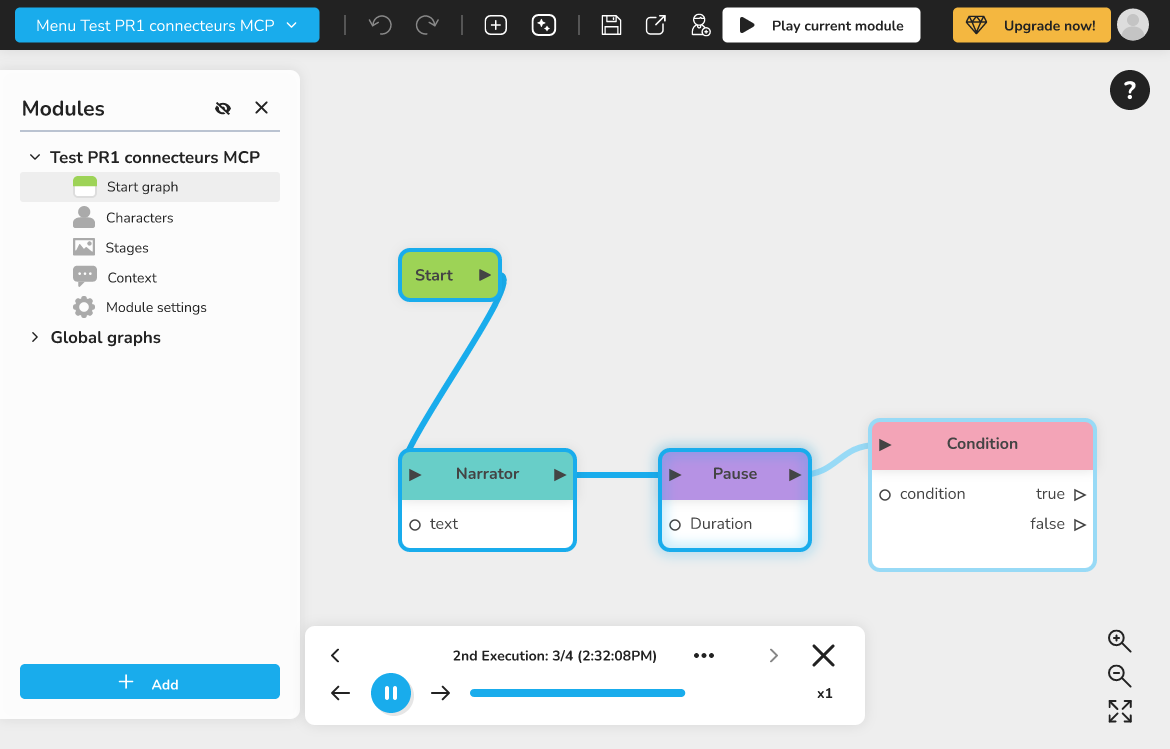 The graph during a replay, with the current block outlined, the links already walked and the control card at the bottom of the screen
What it is for
- Understanding why the story took one branch rather than another;
- finding the block where a test went wrong, without playing everything again by hand;
- showing a path to a colleague or a client;
- restarting from a precise step to test what follows (see below).
What is recorded
As soon as you start the player, Celestory notes every block the player goes through: the module, the graph, the block, the state of the player on arrival, what the chatbot or the Visual Novel scene showed, and the variables that changed on the way. Together they make an execution.
- An execution is created each time the player starts or restarts;
- Celestory keeps the last 20 executions, the oldest ones are dropped;
- executions remain available after the player is closed;
- they are kept by the open Celestory page, not in your project: they are lost when you reload or close the page.
🔺 Note: until a block has been recorded, the replay button is greyed out. Start the player first and play at least one block.
Where to find the replay
- In the project bar, hover the Play current module button: a small menu opens.
- Click Replay last execution.
The graph of the first block of the most recent execution opens right away, the control card appears at the bottom of the graph and automatic playback starts.
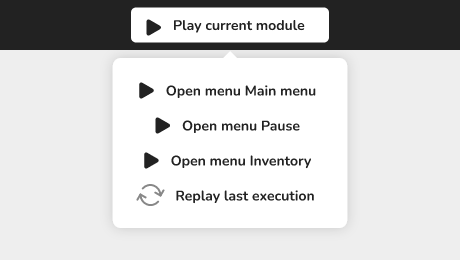 The menu that opens under the Play button, with the Replay last execution entry
What the graph shows
At each step, Celestory centers the graph on the block reached and highlights it:
- the current block is outlined, with a soft glow;
- the link that has just been taken is drawn progressively from the previous block;
- the links already walked before this step stay colored;
- the links and blocks that the execution will still go through in this graph are shown in a lighter shade;
- blocks already visited keep an outline.
If the execution moves from one graph to another, Celestory opens the right graph by itself.
The control card
The card at the bottom of the graph contains:
| Element | Role |
|---|---|
| Title "1st Execution: 3/12 (2:32:05PM)" | Number of the execution, step shown out of the total number of steps, start time |
| Left and right arrows at the top | Previous execution and Next execution |
| Play / pause button | Starts or stops automatic playback |
| Previous step and Next step arrows | Move one block back or forward |
| Progress bar | Click to jump to a point of the execution |
| x1, x2, x4 | Playback Speed: each click goes to the next speed |
| Close cross | Leaves the replay |
Playback speed
Each step stays on screen about as long as it really took during the test, with a minimum of half a second and a maximum of a second and a half (at x1). At x2 and x4, these durations are divided by two or four. At the last step playback stops; press play again to start over from the beginning.
Several executions
Use Previous execution and Next execution to move between executions. The replay always starts on the most recent one. These arrows are greyed out when there is no other execution.
Opening the player or the data of a step
Click More options (the three dots in the middle of the card):
- Open player opens the player on the step shown, in the state it had at that time. If a player is already open, it now follows the steps of the replay. If you then play on from this step, Celestory records a new execution that branches off this one, and the replay follows it;
- Open data opens the editor of the block of the step, on the values of this execution;
- Generate MP4 creates a video of the execution (see Recording a playthrough as an MP4 video).
The first two options are greyed out during automatic playback: pause first.
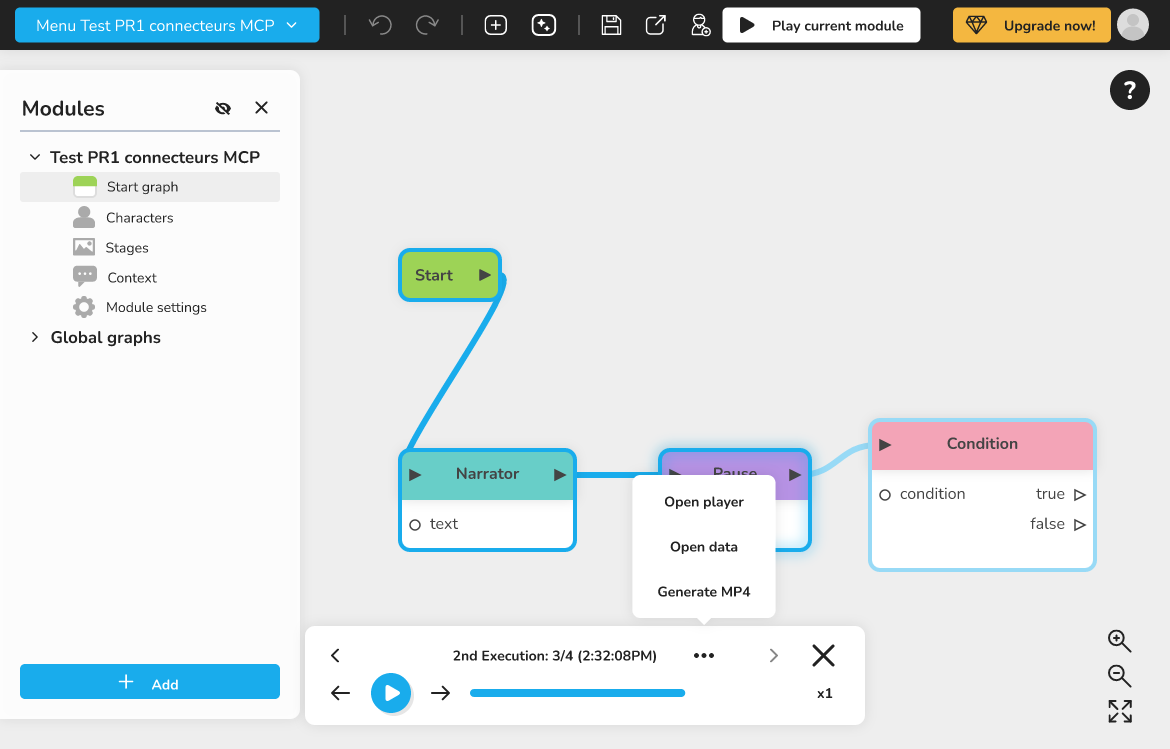 The More options menu open, with Open player, Open data and Generate MP4
Limits
- the replay happens on the graph and only shows the blocks that were crossed: to see again what the player saw (HTML5 pages, images), open the player on the step or generate an MP4 video;
- Open player relies on the state kept at each step: a step with no recorded state cannot be reopened in the player;
- executions are not saved in the project: they cannot be shared with your collaborators.
Troubleshooting
| Problem | Solution |
|---|---|
| Replay last execution is greyed out | Start the player and play at least one block, then open the menu again |
| The replay does not start although the button is active | The last execution has no block yet (player restarted without playing): play at least one block, then start the replay again |
| Open player is greyed out | Pause playback, or wait for a video recording to end |
| The Close cross is greyed out | A video is being recorded or made: wait for it to end or cancel it |