
The AI text request and AI image request blocks have new inputs and two new outputs. The first can now send an image or a video to the model, with a warning when the chosen model cannot read them. The second adapts its inputs to the chosen model, for instance to edit an image. Both now let you plan what happens when the request fails.
🔺 Note: both blocks are reserved for the ORGANIZATION plan (the Add a block menu shows the "ORGANIZATION" tag) and each request uses the project owner's monthly AI quota (see AI Credits and Subscription).
The models on offer
In both blocks, the model input only offers the models that the Celestory administration has opened to blocks, in the order it chose. Your project only keeps the name of the chosen model: the list itself can change. A new AI text request block starts with mistralai/ministral-3b-2512, a new AI image request block with fal-ai/flux-2/klein/4b.
A game never switches model by itself: you pick another one while editing.
AI text request: sending an image or a video
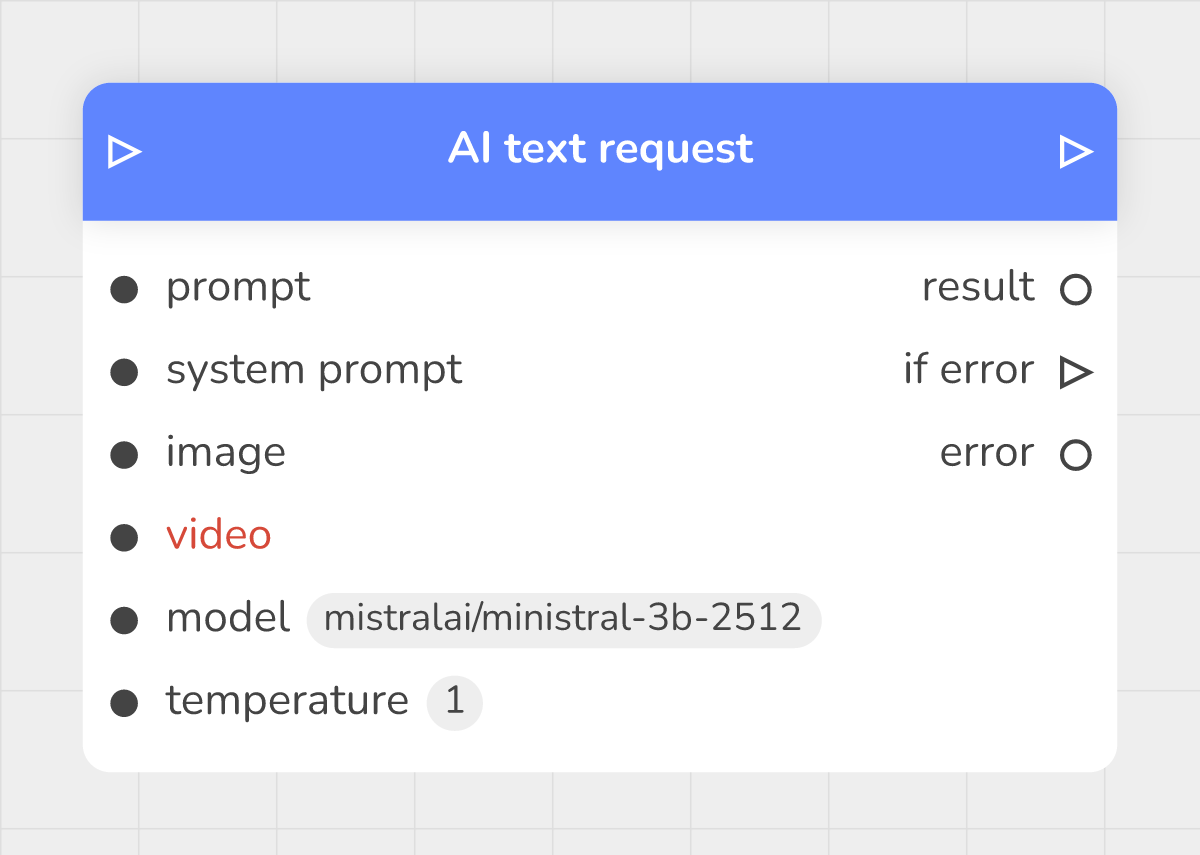 the AI text request block, with its new image and video inputs and its if error and error outputs
| Input | Role |
|---|---|
| in | the flow arriving at the block |
| prompt | the request sent to the model |
| system prompt | the general instructions (role, tone, answer format) |
| image | an image the model looks at along with the prompt |
| video | a video the model watches along with the prompt |
| model | the model that answers |
| temperature | 1 by default; the lower it is, the more consistent the answer |
The image can be an image from your project or an image produced by an AI image request block (its result output). A web address pointing to another site is refused in game. The video can be a video from your project or the camera recording, that is the media output of the Input Camera block. If you plug nothing in, the block sends no image or video and works as before.
The "does not read" warning
Not every model can read images or videos. When the chosen model does not read them, the block's editing window shows a red message under the input concerned, such as:
This model (mistralai/ministral-3b-2512) does not read videos: in game, the request will be refused. Models that read them: google/gemini-3.5-flash-lite.
The message lists the models that read them among those open to games. If there are none, it says so: "… and no game model does: in game, the request will be refused." On the graph, the input's name also turns red. The warning can show as soon as you place the block, before you have chosen any image or video: as long as the input stays empty, the block sends nothing and the request is not refused for that reason.
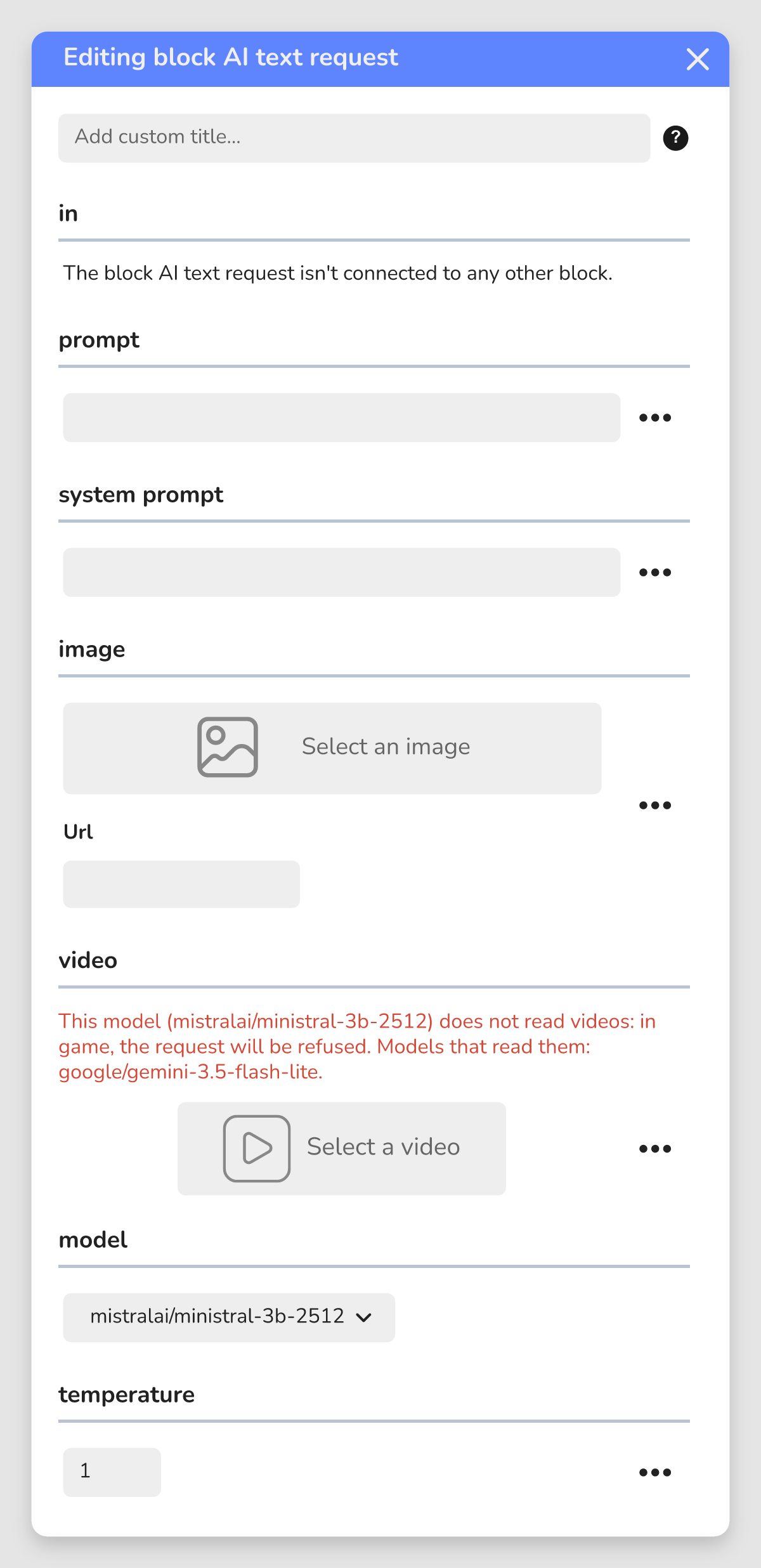 the block's editing window, with the warning under the video input
To clear it, choose one of the listed models in model. The warning is worked out again whenever the model, the image or the video changes.
AI image request: inputs that follow the model
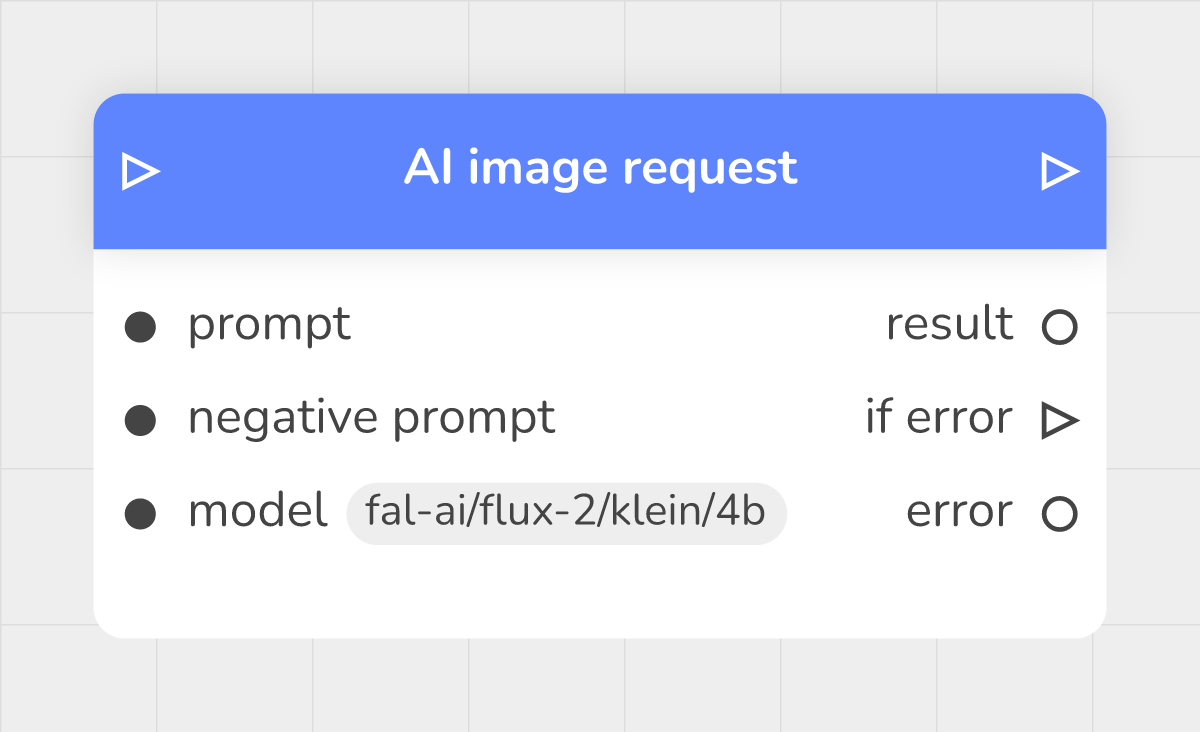 the AI image request block with the default model: only the fixed inputs are shown
The block always has three fixed inputs: prompt, negative prompt and model. The others appear or disappear depending on what the chosen model offers. Change the model and the list of inputs adapts by itself; an input the new model still offers keeps your setting.
| Input | When it appears | Role |
|---|---|---|
| image | the model edits an image | the starting image to edit |
| more images | the model edits an image | a list of extra images sent along with the first one |
| size | the model offers it | the size or shape of the image, among the model's values |
| quality | the model offers it | the quality level, among the model's values |
| background | the model offers it | the type of background, among the model's values |
| format | the model offers it | the format of the file produced, among the model's values |
| seed | the model offers it | a whole number that helps get a similar result from one time to the next |
| advanced parameters | the model declares some | extra settings, written as JSON |
The size, quality, background and format lists start with "Model default": as long as you keep that choice, the block sends nothing and the model applies its own setting. For the seed, the value -1 (the default) means the same; a number of 0 or more is sent as is.
Editing an image
- In model, choose a model that edits images. The image and more images inputs appear under prompt.
- On image, choose an image from the project or plug in an image produced by another block.
- If needed, plug a list of images into more images to send along with the first one.
- In prompt, describe the edit, for example "Add a red hat to the character".
As long as no image is given, the editing window shows under image: "This model edits a picture: plug an image in, or the request will fail."
Advanced parameters
The advanced parameters input is meant for creators who know the model. It expects a JSON object whose values are texts, numbers or booleans, for example {"guidance_scale": 4}. Text that is not a valid JSON object is ignored, with no message.
The if error and error outputs
Both blocks have two new outputs:
| Output | Role |
|---|---|
| if error | the flow continues here when the request fails |
| error | a sentence explaining the failure, empty when everything went well |
What happens when the request fails depends on what you plugged in:
- if error is plugged in: the game continues through if error. The sentence is in error, and result stays empty;
- if error is not plugged in: the game continues through out, as before, so the player is not stuck. The sentence is still in error. With AI text request, when the server refuses the request, it also ends up in result, as older projects expect; if the connection drops, result stays empty.
💡 Example
The player shows an object to the camera and a character comments on it:
- Place an Input Camera block, then an AI text request block linked by the flow.
- Plug the media output of Input Camera into the video input of AI text request.
- In model, choose a model that reads videos: if it does not, the red warning suggests some.
- In prompt, write "Describe in one sentence the object the player is showing."
- Link out to a character message that shows result.
- Link if error to a message that shows error, or a fallback line such as "I couldn't see it well, can you try again?", then send the flow back to Input Camera.
🛟 Troubleshooting
AI text request
| Message (error output) | Solution |
|---|---|
| This model does not read images. | Choose one of the models listed by the warning on the image input. |
| This model does not read videos. | Choose one of the models listed by the warning on the video input. |
| This image cannot be sent to the AI: it has to come from the project. | Use an image from your project or one produced by an AI image request block. |
| This video cannot be sent to the AI: it has to come from the project or from the camera. | Use a video from the project or the media output of Input Camera. |
| This video is too long for the AI. | Shorten the video or the recording time. |
| This file is too large for the AI. | Use a lighter file. |
| This file is not a type the AI reads. | Use another image or video format. |
| This game's monthly AI quota is reached. | Wait for the quota to reset or change your subscription. |
| The AI request failed. | Try again; if it keeps happening, contact support. |
AI image request
| Message (error output) | Solution |
|---|---|
| This model needs an image to edit. | Give an image on the image input. |
| A setting of the block is not accepted by this model. | Set the settings back to "Model default", the seed to -1, and empty advanced parameters. |
| This game's monthly AI quota is reached. | Wait for the quota to reset or change your subscription. |
| The image request failed. | Try again; if it keeps happening, contact support. |
⚙ Technical details
- The blocks call the Celestory server when the player reaches them: an internet connection is required.
- With AI text request, an image from the project is sent by its file reference; an image produced by another block is sent by its web address. AI image request always sends the image's web address.
- A project saved before these inputs and outputs existed keeps working: with no image, no video and no if error plugged in, the block behaves as before.