
Updated for version 6.0.30
When the player speaks into the microphone, when a generated voice answers, or when a sound or a piece of music plays, you can show an animation over the conversation. It moves with the voice or the sound, and shows the player that the app is listening or speaking. This guide presents the 29 choices on offer, the settings shared by all the blocks concerned, and their limits.
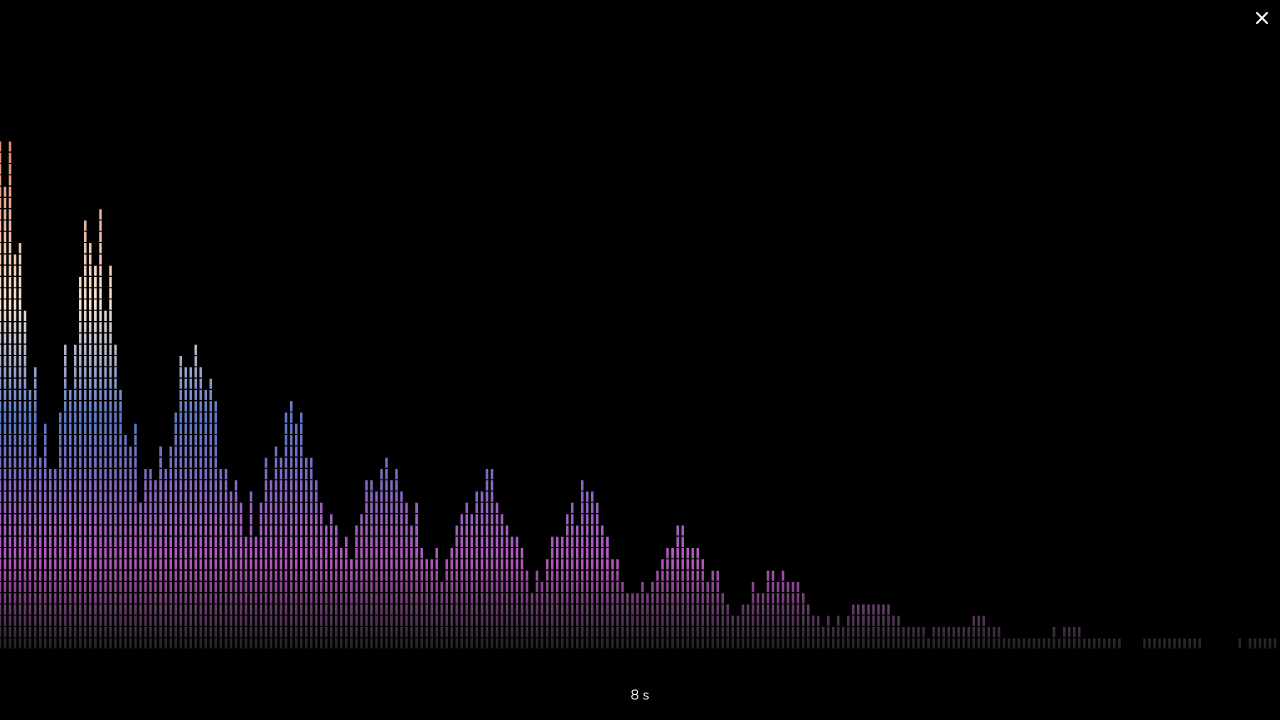 a running Chatbot with a voice animation (for example "Aurora orb") shown in the center while the player speaks
What it is for
A voice animation does one of three jobs:
- it confirms that the microphone is recording (Microphone block);
- it fills the wait while a voice is being generated (AI sound request block);
- it illustrates a sound or a piece of music being played (Play sound and Play music blocks).
These animations are shown in the Chatbot player, over the conversation feed.
Where to choose it
Four blocks share exactly the same list of animations and the same settings:
| Block | Default animation | What the animation follows |
|---|---|---|
| Microphone | Spectrum | the player's voice while recording |
| AI sound request | None | a slow breathing motion, until the answer arrives |
| Play sound | None | the sound being played |
| Play music | None | the music being played |
Each of these blocks has an animation input. On Microphone it is already set to "Spectrum"; on the other three it is set to "None": nothing is shown until you pick one. Projects created before this feature do not change.
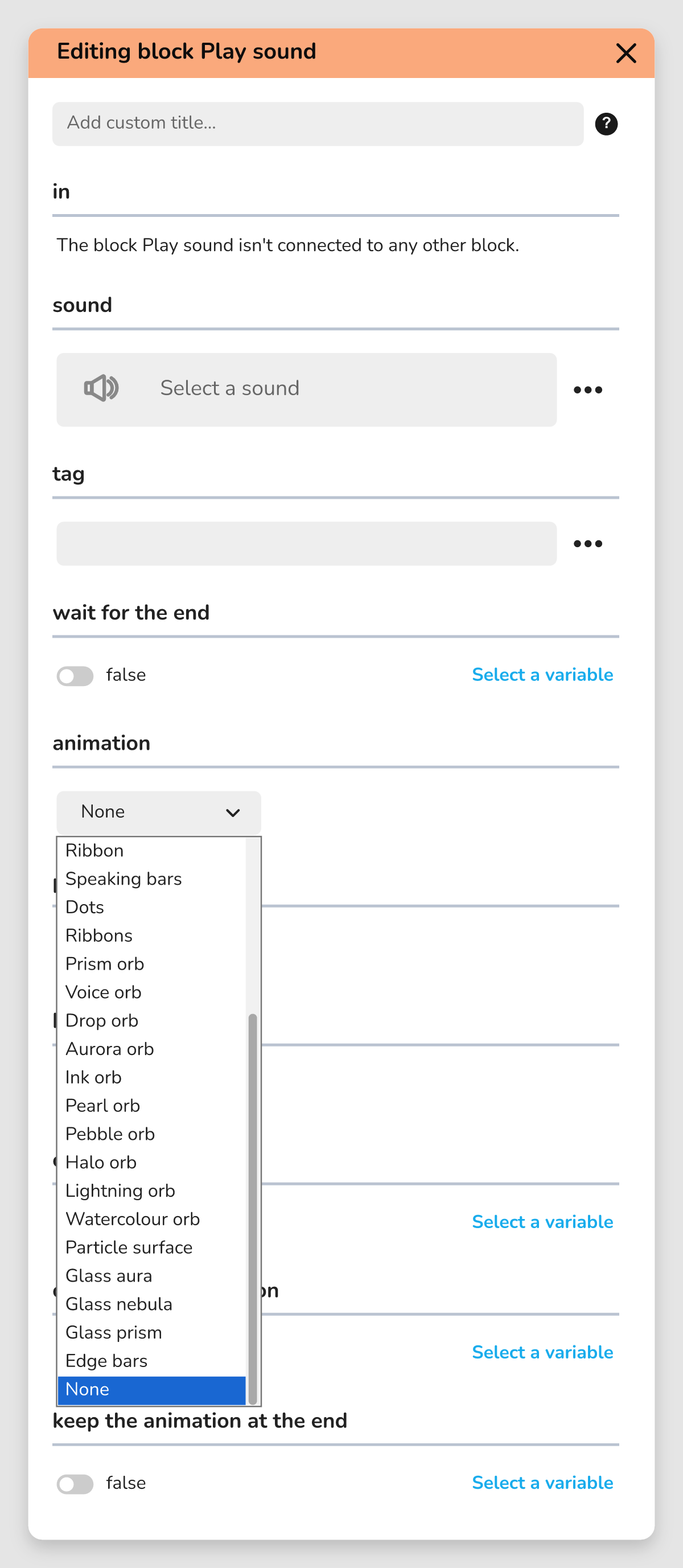 The Play sound block in the graph, with the "animation" input and the list of animations open.
The 29 animations
The list is the same everywhere. The names below are those of the interface.
| Family | Animations |
|---|---|
| Bars | Spectrum, Bar, Equalizer, Radial bars, Speaking bars, Edge bars |
| Waves and ribbons | Wave, Pulse, Ribbon, Ribbons |
| Simple shapes | Ring, Dots |
| Particles and aura | Particles, Aura, Particle surface |
| Orbs | Prism orb, Voice orb, Drop orb, Aurora orb, Ink orb, Pearl orb, Pebble orb, Halo orb, Lightning orb, Watercolour orb |
| Glass | Glass aura, Glass nebula, Glass prism |
| No animation | None |
That makes 28 animations, plus "None", which shows nothing. The grouping by family is this article's: in the block, the list runs "Spectrum", "Bar", "Wave"... down to "None".
💡 Tip: try two or three animations with your own voice before choosing. A busy animation (orbs, glass) looks good on a dark background, but a plain "Bar" stays the most readable when the text of the conversation matters.
Position and background
Two inputs set where the animation goes:
- position: "Center", "Bottom", "Top", "Left" or "Right". The last four put the animation in a band along one edge of the screen, so the conversation stays visible around it;
- background: "Dark" or "Transparent". A new block starts on "Transparent"; a block created before this feature keeps the dark background it had.
On the Microphone block, centered on a dark background, the animation blocks clicks on the conversation while recording. In every other case, clicks go through.
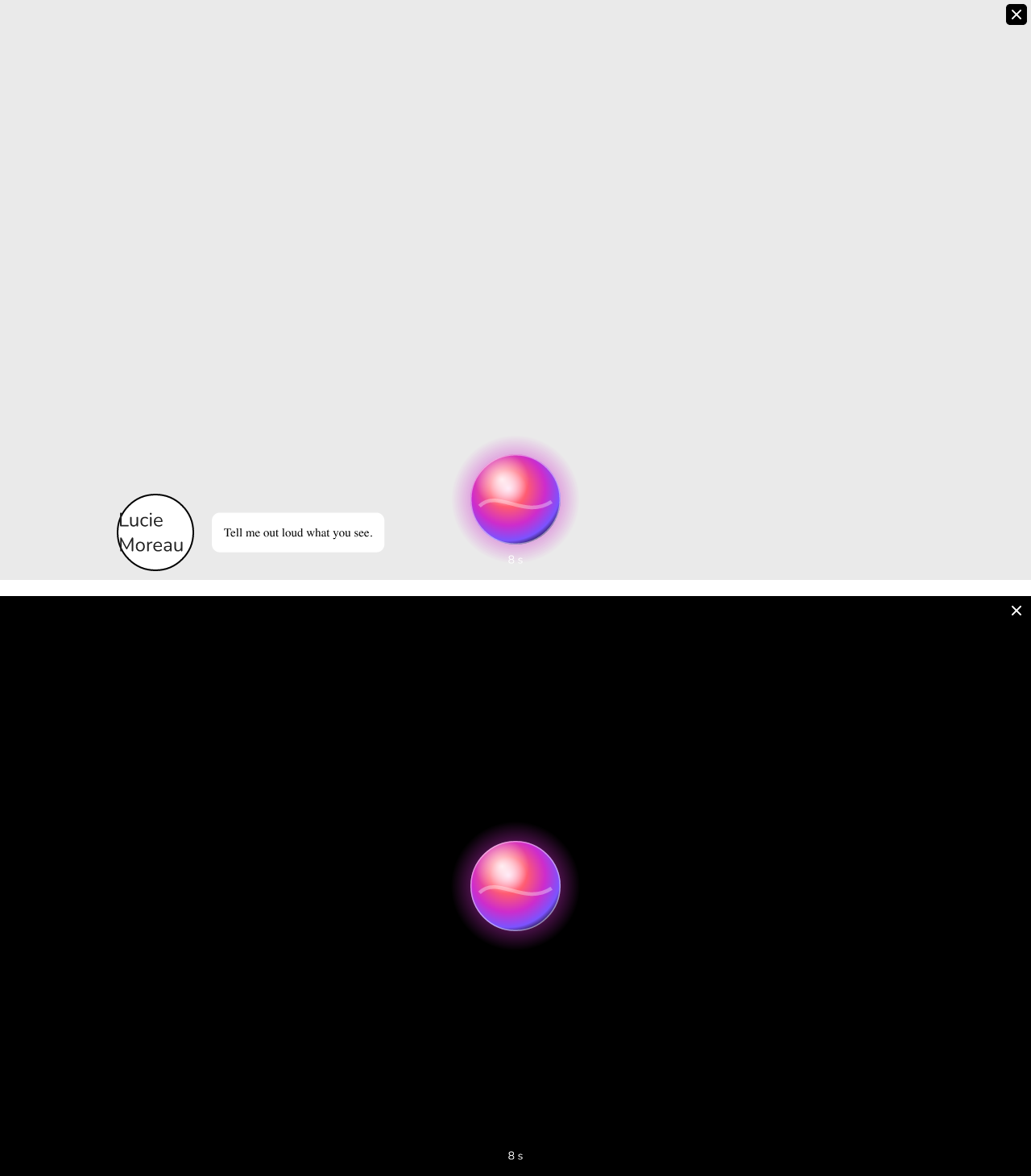 the same animation (Voice orb) at the bottom of the screen on a transparent background, then centered on a dark background
The close button
The close button input (on by default) shows a button in the top right corner of the player. What it does depends on the block:
| Block | What the button does |
|---|---|
| Microphone | ends the recording, the flow goes on |
| Play sound | stops the sound |
| Play music | stops the music |
| AI sound request | only hides the animation, the request goes on |
Turn it off to make the player see it through, for example during a timed dictation.
Keeping the animation from one block to the next
Two inputs let you chain blocks without the animation disappearing and coming back:
- continue the animation: the block takes over the animation already on screen (same look, same place, same background) instead of starting a new one. If there is none left, the last animation shown comes back;
- keep the animation at the end: when the block ends, the animation stays on screen and breathes gently, waiting for the next block.
Both are off by default. For a voice assistant, turn on keep the animation at the end on Microphone, then continue the animation on AI sound request and on Play sound: a single animation stays on screen from the question to the answer. An animation that is kept but never taken over disappears when another block shows its own, or when the player taps its close button.
Microphone: stopping when the player goes quiet
The Microphone block adds two settings of its own:
- stops when the player goes quiet: the recording ends by itself once the player has spoken (for at least a quarter of a second) and then stayed quiet for a second and a half. On in a new block; blocks created before this option record until stopped;
- capture duration (s): the recording stops by itself after this many seconds. With 0, it only stops on demand.
The block also keeps its timer input: once that time has passed, the flow follows the dedicated output instead of the usual one. See 🟦 Microphone.
AI sound request: an animation while waiting
An AI sound request block can show an animation while the voice is being generated. It moves slowly, as there is no sound to follow yet. See ⬜ AI sound request.
Limits
⚠ Warning: if the player has asked their device for less motion, about half of the animations (including "Spectrum", "Wave", "Aura" and the prism, voice, drop and aurora orbs) are replaced by "Bar", and "Dots" by "Speaking bars". The others stay as they are. Do not rely on a particular effect to understand the story.
- Voice animations are drawn by the Chatbot player only: in a Visual Novel, the Microphone block shows a simple sound level meter instead.
- The browser asks the player for permission to use the microphone; if they refuse, recording cannot start.
- The animation is decorative: it is hidden from screen readers, which get a spoken announcement during recording.