
Updated for version 6.0.30
Instead of creating a variable by hand, describe in one sentence what you want to track (a score, a difficulty choice, a deadline) and let the AI assistant create it in your project. This article is for creators who want to save time, or who are unsure which variable type to pick.
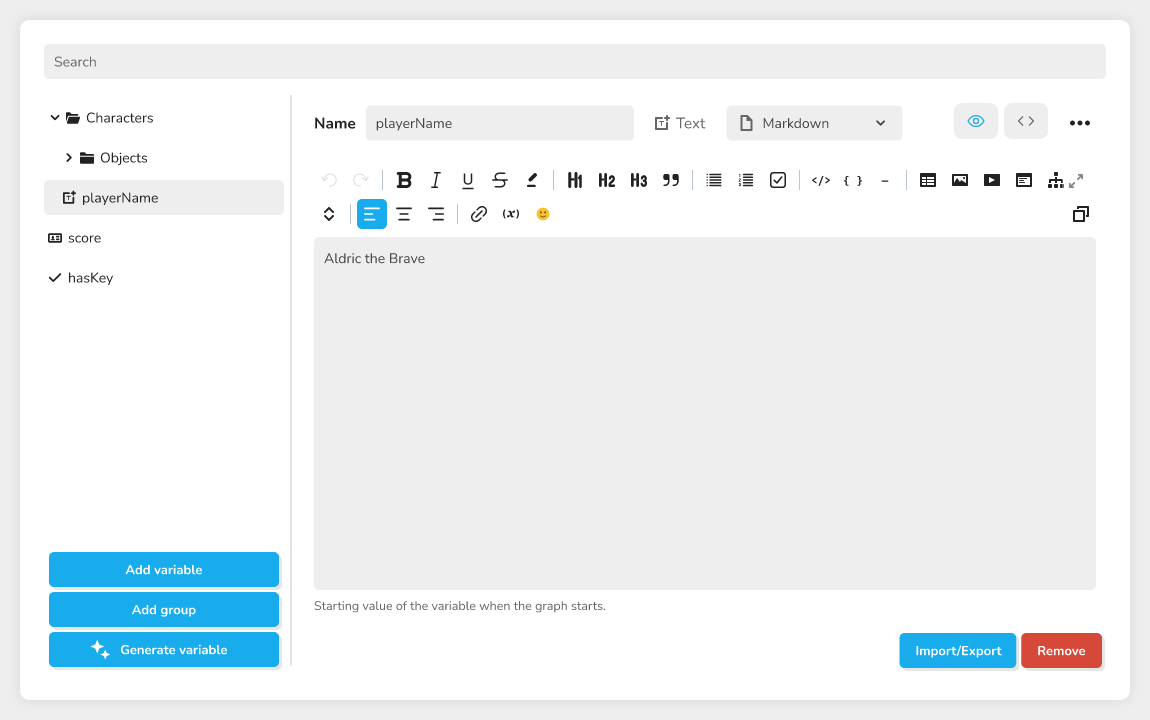 the variable editor with the "Generate variable" button next to "Add variable"
What it does
The button opens the AI Generation window on the chat, with the start of a message already written. You complete the sentence and send it, and the assistant creates the variable with the right type and, if you said so, its starting value.
Where to find the button
In the variable editor (Variables menu), in the left column, next to Add variable and Add group: the Generate variable button.
🔺 Note: the button does not appear on mobile, nor in the variable picker of a block (when you choose an existing variable).
Steps
1. Open the chat
Click Generate variable. The AI Generation window opens on the chat. The message already contains:
Generate a variable to track a property of my project that I describe:
The cursor sits right after it. The window opens in Graph mode, the mode in which the assistant can change the project.
⚠ Warning: if you had already started typing a message in the chat, it is kept as is: the message start is not added and the mode does not change. Check the Mode menu in that case (see below).
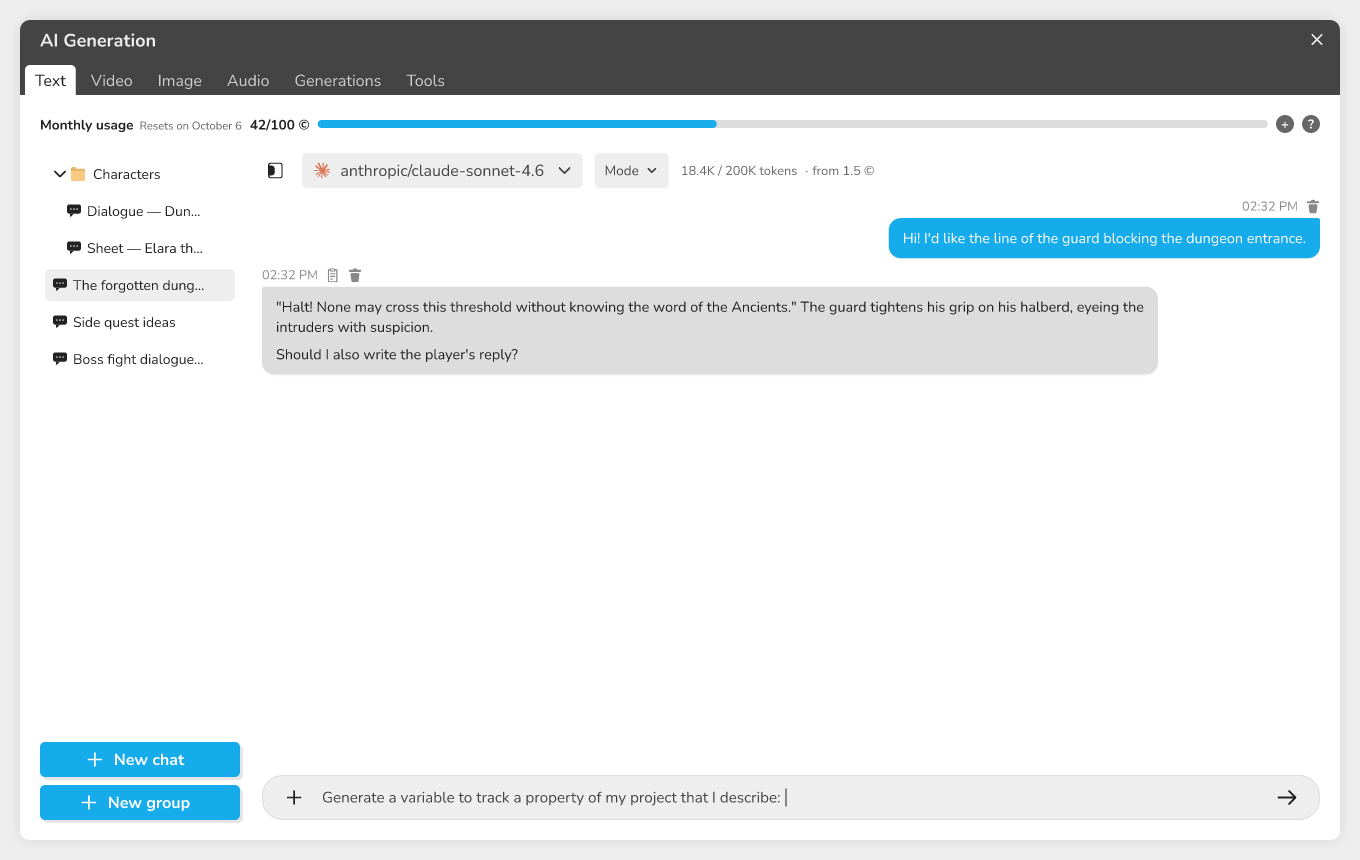 the AI Generation window with the pre-filled message and the cursor at the end
2. Phrase your request well
Finish the sentence by describing what the variable must remember. The more concrete, the better. A few examples:
- "the player's hit points, 10 at the start";
- "the difficulty level chosen: easy, normal or hard";
- "the items the player picked up: key, lamp, map";
- "the investigation deadline, December 25, 2026 at 6 pm";
- "the first name typed by the player";
- "whether the mansion door is open".
If you know them, give the variable name, the options to offer and the starting value.
3. The types the assistant can create
| Type | To remember |
|---|---|
| Text | a name, a line of dialogue |
| Number | a score, a price |
| Boolean | yes or no |
| Date | a day and a time |
| Single select | one choice among several options |
| Multiple select | several choices among options |
Other types (Image, Video, Sound, List, Object, File, Percentage, Duration, and so on) cannot be created by the assistant: create them with Add variable. See Video and Sound variables.
4. Check and adjust the variable
While it works, the chat shows "Creating the variable" followed by the variable's name. When it is done, find the variable in the editor list and check:
- its name and type;
- its starting value;
- for a selection, its options.
You can edit everything by hand like any other variable. The options of a selection, however, cannot be changed by the assistant afterwards: edit them in the variable editor. If a variable with the same name already exists, the assistant leaves it as it is and does not create a duplicate.
To go back, use Undo this turn under the assistant's answer: the project returns to the state it was in before your message. Note that anything you changed by hand since is lost too.
5. Go further with the assistant
In the same message, or later in the conversation, you can ask the assistant to connect the variable to a block, to change it during the story (assign block, increment block) or to build the graph that uses it. It knows the Multiple choice block, selection variables, dates and graph shapes. See The AI assistant that builds your graph.
The assistant asks for your approval (Allow / Decline) before deleting something (a block, a variable, a character), saving the project, replacing what a block holds or cutting a link. Creating a variable is not one of these.
Credits used
Every message sent in Graph mode uses AI credits, at least those of the chosen model. The assistant works in steps (create the variable, connect it, check) and each step is charged in full: the real cost depends on what it does. The chat shows an estimate next to the token count, in the form "from" followed by a number of credits.
- The Mode menu offers a reasoning level (Fast, Normal, Deep) with a displayed multiplier ("Credits ×..."). The more the assistant reasons, the slower and costlier it is. Not every model offers this choice.
- Your quota's Monthly usage and its reset date are shown in the window. By default, plans include 5, 40 or 600 AI credits per month depending on the plan.
- Credits already used are not given back, even if you undo the turn.
Limits
- The assistant only creates six variable types (see the table).
- Graph mode is not available with a model that does not support tools: the chat then answers in text and leaves the project alone. Pick another model.
- If no model is enabled, nothing can be generated. Ask the platform administrator to enable one.
- The number of steps in a turn is capped. If the assistant reaches it, it stops ("The assistant reached the most steps one turn may run, so it was stopped there."). What is done stays in the project: ask for the rest in a new message.
Troubleshooting
| Message or symptom | Solution |
|---|---|
| The Generate variable button is missing | You are on mobile or in the variable picker. Open the variable editor on a computer. |
| The assistant answers but creates nothing | Open the Mode menu and tick Graph; check that the model supports tools. |
| AI quota reached | Wait for the displayed reset date, or upgrade your plan. |
| The options of a selection need changing | Edit them in the variable editor. |