
Updated for version 6.0.30
A Video or Sound variable holds a file from your project (an intro, a cutscene, a voice line, a jingle) for your blocks to play. You change the file in one place, or make it vary with the player's path, without duplicating your blocks. This article is for creators who want a different video or sound depending on the choices made in the story.
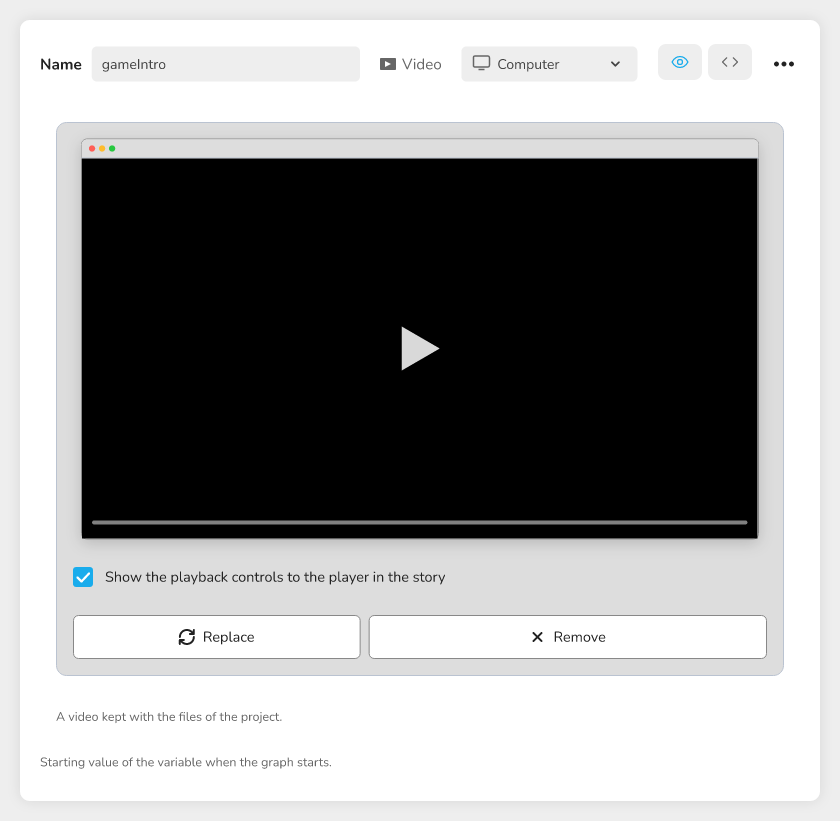 The variable editor with a Video variable selected, the video preview visible in the right-hand panel
What they are for
Without a variable, each block holds its own video or sound. With a variable, the block plays whatever the variable holds at that moment. This lets you:
- replace the intro video everywhere by changing a single file;
- play a different voice line depending on the character chosen;
- keep a reusable jingle across several graphs.
Both types appear in the variable type menu with these descriptions: Video ("A video from your files, like an intro or a cutscene") and Sound ("A sound or a music from your files, like a voice line or a jingle").
Where to find them
- Open the variable editor (Variables menu).
- Click Add variable.
- Choose the Video or Sound type in the list.
The variable appears in the list. Select it to see its panel on the right, where you choose the file and check it.
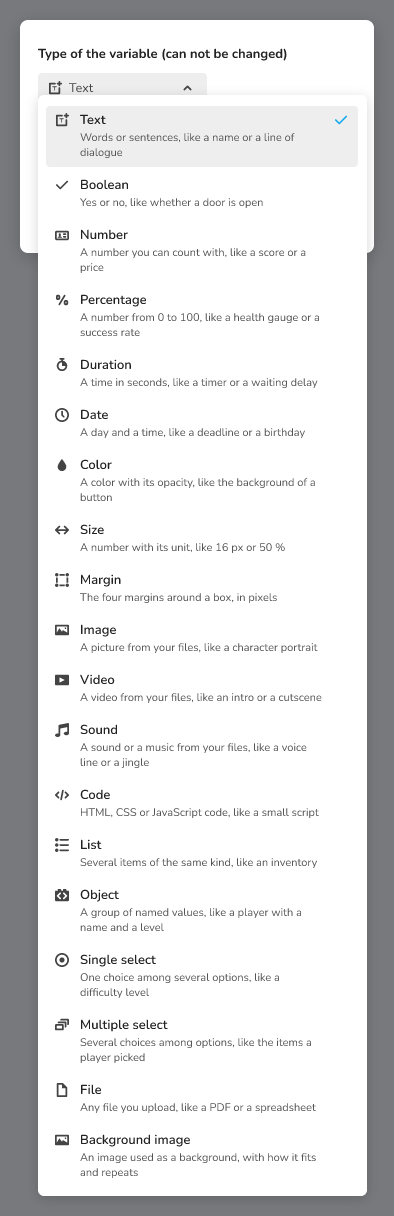 The variable type menu open, with the Video and Sound entries
Choosing the file
The chosen file is always kept with the project files. There are two ways to give it to the variable:
- drop a file from your computer on the panel, or click the zone to pick one; it is then added to the project files;
- choose a file that is already in the project files.
For a video
The empty zone says "Drop a video here or click to choose one". Accepted formats are MP4, WebM, MPEG and QuickTime. Once a video is chosen, you get:
- Replace: choose another video from the project files;
- Remove: detach the video from the variable (the file stays in the project files);
- the checkbox "Show the playback controls to the player in the story": when ticked, the player sees the video player controls (pause, position) while the video plays.
For a sound
The empty zone says "Drop a sound here or click to choose one". Accepted formats are MP3, WAV, OGG and WebM. The zone also shows the space used by the project ("X of Y used") when a limit exists. Once a sound is chosen, you get:
- Replace: choose a file from your computer;
- Project files: choose a sound that is already in the project files;
- Remove: detach the sound from the variable (the file stays in the project files).
🔺 Note: removing the file from a variable never deletes the file itself. It stays in the project files, and you can choose it again later.
The visual panel: listen and watch
The panel saves you from running the story to check your choice.
- Video: a player with its usual controls shows the preview, with the length of the video in the player.
- Sound: one line gives the file name, then its format, duration and size, separated by dots. A player offers Play the sound / Pause the sound, a position bar, and a Volume control with a button to mute.
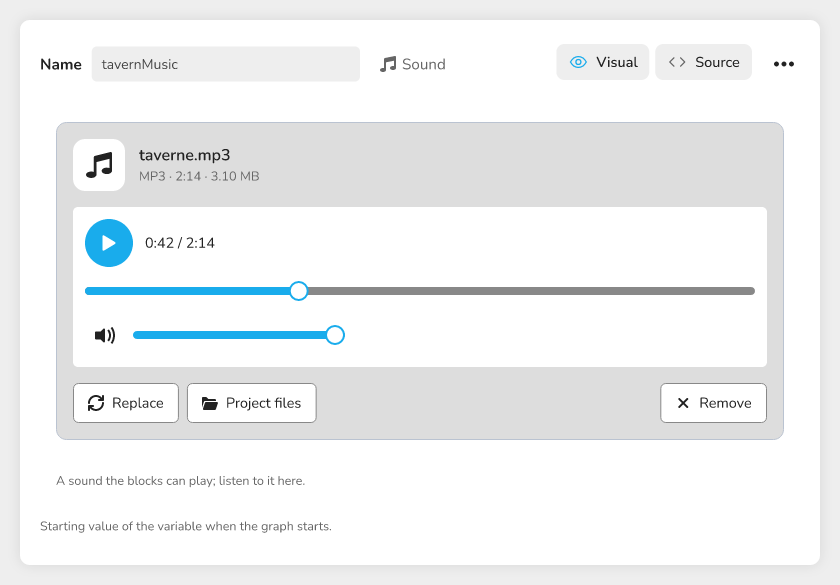 The panel of a Sound variable with the file name, the player, the position bar and the volume
If the file no longer exists in the project files, a red message tells you: "The sound "name" was not found in the project files. Replace it or choose another one." (the same message exists for a video, with "The video").
Playing the variable with blocks
To use the variable, connect it to a block input, like any other variable. The block then plays the file the variable holds.
| Block | Input that accepts the variable | Variable type |
|---|---|---|
| Video | content | Video (or Image) |
| Play sound | sound | Sound |
| Play music | music | Sound |
| Audio choice | sound | Sound |
The Video block shows a video to the player and moves on when it ends. The Load video and Load sound blocks also produce a Video or Sound value, from a web address.
💡 Tip: if the variable holds the web address of a sound or video rather than a file of the project, the panel offers the Copy to the project files button, which brings the file into your files. The copy never happens by itself, and it is refused above 100 MB.
An Image variable on a clickable zone
The same principle exists for images. In the Clickable zone block, each zone that shows an image (a zone of type Image or Text and image) gets an extra input named "zone name (image)". Connect an Image variable to it: the player sees the variable's image instead of the zone's own image. If the input is empty, or the file does not exist in the project, the zone keeps its own image.
Example: a different voice line depending on the character chosen
- Create a Sound variable named
line. - In the graph, after the character choice, add a block that sets the variable to the chosen character's sound (see ⛓ Variables).
- Add a Play sound block and connect its sound input to the
linevariable. - Run the project: the block plays the chosen character's line.
Troubleshooting
| Message | Solution |
|---|---|
| This file is not a video this panel can use. | Drop an MP4, WebM, MPEG or QuickTime video instead. |
| This file is not a sound. | Choose an MP3, WAV, OGG or WebM file. The previous sound is kept. |
| This sound cannot be played here. | The file may be damaged or in a format your browser does not read. Replace it with an MP3 or WAV file. |
| This video cannot be played here. | Check the file or the address, or replace the video. |
| The video could not be uploaded. (for a sound: The sound could not be uploaded.) | Check your connection and the free space of the project, then try again. The previous file is kept. The Copy the details for support button copies the error details. |