
Updated for version 6.0.30
When you export your app as a Direct link, Celestory publishes a game page: your app in a phone, tablet or computer frame, with its description, its credits, a share button with a QR code and an install button. This article explains what the visitor sees and what you can set, in particular the display formats visitors can switch between.
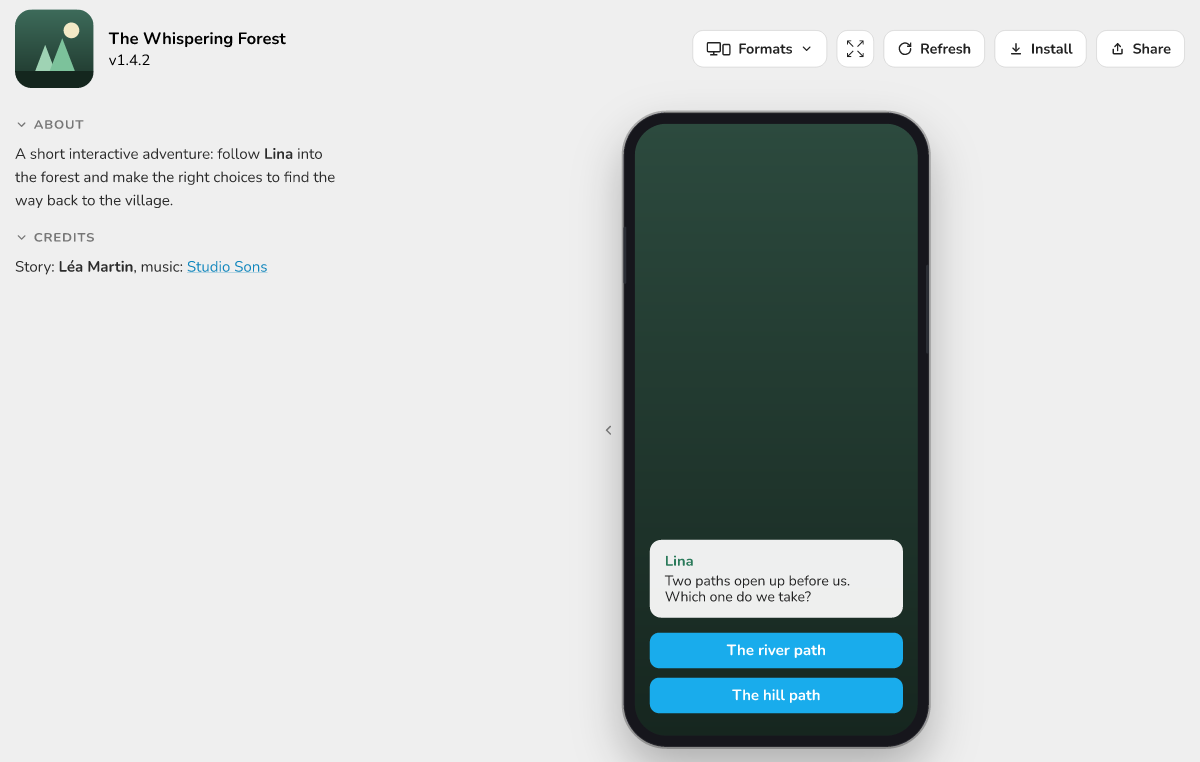 The game page of an app open in the Phone format, with the button bar (Formats, Full screen, Refresh, Install, Share) and the About and Credits panel on the left.
What the visitor sees
The page shows the app in a frame, with a bar of buttons:
- Formats: the menu that changes the display format (it only appears if you ticked several);
- Full screen: the app alone, filling the window;
- Refresh: clears the app cache on the visitor's device and reloads the page;
- Install: adds the app to the home screen or the desktop;
- Share: the page address, its QR code, the embed code and the widget.
Next to the frame or under it, a panel shows the name, the version and the image of the project, then the About and Credits sections when you have filled them in.
The texts of the page itself (buttons, hints) are in French if the visitor's browser prefers French, in English otherwise. The content of the app is not affected.
🔺 Note: a button to chat with support can also appear at the bottom right of the page (Chat with support). It depends on the configuration of the Celestory server, not on a setting of your project.
Where to find the settings
- Formats are chosen in the Export window (the Export entry of the project's general menu, or Cmd + Shift + S on Mac, Ctrl + Shift + S on Windows and Linux), Direct link tab, in the Display format area.
- The ratio, the description and the credits are set in the Project settings window (the Project entry of the project's general menu, or Cmd + Shift + , on Mac, Ctrl + Shift + , on Windows and Linux), with the fields Project ratio, Project description and Credits.
A setting made in the Export window applies to your next export: click Export to publish it.
Choosing the display formats
- Open the Direct link tab of the Export window.
- In the Display format area, click the button that lists the ticked formats.
- Tick one or more formats. At least one format stays ticked.
- Click Export.
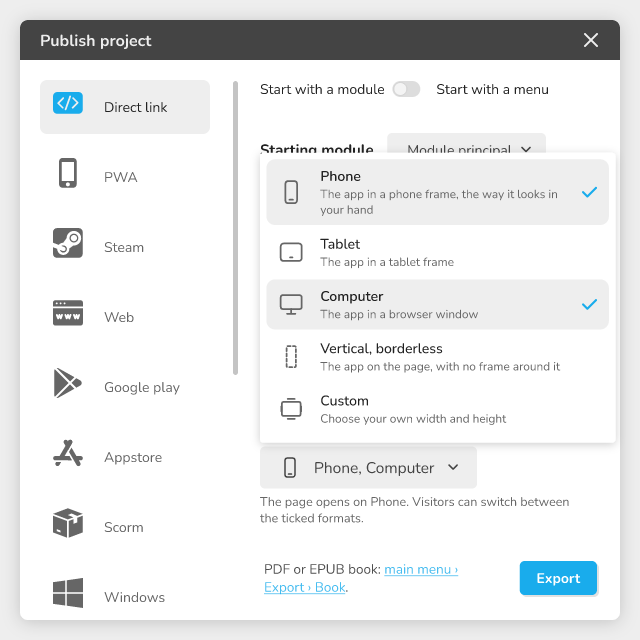 the Display format menu open, with the five formats and their ticks
| Format | What the visitor sees |
|---|---|
| Phone | The app in a phone frame, the way it looks in your hand |
| Tablet | The app in a tablet frame |
| Computer | The app in a browser window |
| Vertical, borderless | The app on the page, with no frame around it |
| Custom | Your own width and height |
The formats follow each other in this order in the menu. The page opens on the first ticked format, and a message under the button says so: "The page opens on Phone. Visitors can switch between the ticked formats."
The Custom format
When Custom is ticked, two fields Width and Height appear, in pixels. Each value must be between 200 and 4000; a value outside these limits is brought back to the nearest one. The default size is 390 x 844.
What the visitor does
- If you ticked a single format, the Formats menu does not appear on the page.
- If there are several, the visitor chooses in the Formats menu (name of each format and a short description). The page remembers the choice in their browser for the next visit.
- An address that asks for a format (for example the one copied from Share after a format change) opens the page on that format, if it is one of the ticked formats (Vertical, borderless is always accepted).
- When the page is embedded in another website (Integrated code), it opens in Vertical, borderless.
⚠ Warning: the Vertical, borderless format shows neither the About and Credits panel nor the Install button. Choose another format to show them.
The project ratio and the ratio names
The Project ratio describes the shape of the screen you designed for. In Project settings (as in the Project ratio field of the debugger), the picker offers:
| Name | What it means |
|---|---|
| Portrait | Stays in portrait, centered on wide screens |
| Landscape | Stays in landscape, centered on tall screens |
| Responsive | Fills all the available space |
In the debugger, when you test the project, the Preview screen ratio picker gives more precise names:
| Name | Suggested use |
|---|---|
| Portrait 9:16 | Mobile, vertical video |
| Tall portrait 9:19.5 | Mobile with a tall screen |
| Extra tall portrait 9:21 | Mobile with an extra tall screen |
| Portrait 3:4 | Tablet |
| Square 1:1 | Social media, thumbnail |
| Landscape 4:3 | Tablet, classic computer screen |
| Landscape 16:9 | Computer, television |
| Wide landscape 19.5:9 | Mobile with a tall screen, held sideways |
| Panoramic landscape 21:9 | Wide computer screen, cinema |
On the game page, the ratio turns the frames. With a portrait ratio (Portrait, 9:16, 9:19.5, 9:21), the Tablet frame is turned to portrait. With a landscape ratio (Landscape, 16:9, 19.5:9, 21:9), the Phone frame is turned to landscape. With a square, 3:4, 4:3 or Responsive ratio, the frames keep their usual orientation (Phone in portrait, Tablet in landscape). The frame sizes are 390 x 844 for the phone, 1024 x 768 for the tablet and 1280 x 800 for the computer (in pixels).
To see how the app fits the screen, read 🖥 Adjust the ratio of my app.
Writing "About" and "Credits"
The About section shows the Project description field, the Credits section shows the Credits field. Both are read as Markdown: bold, italic, links, lists, headings and tables are formatted. HTML you type is shown as plain text, with no effect.
- The Project description field accepts several lines; a list or a table works there.
- The Credits field is a single line: keep text, italic, bold or a link in it.
- Beyond 10,000 characters, the text is shown as it is, with no formatting.
- If both fields are empty, the panel does not appear.
Credits example: Story: **Lea Martin**, music: [Studio Sons](https://example.com)
The visitor can collapse each section (Collapse and Expand buttons) and the whole panel. The page remembers these choices on their device. A long description is cut with a See more / See less button.
Sharing with a QR code
The Share button opens a window with four options:
| Option | What it gives |
|---|---|
| Presentation | The page with its frame, description and credits |
| Full screen | The app alone, filling the screen |
| Integrated | The code to put the app inside another website |
| Widget | A floating button to add to your website |
In Presentation, the page link is shown with a Copy button, and under it a QR code. The text next to it says: "Scan this code with a phone to open the app." Photograph the screen, or take a screenshot, to print or send it.
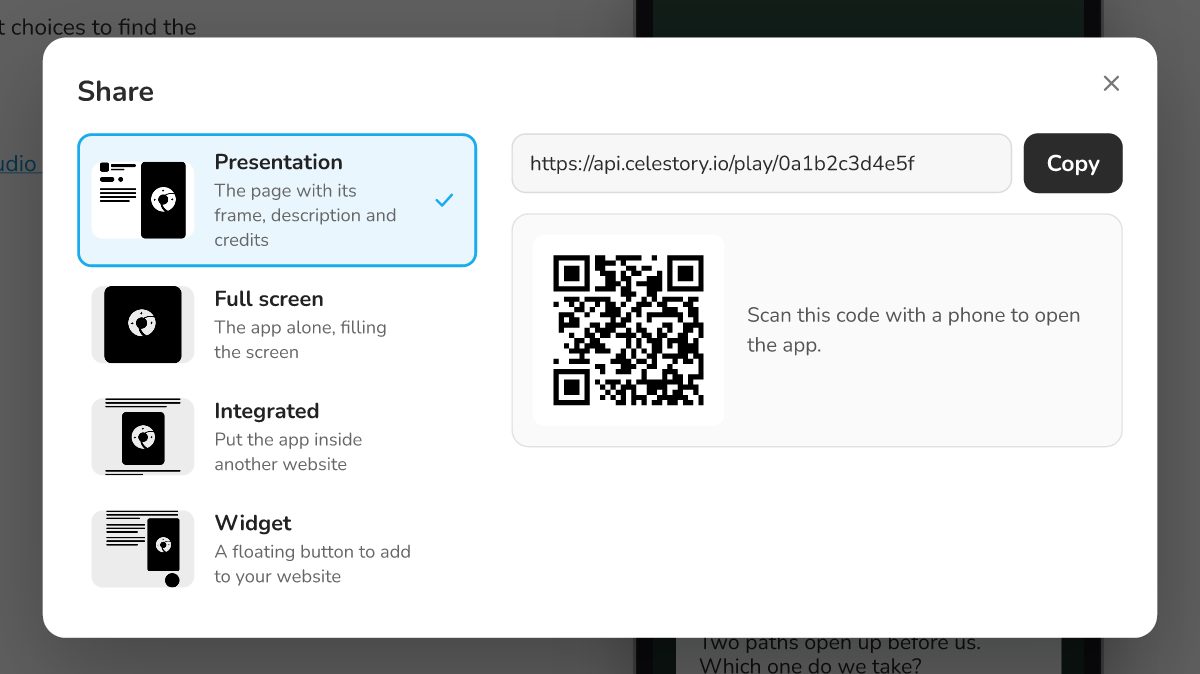 The Share window, Presentation option, with the link, the Copy button and the QR code.
If the visitor picked a format other than the opening one, the copied link and the QR code include it: whoever scans it gets the same format.
Installing the app
The Install button in the bar adds the app to the home screen or the desktop, like an application.
- Click Install.
- If the browser offers the installation, confirm it.
- Otherwise a bubble appears: "In your browser menu, choose Install app or Add to Home Screen." Follow it.
The installed app carries the name and the image of the project. It opens alone, full screen, without the bar of the page. The Install button disappears once the app is installed and in the Vertical, borderless format.
Forcing an update
A visitor who sees an old version can click Refresh. The button clears the app cache on their device, then reloads the page. If that is not enough, the tooltip also gives the way to do it in Chrome: Settings > More tools > Developer tools, then right-click Refresh > Empty cache and hard reload.
See also 🔁 I can't see my app updating.
Troubleshooting
| Symptom | Solution |
|---|---|
| My app opens with no frame, no About or Credits | An app exported before formats existed opens in Vertical, borderless. Tick the format you want and export again |
| The Formats menu does not appear | Only one format is ticked: tick a second one and export again |
| My format choice is not applied | It applies to your next export: click Export |
| The Install button is missing | The format is Vertical, borderless, or the app is already installed |
| The page says "is not ready yet" | The app was not published, or its last publication did not finish: export it again |
| My description shows with no formatting | It is longer than 10,000 characters: shorten it |