
Updated for version 6.0.30
In a Visual Novel, you can ask the player to take a photo, speak into the microphone, pick a file, or answer after listening to a sound. This article presents these blocks as the player sees them in the Visual Novel player, what they give back to you, and what to know about browser permissions.
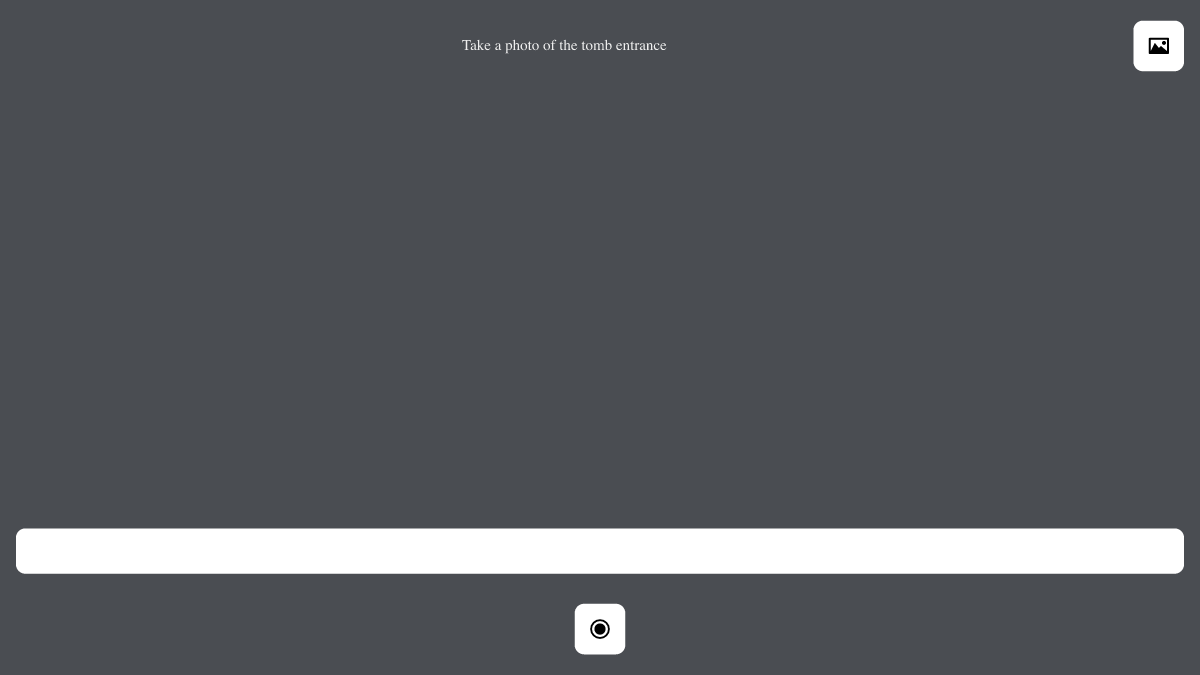 the photo input open on the camera picture (grey background), with the shutter button at the bottom
What works in the Visual Novel
| Block | What the player does | What you get back |
|---|---|---|
| Input Camera | Takes a photo (or picks an image) and can write a caption | The image and text outputs |
| Microphone | Speaks, then ends the recording | The sound output |
| Audio choice | Listens to a sound, then picks an answer | The path of the choice (one output per choice) |
| Select file | Picks one or several files | The file or files outputs |
| Multi Input | Fills in several fields (text, number, boolean) | One output per field |
All these blocks appear over the scene and use the text styles of the input fields of your Visual Novel module. To set them, click Module settings in the side menu, open the Block style tab, then the Input tile.
The Select file and Multi Input blocks are only covered briefly here: they work as in the Chatbot. The player simply sees a Choose a file button (or Choose files if the multiple input is on) or a panel of fields with an OK button.
Input Camera: the photo
The Input Camera block shows the player's camera over the whole player. Its inputs:
| Input | Role |
|---|---|
| in | Receives the graph flow. |
| placeholder | A text shown at the top of the screen (it also names the caption field). |
| max duration (s) | See the note below. |
Its outputs: out (the flow continues), image (the photo), text (the caption written by the player) and media (a video).
What the player does:
- They allow the camera if their browser asks. The screen shows "Starting the camera…" while waiting.
- They press the shutter button ("Take the photo") or Enter in the caption field. The picture freezes.
- They can write a caption, then press Use this photo, or Retake to go back to the live picture.
If there are several cameras, a Switch camera button appears. Another button lets the player choose an image from the device instead of using the camera.
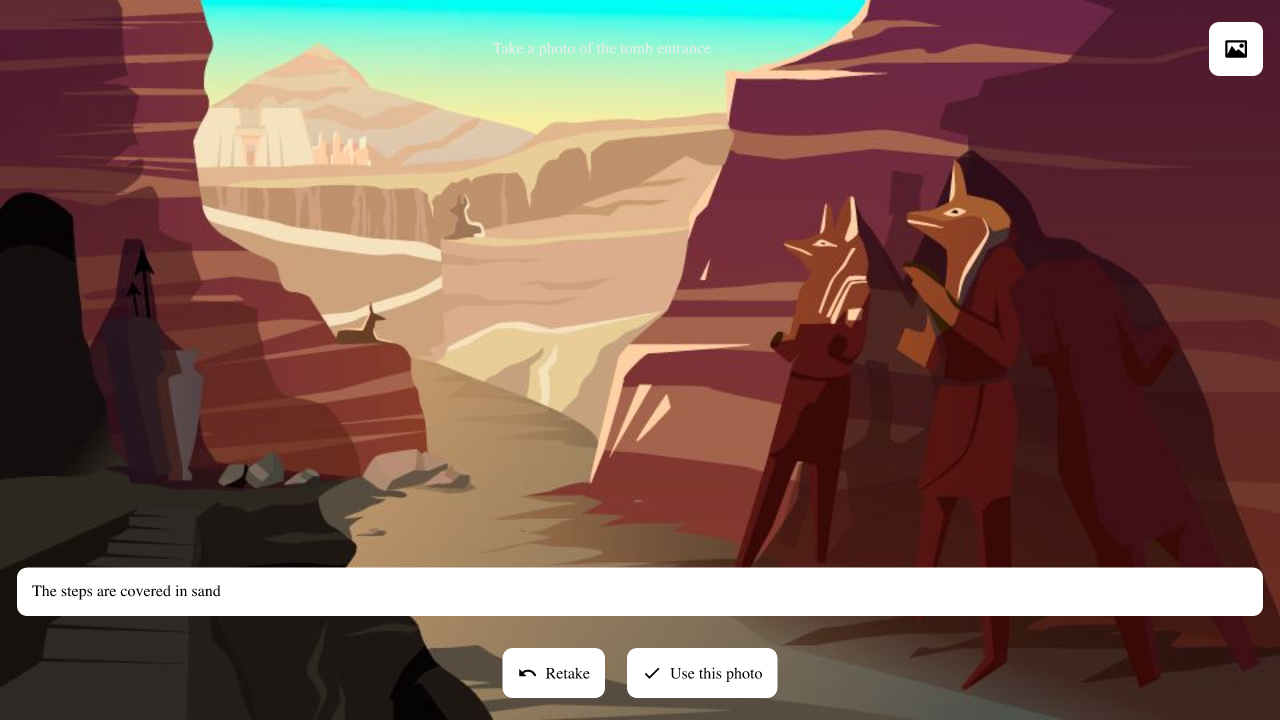 The frozen photo with the caption and the Retake and Use this photo buttons
🔺 Note: in the Visual Novel player, the input only takes photos. The max duration (s) input and the media (video) output only work in the Chatbot: in a Visual Novel, the media output stays empty. If you need a video, use a Chatbot.
A photo taken with the camera is a JPEG (an image picked from the device keeps its format). It stays in the current play session: it is not saved in your project files.
Microphone: the recording
The Microphone block also works in the Visual Novel. The player sees a "Recording" panel with the elapsed time and a sound level indicator, and a Stop button.
- The recording ends when the player presses Stop. The flow then continues through out, and the sound output holds the recording.
- If you fill in the timer input, a bar shrinks at the bottom of the panel. When time is up, the recording stops by itself and the flow continues through the timer output, with what was recorded.
⚠ Warning: in the Visual Novel, the panel is always the same: the block's animation, position, background, capture duration (s) and stops when the player goes quiet inputs are not read by this player. They work in the Chatbot, see Voice animations: Microphone, sounds and music.
Then plug the sound output into a Play sound block, or into an ⬜ AI sound request block so an AI voice answers the player.
Audio choice: listen, then answer
The Audio choice block plays a sound with a title, a description and an image, then offers choices.
| Input | Role |
|---|---|
| sound | The sound to listen to. |
| choices | The list of answers (one block output per answer). |
| title, description | The texts shown (a long description is folded under three lines, with a Show more button). |
| image, image orientation | The image and its place relative to the text (top, right, bottom or left). |
| start at | The second at which the sound starts. |
| timer | A time limit to answer (in seconds). It creates the timeout output. |
| appear before end | Shows the choices a number of seconds before the sound ends. |
The player has a Play and Pause button, a position bar and the duration of the sound. The sound starts by itself. The choices only appear when the sound ends, or earlier with appear before end. With no sound, or if the sound cannot be loaded, the choices show at once. When the timer is set, it starts when the choices appear. If no choice is connected and no timer is set, a Continue button appears when the sound ends.
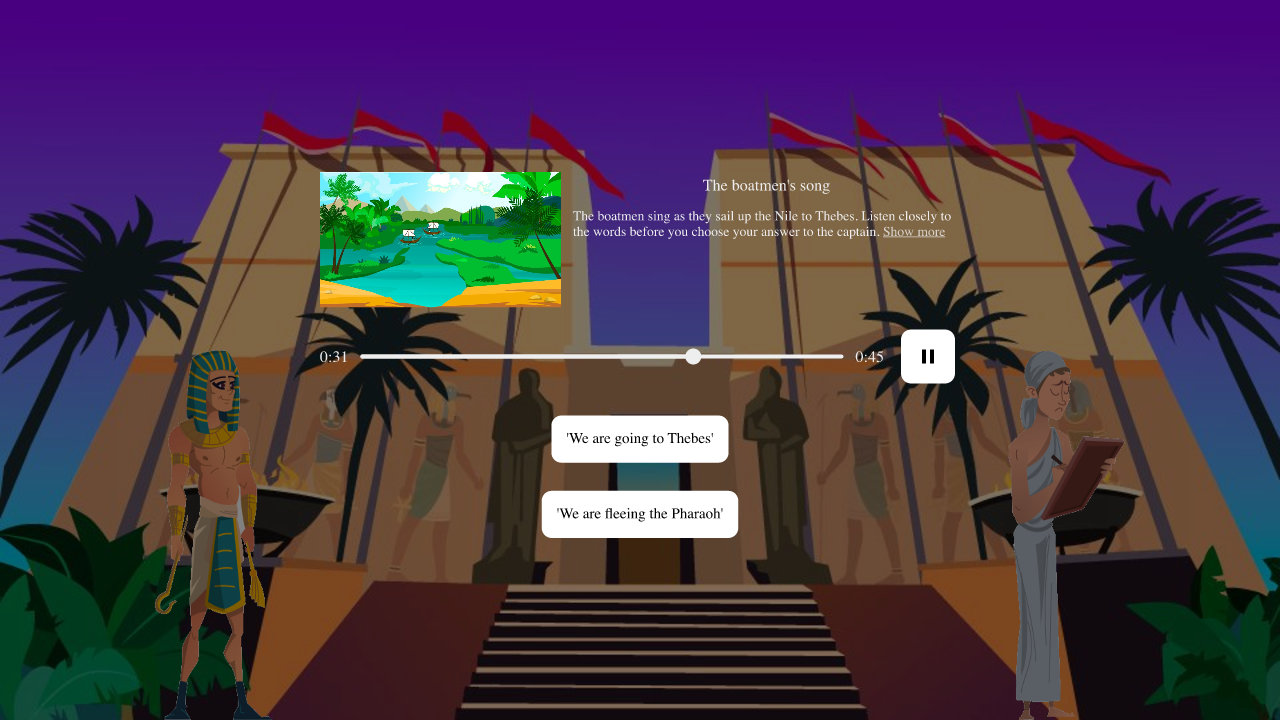 The Audio choice with the title, the image, the playback bar and two answers
Browser permissions and troubleshooting
The camera and the microphone only work if the player's browser allows them, and only on a secure (https) page. Messages are shown in French or English depending on the player's language.
| Message the player sees | Cause and solution |
|---|---|
| Camera access was denied. Allow it in your browser settings, then try again. | The player refused the camera. They allow it in the browser, then press Try again. |
| No camera was found on this device. | The device has no camera: the player can choose an image or continue without a photo. |
| The camera is being used by another application. Close it, then try again. | Another application holds the camera. |
| This browser cannot use the camera here. A secure connection (https) is required. | The page is not https, or the browser does not offer the camera. |
| Microphone access was denied. Allow it in your browser settings, then try again. | Same for the microphone. |
| This browser cannot record sound here. A secure connection (https) is required. | Insecure page or incompatible browser. |
When something fails, the player is never stuck: the screen offers Continue without a photo (or Continue without a recording). The story then goes on with an empty image or sound. Plan for it in your graph, for example with a Condition block that checks the output before using it.
Example: "Show me what you found"
- A dialogue asks: "Take a photo of an object on your desk."
- Input Camera with the placeholder "Your object": the player takes the photo and writes its name as a caption.
- A dialogue: "You found:
{{object}}", where{{object}}is a variable that received the text output. - Microphone: "Describe it aloud." The player speaks, then presses Stop.
- Audio choice: your narrator's sound asks "What do you do with this object?", with two answers.