
Updated for version 6.0.30
When you write JavaScript, CSS or an HTML5 page in Celestory, you do it in a full code editor that follows your theme colors. This article presents its useful features, then explains how an HTML5 page can keep data (a score, a first name, a step) with localStorage and sessionStorage.
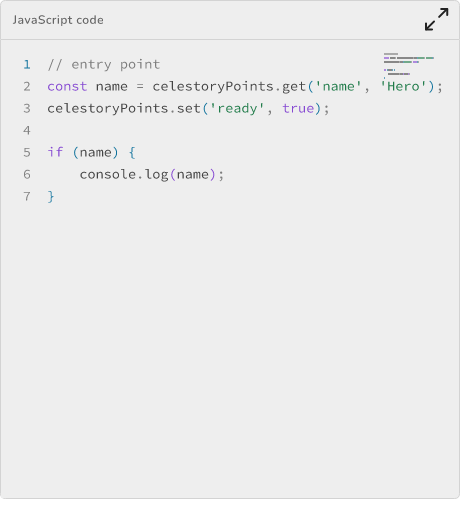 the code editor open on a JavaScript script, with line numbers, the minimap on the right and the height handle below
What it is for
- Writing or pasting code comfortably: syntax colors, line numbers, brackets colored by level, indentation guides.
- Finding your way in long code with the minimap (the code overview, on the right).
- Getting typing help for
celestoryPointsandloadExternalScriptin JavaScript scripts. - Making an HTML5 page remember data between two pages, or between two visits.
Where to find the editor
The editor appears wherever you type code, in particular:
- in the block editor, for the "content" parameter of the HTML5 block, the "code" parameter of the Run Javascript block and the "style" parameter of the CSS block;
- in the panel of a Code variable;
- in the CSS of a menu element.
The full screen button and the typing help for scripts only exist in the block editor. When the editor is empty (in the block editor and for the CSS of a menu element), grey text guides you: "Write or paste your HTML here", "Write or paste your CSS here" or "Write your script here, celestoryPoints.get and celestoryPoints.set connect it to the graph".
Editor features
Theme
The editor takes the colors of the Celestory theme you chose: light or dark background, accent color, syntax colors. Text stays readable whatever the theme, because the editor adjusts the contrast itself.
Minimap
A code overview is displayed on the right. The minimap slider appears when you hover over it.
Adjustable height
Below the editor, a separator bar sets the height:
- drag it with the mouse;
- or use the up and down arrow keys (with Shift for a large step);
- double-click it to reset the original height.
Full screen
In the block editor, click the Open the editor full screen icon (above the editor, on the right) to write in a large window. To go back, click the Leave full screen icon inside the editor, at the top right, to the left of the minimap. Your code is saved when you leave the field or close the window.
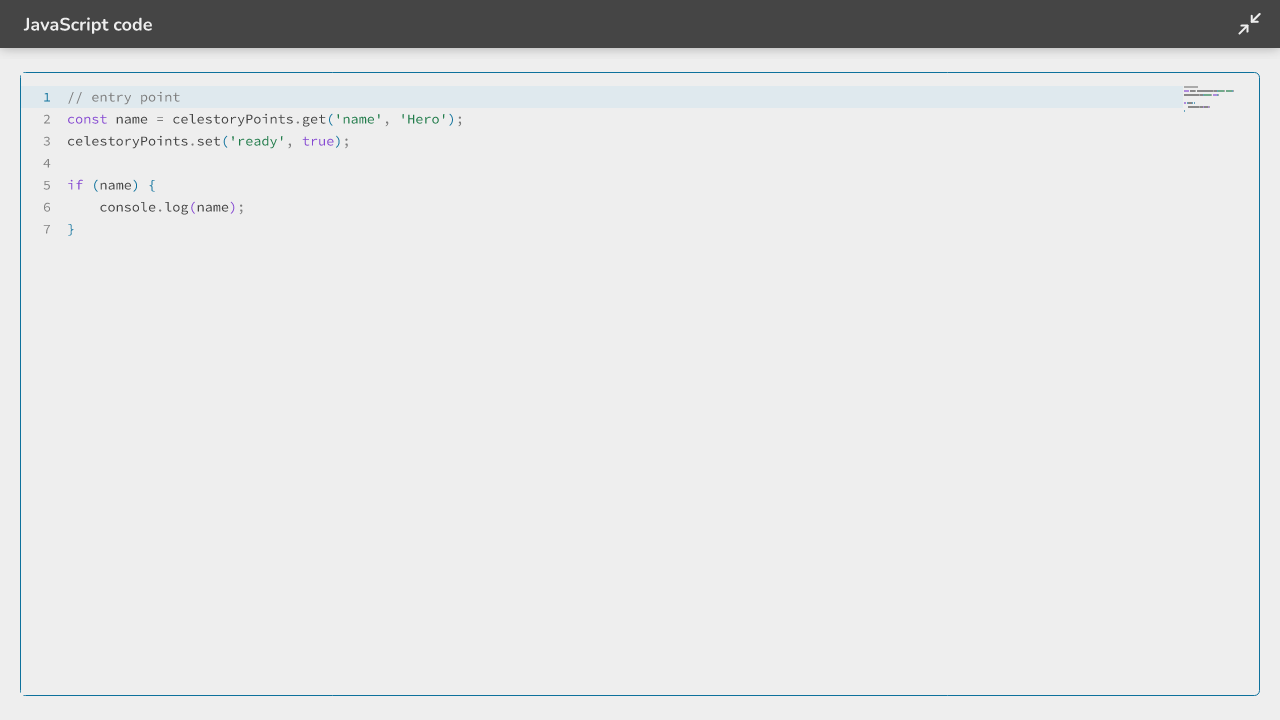 the editor in full screen with the Leave full screen icon at the top right
Completion in JavaScript scripts
In a JavaScript script, the editor offers suggestions and shows help for two Celestory elements:
| Element | Role |
|---|---|
celestoryPoints.get(name, defaultValue) |
Creates an input in the graph and reads its value |
celestoryPoints.set(name, value) |
Creates an output in the graph and sets its value |
loadExternalScript(id, url) |
Loads an external JavaScript file only once for a given id |
Shortcuts
The editor uses the usual shortcuts of Monaco, the engine of the Visual Studio Code editor. For example: Ctrl + Space to show suggestions (on Mac too), Ctrl + F to search the code and Ctrl + Z to undo (on Mac, Cmd + F and Cmd + Z).
HTML5 pages in the player
An HTML5 page runs in an isolated frame: it can run its own scripts, but it cannot reach the editor, your app's player, or their storage. It talks to the graph only through the outputs you declare (see Writing an HTML5 page in Celestory).
This isolated frame has no address of its own, so the browser gives it neither localStorage nor sessionStorage. Celestory provides them instead: your page uses them exactly as usual, and the player keeps the data for it.
Storing data
| Storage | What it keeps | For how long |
|---|---|---|
localStorage |
The page's data | It stays from one visit to the next in the same browser |
sessionStorage |
The page's data | It lasts as long as the game's tab stays open, even if you reload the page |
Good to know:
- the storage is shared by all the HTML5 pages of a project, and separate from one project to another;
- it belongs to each browser and each device: a player does not find their data on another phone;
- writing like
localStorage.score = 5andlocalStorage.setItem("score", "5")both work; - the data is erased from your browser when you delete the project from the Creator home page.
Example: a score kept between two pages
In a first HTML5 page, save the score:
localStorage.setItem("score", "12");
In a later HTML5 page of the same project, read it back:
const score = Number(localStorage.getItem("score") || 0);
Values are always text, so convert them with Number(...) if you use them as a number.
Limits
To stop a page from filling the player's storage, each project is limited:
| Limit | Value |
|---|---|
| Number of keys | 200 |
| Length of a key | 256 characters |
| Length of a value | 100,000 characters |
| Total size | 1,000,000 characters |
| Writes | 250 per second |
When a limit is exceeded, setItem throws a QuotaExceededError and the change is undone. The player can also undo a change it did not keep: the page then takes the player's value back, and a message appears in the browser console. All values are stored as text.
💡 Tip: do not store large content (images, long texts). Keep short values and rebuild the rest when displaying.
Troubleshooting
| Problem | Solution |
|---|---|
| A saved value has disappeared | Check that you are testing in the same browser and the same project; private browsing may keep nothing |
QuotaExceededError |
Reduce the number or size of the values, or delete those you no longer need with removeItem or clear |
| The grey text does not appear | It only shows when the editor is empty, in the block editor (HTML, CSS, JavaScript) and for the CSS of a menu element |