
Updated for version 6.0.30
The Multiple choice block lets the player tick several options, then confirm. Use it for quizzes with more than one right answer, lists of interests, preferences: anything that asks "tick all that apply".
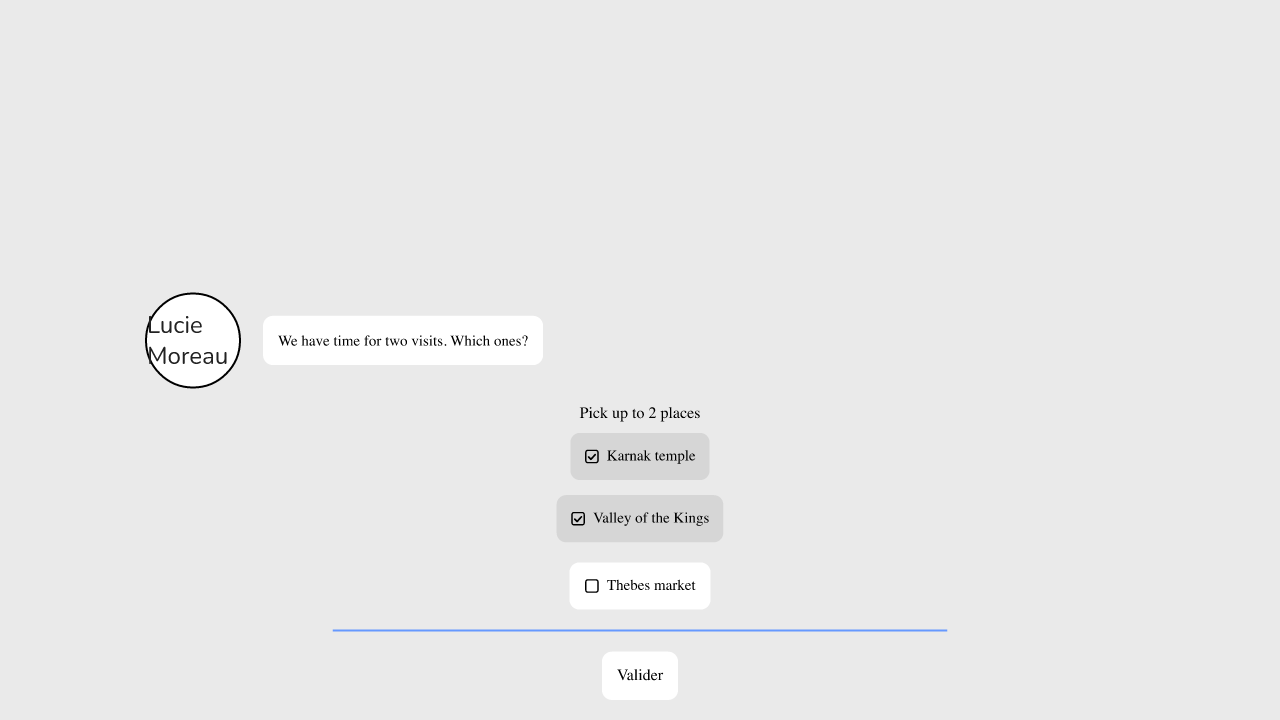 a Chatbot showing a question with four checkboxes and the "Valider" button
📥 Inputs
| Input | Role |
|---|---|
| in | the flow arriving at the block |
| question | the text shown above the boxes |
| variable | a Single select or Multiple select variable: its options become the boxes, and the player's choice is stored in it |
| choices | the list of options, used when no variable is connected (an empty option is ignored) |
| minimum | the minimum number of boxes to tick (0 by default) |
| maximum | the maximum number of boxes (0 means no limit) |
| orientation | "Vertical" or "Horizontal" |
| Validate button | shows or hides the button (shown by default) |
| button text | the label of the button ("Valider" by default) |
| shuffle | changes the order of the options each time |
| timer | duration in seconds; 0 means no timer |
📤 Outputs
| Output | Role |
|---|---|
| out | the flow continues here once the choice is confirmed |
| time out | only appears when the timer is above 0: the flow follows it when time runs out (or the usual output if it is not connected) |
| selection | the list of ticked options, of type Multiple select |
Unlike the Choice block, there is no output per option: a single path continues, and it is up to you to react to what was ticked.
🎚 Settings
The options
There are two ways to provide them:
- with a variable: connect a Single select or Multiple select variable to the variable input. The boxes ticked at the start are those already selected in the variable, and the final selection is written back to it. Labels are translated with the variable. With a Single select variable, only one box can be ticked;
- without a variable: type the options in choices, then read the result on the selection output, with the List includes or Condition blocks.
Minimum and maximum
Once the maximum is reached, the other boxes are greyed out. The button stays greyed out until the number of ticked boxes is between the minimum and the maximum.
If the values do not add up, the block shows a warning and the player is never stuck:
- minimum higher than the maximum: the player can confirm by ticking the maximum;
- minimum higher than the number of options: the player can confirm by ticking them all.
Timer and button
With a timer, you can hide the button: when time runs out, the current selection is kept as it is (even if the minimum is not reached) and the flow follows the time out output. Without a timer, the button is always shown, even if you turn it off, because there would otherwise be no way to continue.
What the player sees
The player sees the question, checkboxes (vertical or horizontal) and the button. Greyed-out boxes no longer react. A screen reader announces, for example, "1 selected of 3, at least 2 required". Once the choice is confirmed, the options disappear. In the Chatbot, the module's choice sound is played (unless time ran out) and, if Show choices made is on in the Chatbot configuration, the chosen labels appear in the conversation, separated by commas. The block also works in the Visual Novel: same boxes, same button and same choice sound, but the chosen labels are not shown again.
The look (borders, colors, texts) comes from the module configuration, as for the other choices.
💡 Example
A quiz: "Which of these are web languages?"
- Place a Multiple choice block. In question, write "Which of these are web languages?".
- In choices, type HTML, CSS, Python and JavaScript.
- Set minimum to 1 and maximum to 3.
- Connect the selection output to the list input of a List includes block. Its value input then offers the four answers: pick HTML.
- Connect the output of the Multiple choice block to a Condition block, and the output of List includes to the condition input. On the true output, add an Increment block that adds 1 to your score variable.
- Repeat for CSS and JavaScript, chaining the Condition blocks.
Choice, Unique choices or Multiple choice
| Block | The player can | Outputs |
|---|---|---|
| Choice | pick one option | one output per option |
| Unique choices | pick one option; it disappears when the player comes back to the block | one output per option, plus "end" once all have been picked |
| Multiple choice | tick several options, then confirm | one output, plus "time out" with a timer; the selection comes out separately |
🛟 Troubleshooting
| Message | Solution |
|---|---|
| Without a Validate button or a timer, the player could not move on: the button will be shown anyway. | Turn the button on or set a timer. |
| The minimum is higher than the maximum, so the player cannot satisfy both. | Lower the minimum or raise the maximum. |
| The minimum is higher than the number of options, so the player can never reach it. | Add options or lower the minimum. |
⚙ Technical details
- The shuffled order is drawn once when the block opens: ticking a box does not move the others.
- A variable that holds no selection is ignored: the block then uses choices.
- The options and the button text are translated with the project; the options of a variable are translated with the variable.