
The Comment block is no longer limited to a line of plain text: you can add headings, bold, highlighting, lists, checkboxes and links, as in a word processor. The graph then shows this formatting right inside the block. It is ideal for a chapter outline, a to-do list or a detailed note next to the blocks it explains.
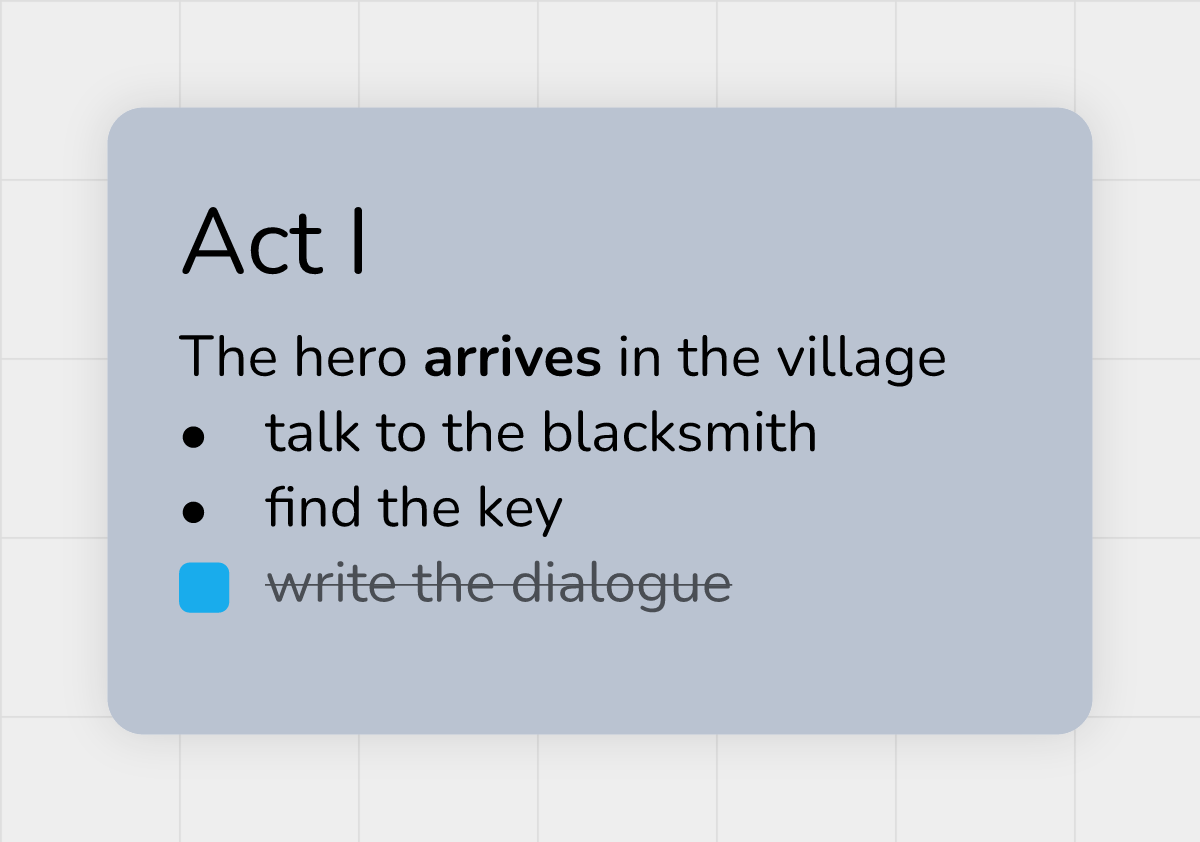 a Comment block in rich text: a heading, bold text, a bulleted list and a checked task
Open the comment editor
- Double-click the Comment block. The Edit comment window opens (see The Block Editing Window).
- Write in the Comment area. The toolbar above the text applies the formatting.
- If needed, set the Font size, the Background color and the Font, below the text area.
There is no save button: the text is saved as soon as you click outside the text area or close the window. The size, color and font are saved as soon as you change them.
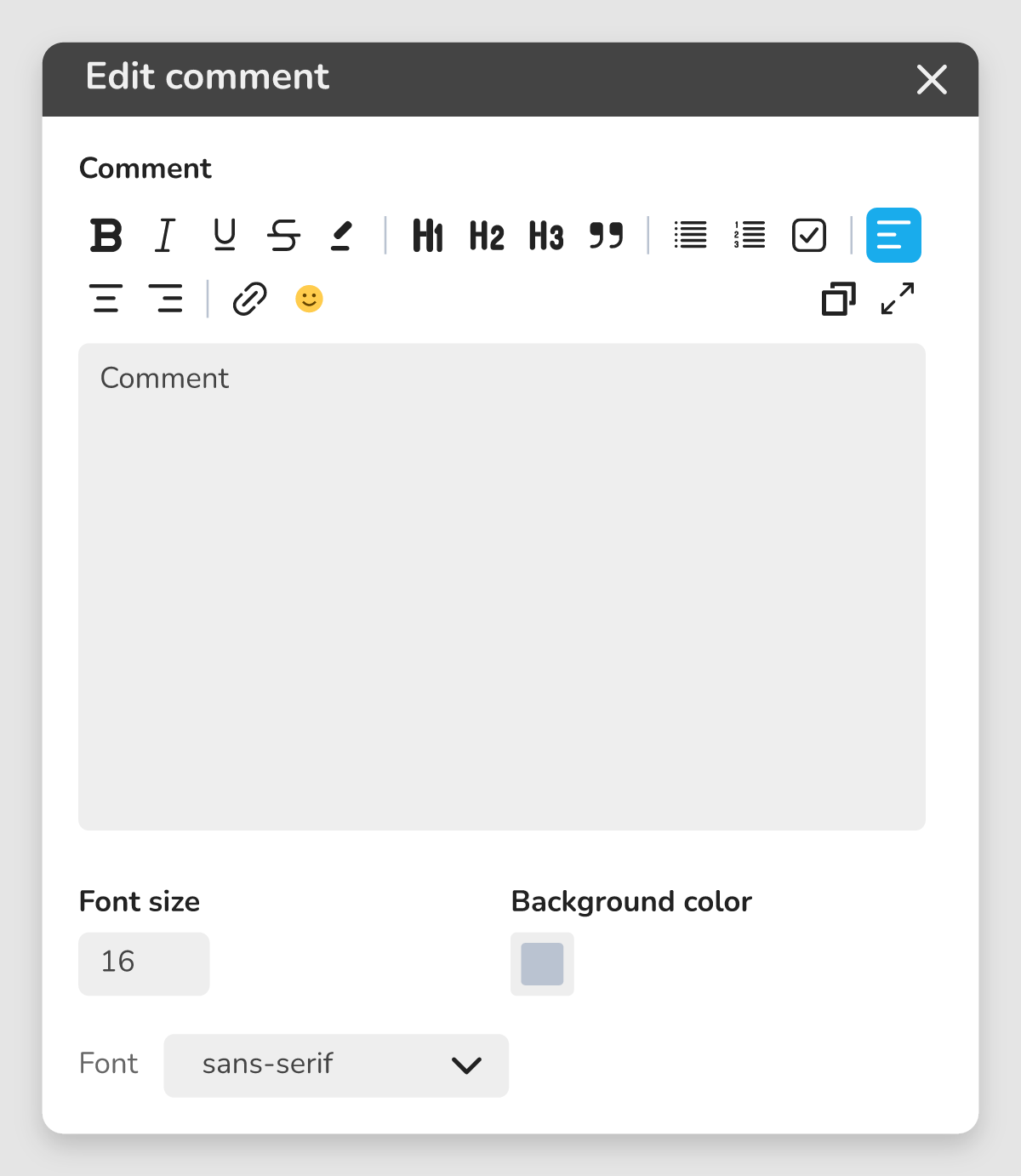 the "Edit comment" window and its toolbar
The toolbar buttons
| Button | Effect |
|---|---|
| Bold, Italic, Underline, Strikethrough | formats the selected text |
| Highlight | colors the background of the selected text, with a color to pick; Remove highlight takes it off |
| Heading 1, Heading 2, Heading 3 | turns the paragraph into a heading (Heading 1 is the largest) |
| Quote | indents the paragraph as a quote |
| Bulleted list, Numbered list | turns the paragraph into a list item |
| Checklist | puts a checkbox in front of the paragraph |
| Align left, Center, Align right | aligns the paragraph |
| Insert a link | adds a link on the selected text |
| Insert an emoji | opens a grid of emoji, with a search and categories |
| Copy the content | copies the whole text of the comment |
| Full screen | opens the text in a large view (see below) |
Keyboard shortcuts: Ctrl + B (bold), Ctrl + I (italic), Ctrl + U (underline) and Ctrl + Shift + X (strikethrough). On a Mac, use Cmd instead of Ctrl.
Checkboxes
With Checklist, each line gets a box. Click the box in the editing window to check it: the text of the line is then struck through and faded, in the editor and on the graph alike. Handy to follow what is left to do in a scene.
Links
Click Insert a link, paste the address in the Type or paste a link field, then click Apply. Accepted: a web address (like example.com), an email address or a phone number (tel:+33...). Any other address shows "This link can't be used".
To change a link, double-click it in the editor: you can then Edit or Remove it. Pasting a full web address on its own into the text, starting with http:// or https://, turns it into a link straight away.
On the graph, a link is shown underlined. Ctrl + click (Cmd + click on a Mac) on the link opens it in a new tab, without selecting or moving the block.
Paste text written in Markdown
If you paste text written in Markdown (for example from another tool or an AI assistant), it is turned into formatting. Recognized, among others:
| You paste | You get |
|---|---|
# , ## , ### at the start of a line |
a heading 1, 2 or 3 |
**text** |
bold |
~~text~~ |
strikethrough |
- or * at the start of a line |
a bulleted list |
1. at the start of a line |
a numbered list |
> at the start of a line |
a quote |
- [ ] or - [x] |
a checkbox, empty or checked |
[text](https://…) |
a link |
The other way round, a part of the text you select and copy goes to the clipboard as Markdown: most of the formatting (headings, bold, lists, links…) is kept if you paste it into another comment or a tool that reads Markdown.
Size, font and color
- Font size: a number, in pixels (16 by default). Headings are shown larger than this size, in proportion. Older comments set to Small, Medium or Large are shown at 16, 24 and 36 pixels.
- Background color: the color of the block on the graph.
- Font: the font of the text, in the editor and on the graph. Without a choice, it is the general font of the application.
Resize the block on the graph
By default, the block takes the size of its text: each paragraph fits on a single line and the block grows with it.
To give it a fixed size, move the mouse near the bottom-right corner of the block: the cursor becomes a diagonal double arrow. Then drag that corner. The text wraps to fit the chosen width; if it is too long for the height, the last lines are hidden and the last visible one ends with "…". The full text stays in the editing window.
Write in full screen
For a long note, click Full screen, at the right of the toolbar. The text opens over the whole window, under the title Full screen editing, with the same toolbar.
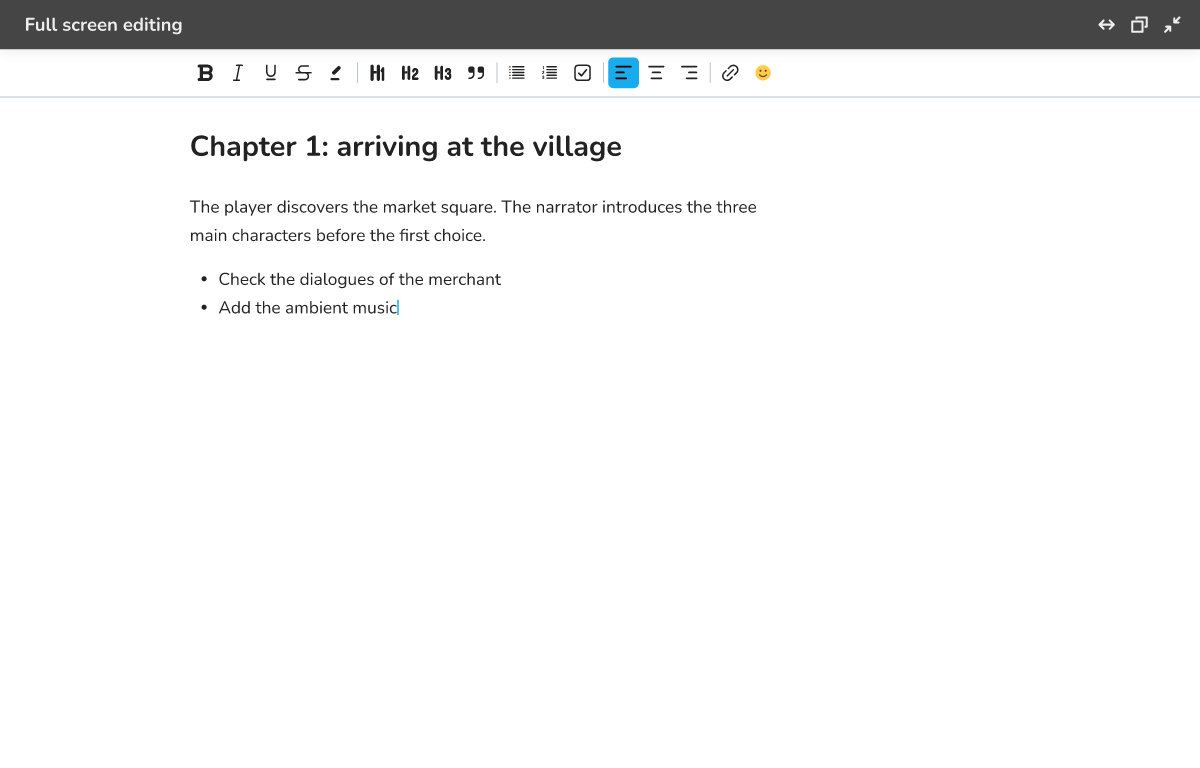 full screen editing; top right, Full width, Copy the content and Exit full screen
Top right:
| Button | Effect |
|---|---|
| Full width | spreads the text over the whole width of the screen; the same button, now Reading width, goes back to a centered column that is easier to read |
| Copy the content | copies the whole text |
| Exit full screen (Escape) | goes back to the editing window; the Escape key does the same |
Link a comment to a block with an arrow
A comment can point to the block it explains:
- Right-click the Comment block (on its own, with nothing else selected).
- Choose Link to….
- Click the block or shape to link to. Esc to cancel.
An arrow then links the comment to that block. Arrows are covered in Annotating the graph: arrows, shapes and sticky notes.
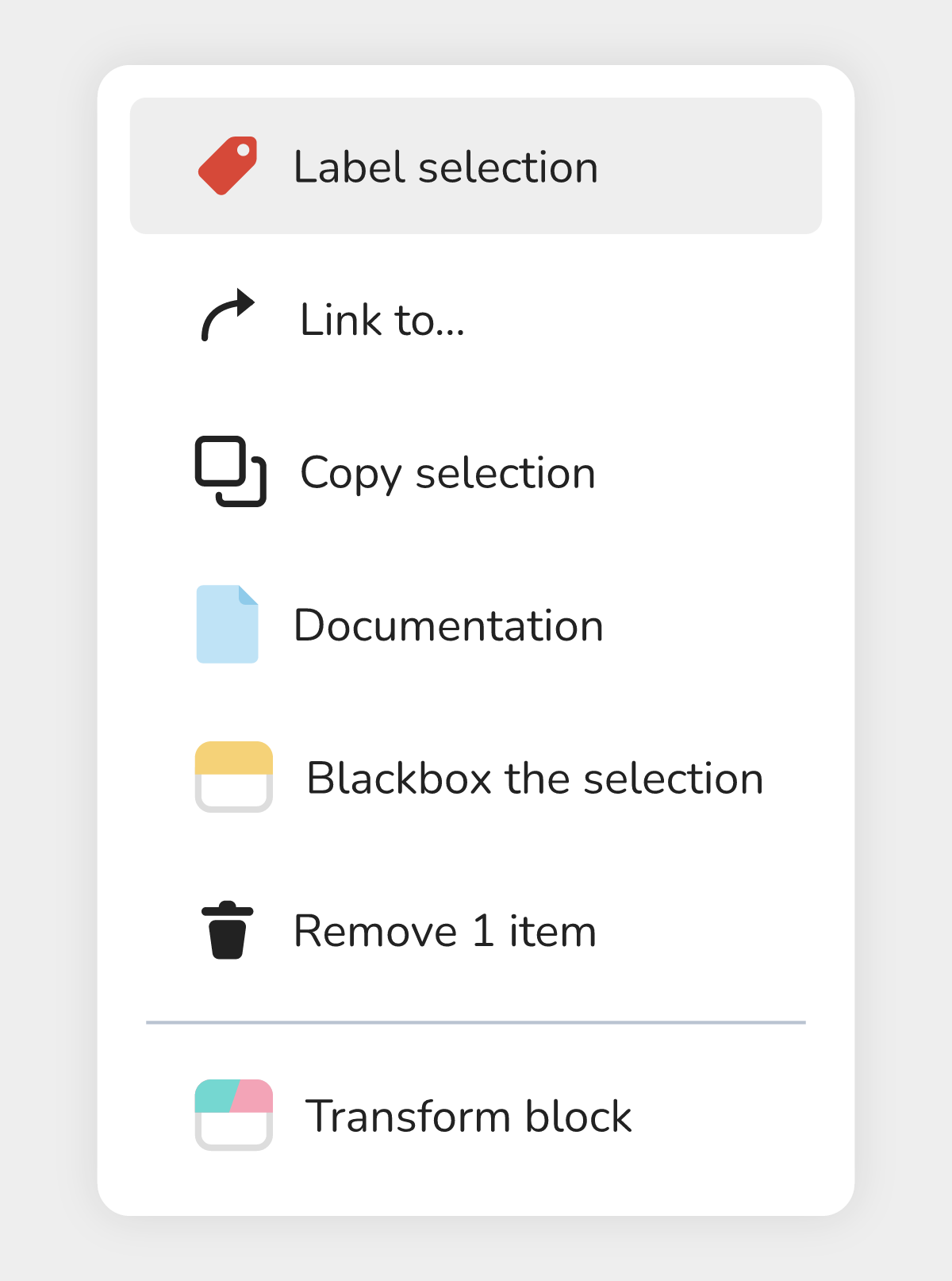 right-clicking a Comment block, with "Link to…"
💡 Example
The outline of act I, placed next to the blocks of the scene:
- Add a Comment block near the start of the scene and double-click it.
- Type "Act I", then click Heading 1. Press Enter: the new line is still a heading, so click Heading 1 again to go back to normal text.
- On the next line, write "The hero arrives in the village" and make "arrives" Bold.
- Write "talk to the blacksmith" and "find the key" on two lines, select both lines, then click Bulleted list.
- Add "write the dialogue" and click Checklist. Once the dialogue is written, check the box: the line is struck through on the graph.
- Right-click the comment, choose Link to… and click the first block of the scene.
Good to know
- The Comment block is never run: it has no input or output and the player never sees it. Its formatting is only for you and your team.
- The emoji search works in English ("Search for an emoji (in English)"): type "heart" or "star", for example.
- Typing
#or-in a comment does not create a heading or a list: use the buttons, or paste text already written in Markdown. - An older plain-text comment opens as it is; it only changes if you change its text.