
Updated for version 6.0.30
The AI sound request block makes an AI-generated voice say a text while the player is playing. Use it to make a character or an assistant talk without recording a voice in advance. With some models, it can also listen to what the player has just said into the microphone and answer aloud.
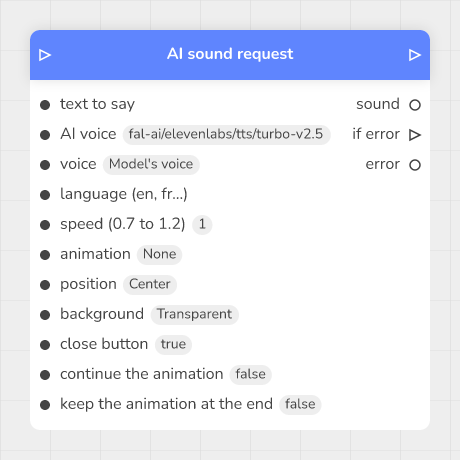 an AI sound request block on the graph, with its inputs (text to say, AI voice, voice) and its outputs (sound, if error, error)
🔺 Note: this block is reserved for the ORGANIZATION plan (the Add a block menu shows the "ORGANIZATION" tag). It also uses your monthly AI quota (see Credits and limits).
📥 Inputs
| Input | Role |
|---|---|
| in | Receives the graph flow: the block runs when the flow arrives. |
| text to say | The text the voice speaks (1,000 characters at most). You can inject a variable with {{variable}}. |
| AI voice | The voice model to use. |
| voice | The model's voice (if the model offers any). Default: "Model's voice". |
| language (en, fr…) | The language, as a code such as en or fr (if the model accepts a language). |
| speed (0.7 to 1.2) | The speaking speed (if the model accepts a speed). 1 is normal speed. |
| animation | The animation shown while waiting (none by default). |
| position, background, close button, continue the animation, keep the animation at the end | The animation options. |
The voice, language and speed inputs only appear if the chosen model offers them: change the model and the list of inputs adapts by itself.
📤 Outputs
| Output | Role |
|---|---|
| out | The flow continues here once the sound is ready. |
| sound | The generated sound. Plug it into a Play sound block to play it. |
| words said | The words that were spoken (only with a model that answers aloud). |
| if error | The flow continues here if the request fails (see Troubleshooting). |
| error | A sentence explaining the failure, empty when everything went well. |
The block does not play the sound itself: it makes it and hands it to you through the sound output. This sound is not a file of your project, it is a web address that the Play sound block can read.
🎚 Choosing the model and the voice
The AI voice input only lists the models that Celestory's administration has opened to games. There are two families, listed in this order:
- voice models, which read the text aloud;
- models that answer aloud, which answer the text or what the player said.
Within each family, models follow the order set by the administration. A new block starts with the ElevenLabs Turbo v2.5 model, which is only usable if it is open to games on your server (otherwise the block shows one of the warnings below). If no model is open, the block shows the warning "No AI voice is open to games yet: an administrator has to open one". If the chosen model is no longer open, it shows "Games cannot use ...: pick another AI voice". A game never switches model by itself.
[Screenshot: the AI voice input open with the list of models, then the voice input dropped down]
What the player says (model that answers aloud)
With a model that answers aloud, the block changes:
- the text to say input becomes what the player says: it is the message the model answers;
- a sound input appears right after in: plug in the sound output of a Microphone block so the model listens to the player (a WAV or MP3 recording, 5 minutes at most);
- an instructions (tone, accent, role) input appears: this is where you describe the character's role, tone and accent (2,000 characters at most);
- the words said output appears after sound;
- the language and speed inputs disappear: state the language and pace in the instructions;
- the list of voices is the model's own; if it has none, the voices are
alloy,ash,ballad,coral,echo,sage,shimmerandverse.
The thinking animation
While the request runs, the player can see an animation over the feed, at the slow pace of a breath. Pick it with the animation input, then set the position (center or edge), the background (Dark or Transparent) and the close button. The close button only hides the animation: the request goes on.
By default the animation is "None": a block shows nothing until you pick one. All the animations and their options are described in Voice animations: Microphone, sounds and music.
💡 Example
A voice assistant in three blocks:
- Microphone: the player speaks. Its sound output holds the recording;
- AI sound request: pick a model that answers aloud, plug the Microphone's sound output into the sound input, and write in instructions (tone, accent, role): "You are a museum guide, you answer in one or two sentences, in a warm voice.";
- Play sound: plug the sound output of the AI sound request into it.
For a voice that simply reads a text, pick a voice model, write the text in text to say and plug the sound output straight into Play sound.
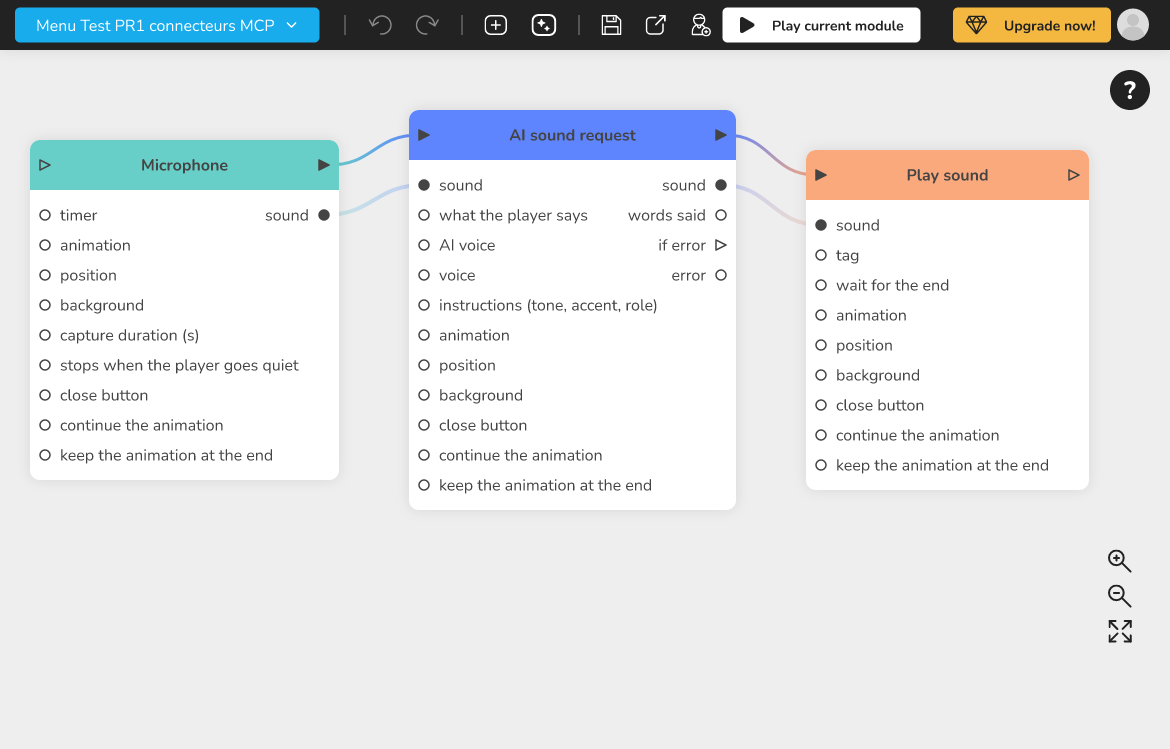 the graph with Microphone, AI sound request and Play sound linked by the flow and by the sound
Credits and limits
- Each request counts toward the monthly AI quota of the project owner, not the player's. When the quota is reached, the block returns "This game's monthly AI quota is reached.".
- With a model that answers aloud, the audio tokens of the answer are also billed in credits.
- A model that answers aloud is served outside the European Union: it cannot be used as a sovereign model.
- The number of credits a request uses depends on the model chosen in the block: each model has its own rate, set by Celestory's administration.
For credit details, see AI credits and subscription.
🛟 Troubleshooting
The error sentence is always placed in the error output. If if error is plugged, the game continues there; otherwise it continues through out so it does not stop.
| Message | Solution |
|---|---|
| This AI voice is not available in games. | Pick another model in AI voice. |
| A setting of the block (voice, language or speed) is not accepted by this model. | Set voice back to "Model's voice", empty language or set speed back to 1. |
| There is no text to say. | Fill in text to say (or what the player says). |
| The text to say is too long (1,000 characters at most). | Shorten the text. |
| The voice model could not make the sound. | Try again, or change the model. |
| This model cannot answer aloud. | Pick a model from the "answers aloud" family. |
| This model answers aloud outside the European Union: it cannot be used as a sovereign model. | Pick another AI voice or ask an administrator to remove "sovereign". |
| This model does not accept the sound sent (a WAV or MP3 recording from the microphone, 5 minutes at most). | Use the sound output of a Microphone block and shorten the capture duration. |
| This game's monthly AI quota is reached. | Wait for the quota to reset or change plan. |
| The sound request failed. | Try again; if it persists, contact support. |
⚙ Technical details
- The block calls the Celestory server when the player reaches it: an internet connection is needed.
- With a voice model the sound is a web address; with a model that answers aloud it is a WAV sound returned directly and nothing is stored.
- Languages are sent in lowercase without a region: "fr-FR" becomes
fr. The speed is brought back between 0.7 and 1.2.