
Updated for version 6.0.30
My Celestory Help (Mon Aide Celestory in French) is Celestory's help service, built on Chatwoot. In your project, the My Celestory Help (Chatwoot) card shows your team's chat bubble in the published app, so your users can write to you without leaving the app. It can also protect your team's documentation with a password or a list of addresses. Everything is optional: with no setting, nothing changes.
[Screenshot: a published app with the team's chat bubble open at the bottom right]
What the user sees
In your published app
- A chat bubble appears in the exported app (HTML5, direct link, mobile). The visitor clicks it to write to your team.
- The bubble is shown in the language of the app, the one of the project translation.
- The visitor is anonymous for your team: the published app has no signed-in Celestory user.
- Celestory does not show a cookie banner in the published app (see "Privacy and cookies" below).
- In the preview built into the editor, your team's bubble does not appear.
- A page loads only one bubble. If the page already loads the Celestory support one, that one stays.
On the public game page
The public game page offers a Chat with support button. It opens the Celestory support chat, not your team's. Nothing is loaded until the visitor clicks this button. See The public game page: QR code, install and display formats.
In the Celestory editor
The editor also shows a help bubble, the Celestory support one, with the Celestory icon. It only appears if you accepted cookies (see below). It opens in your language. If you are signed in, the support team sees your name, your e-mail and your Celestory avatar; when you sign out, the conversation is removed from the browser. This bubble cannot be set per project: your team's bubble only appears in the published app.
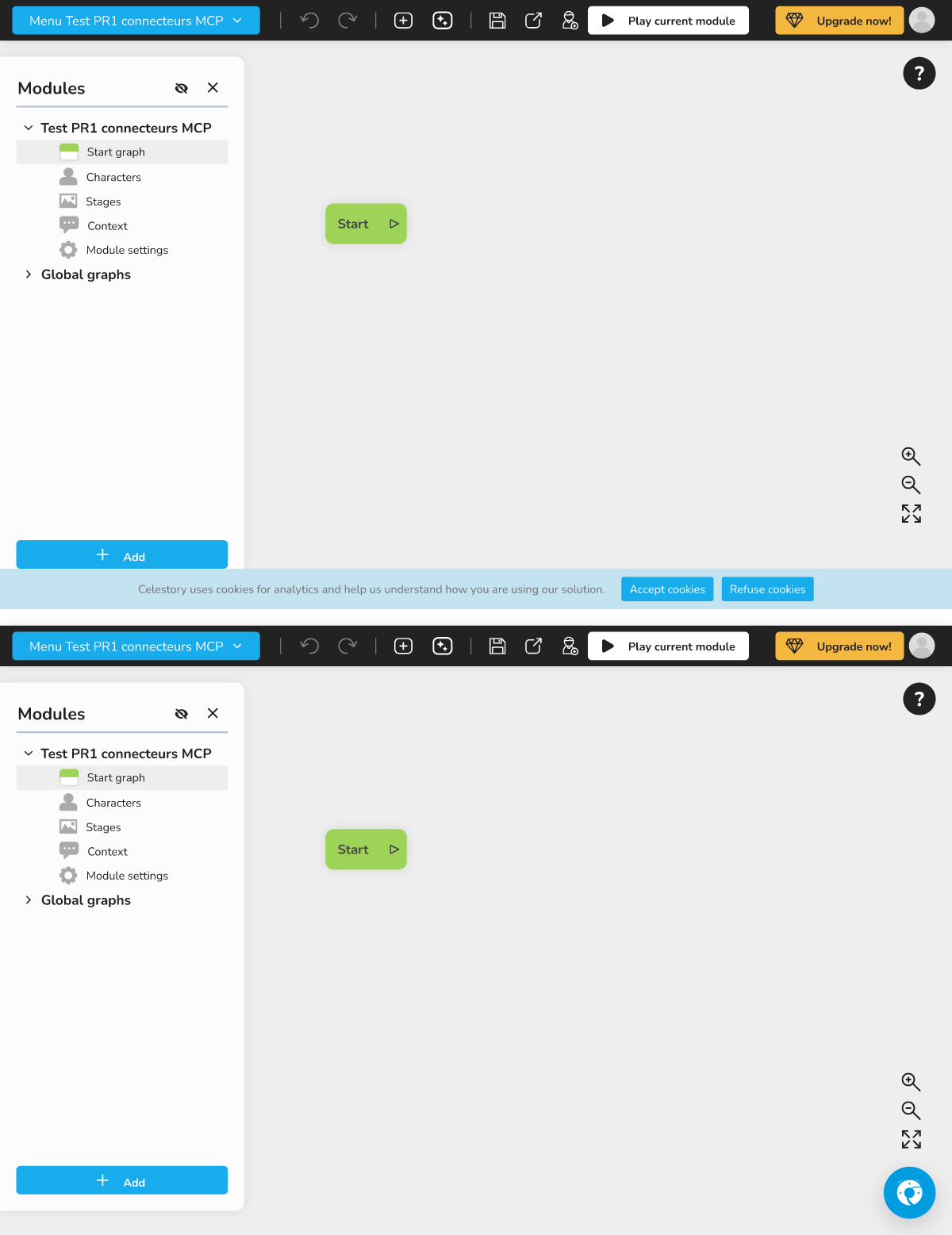 the cookie banner on the first visit, then the help bubble at the bottom right once cookies are accepted (the two never show together)
Where to find the setting
Open the project's Integrations window: the Integrations entry of the project's general menu, or the shortcut Cmd + Shift + I (Mac) or Ctrl + Shift + I (Windows, Linux). The My Celestory Help (Chatwoot) card comes after the Baserow, Airtable and Make cards, before Voltask. It opens by itself when the bubble is on.
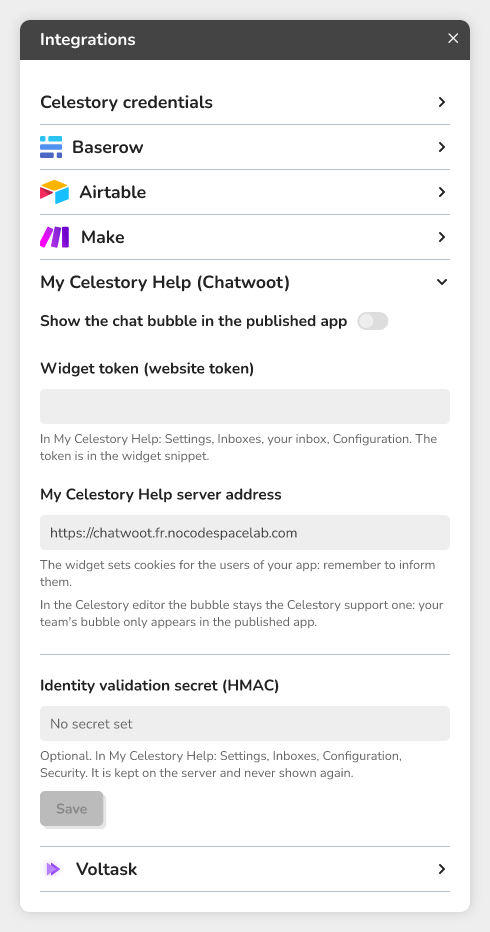 the Integrations window with the My Celestory Help (Chatwoot) card open
Showing your team's bubble
- In My Celestory Help, create a website inbox for your team. If you fill in this inbox's list of allowed domains, add your published app's domain to it.
- Open its settings: Settings, Inboxes, your inbox, Configuration. Copy the widget token (website token) from the widget snippet.
- In Celestory, open Integrations, My Celestory Help (Chatwoot) card, and turn on Show the chat bubble in the published app.
- Paste the token in Widget token (website token): letters and digits only, 16 to 64 characters.
- Leave My Celestory Help server address as it is, or enter the https address of your own Chatwoot server, without a path (for example
https://help.example.com). Emptying the field restores the default address. - Save the project, then export the app again: the setting is copied into the export, so an app already exported has to be exported a second time.
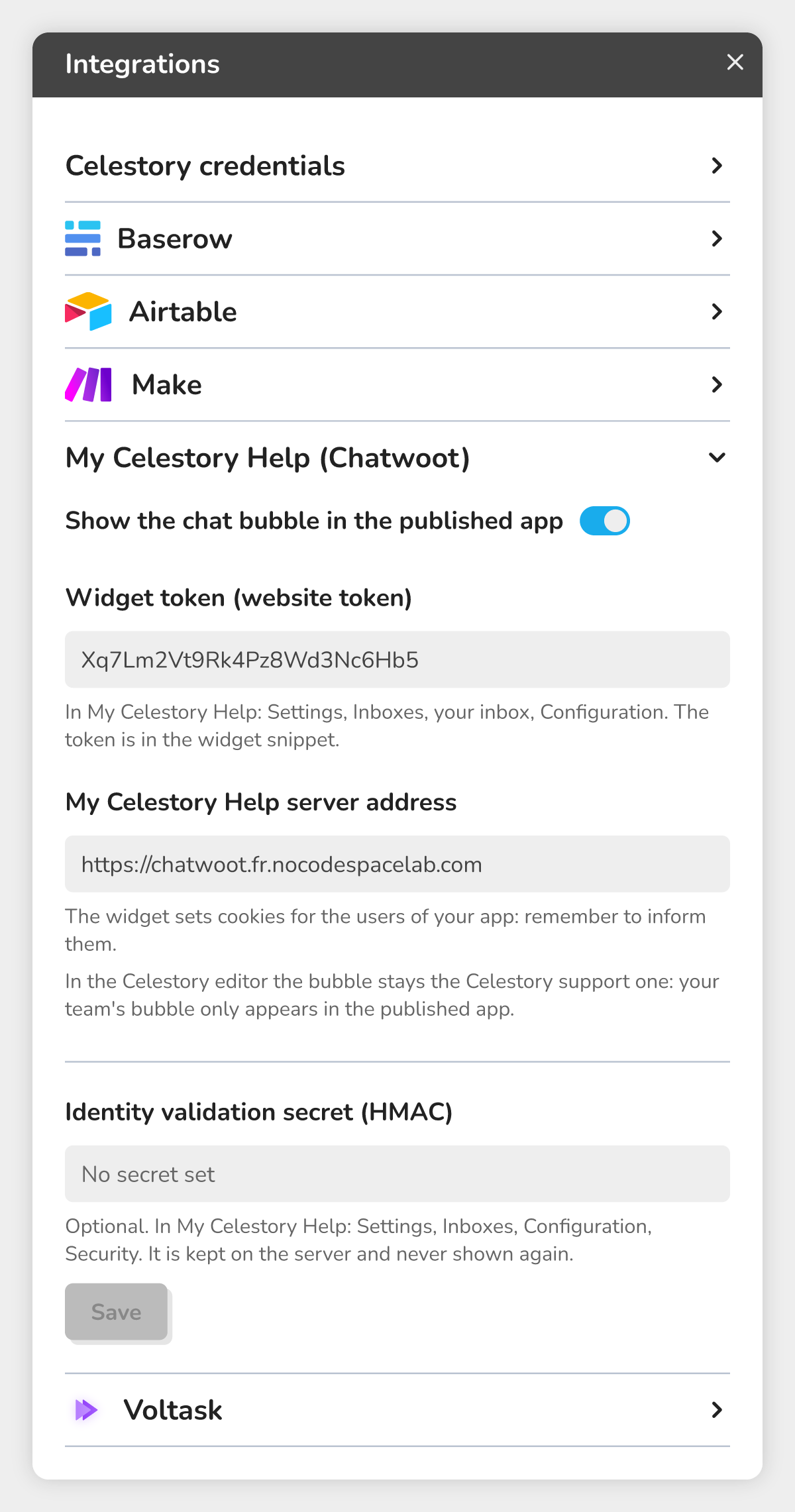 The card with the switch on, the token pasted and the server address.
⚠ Warning: the bubble only shows if the switch is on and the token is valid. If either is missing, the published app shows nothing, with no error message.
Identifying your users (optional)
In your My Celestory Help inbox, you can require users' identity to be signed (Configuration, Security). Then paste the secret in Identity validation secret (HMAC) and click Save. The secret needs at least 8 characters. It is kept on the server, never shown again, and is in neither the project nor the exports. The field says "A secret is set" or "No secret set", and the Remove button deletes it.
🔺 Note: visitors of a published app have no Celestory account: they stay anonymous for your team, even with a secret.
Protecting access to your documentation
If your documentation is a My Celestory Help help center, the Documentation access section can protect it. It only appears if the protection service is configured on your Celestory instance: otherwise it is missing from the card.
- Enter the Help center identifier (portal slug): lower case letters, digits and hyphens, 64 characters at most.
- Save the project: until you do, the access settings stay hidden.
- Choose the Access mode:
| Mode | Who gets in |
|---|---|
| Public, no protection | Everyone |
| Password | Whoever knows the password |
| Allowed e-mail addresses | The listed addresses or domains |
| Password or allowed e-mail address | Either one is enough |
| Password and allowed e-mail address | Both are asked |
- Depending on the mode, enter the password (8 to 128 characters, never shown again; leave empty to keep the current one), the addresses (one per line, 500 at most) and the domains (one per line, 50 at most, for example
example.comor*.example.com). - Click Save access. Remove protection makes the documentation public.
The modes with an e-mail address are greyed out if the service cannot send e-mails. A help center is managed by one project only: to give it to another, first remove its protection.
Privacy and cookies
- Your published app: the bubble sets cookies for your users. Celestory shows no consent banner in the published app: it is up to you to inform your users.
- The editor: the Celestory help bubble only loads after a click on Accept cookies. The banner says: "Celestory uses cookies for analytics and help us understand how you are using our solution." If you click Refuse cookies, the bubble does not load; this choice also applies to audience measurement. The choice is remembered in your browser; the editor has no setting to change it afterwards: to see the banner again, clear the Celestory site data in your browser.
- On the public game page, the support chat only loads when the button is clicked.
- The identity secret and the documentation password are never sent back to your browser.
Troubleshooting
| Problem | Solution |
|---|---|
| The bubble does not appear in the app | Check the switch and the token, save, then export the app again |
| The bubble does not appear in the editor preview | This is normal: it only appears in the published app |
| The token is refused | It only holds letters and digits (16 to 64 characters): copy it again from the widget snippet |
| The server address is refused | Enter the https address of the server, without a path |
| The bubble stays empty or refuses to show | If the inbox has a list of allowed domains, check that the app's domain is in it |
| I do not see the help bubble in the editor | You refused cookies, or it is not enabled on your instance |
| This help center is already managed by another project | Remove the protection in the other project |
| Save the project to enable the access settings | Save the project, then come back to the card |
| The documentation access service does not answer | Try again later; if it persists, contact support |