
Updated for version 6.0.30
The bigger a project gets, the more you need to find your way around it. You can now put your modules and graphs in order by drag and drop, Celestory opens every new graph from the Start graph for you, data links are faded so the flow of the story stays readable, and you can delete a resource straight from its edit window.
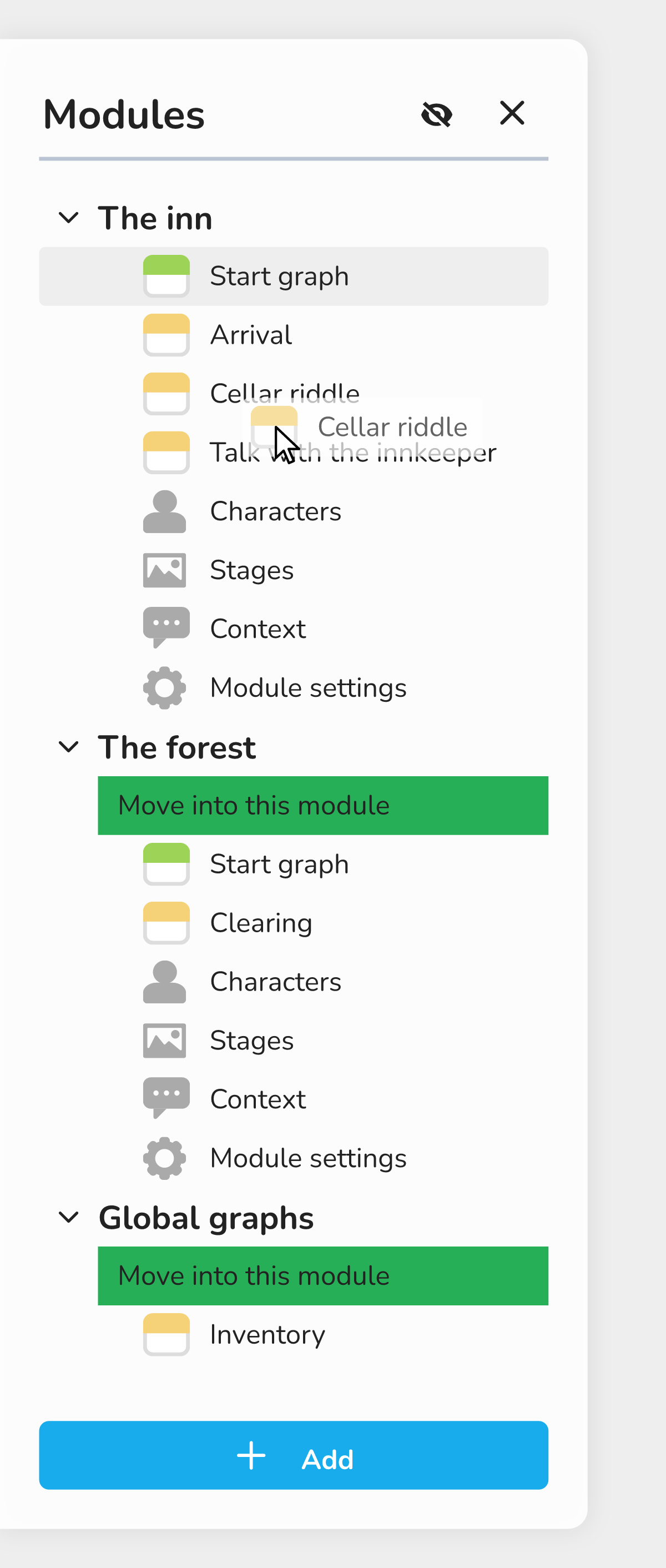 The modules sidebar open, with two modules, their graphs and the "Global graphs" folder, while a graph is being dragged.
Reorder modules and graphs
The Modules sidebar lists your modules, then their graphs. If it is closed, click the Show modules sidebar button.
- A module: grab its name and drag it above or below another module. It takes the place of the one you are hovering as soon as the pointer passes the middle of that row;
- A graph: drag it among the graphs of its module (or among those of the Global graphs folder if it belongs to no module). The module's Start graph always stays first;
- Moving a graph to another module: drag it onto the name of another module, as before. For a global graph, Celestory first asks for confirmation, because every non-global block of the graph will be removed.
[Screenshot: a graph dragged between two other graphs of the same module, with the insertion line]
💡 Tip: a single Cmd + Z (Mac) or Ctrl + Z (Windows, Linux) puts the whole drag back where it started, even if the item crossed several rows. The moves appear in the project history as "Move a module" and "Move variable" (a graph is a variable of type Graph).
The Global graphs folder cannot be moved: only modules are reordered among themselves.
A block that opens each new graph
When you create a graph in a module, Celestory places an Open a graph block in the Start graph of that module, pointing to the new graph. This way you find every graph of the module without searching.
This happens in two cases:
- with Add > Add graph at the bottom of the modules sidebar, when you choose a module in the Module field;
- with Blackbox the selection, in the right-click menu of selected blocks.
The new block is placed on the left, under the blocks already there (one block per row, no overlap). It is not connected to anything, so it never runs and does not change how your story unfolds. You can move it or connect it later.
Two special cases:
- if you choose None in the Module field, the graph is global and no block is placed;
- if you blackbox blocks from the Start graph itself, the block that replaces your selection plays this role: nothing is added twice.
🔺 Note: the creation is a single undoable operation. One Cmd + Z or Ctrl + Z removes the graph, its variable, its input and output points and the Open a graph block. If the creation fails, nothing is changed in your project and you can try again.
Fade the data links
In a busy graph, data links (the ones that carry a value, a text, a variable) can hide the arrows that show the order of the story. By default they are now drawn at 30% opacity, while the logic flow (the path the story follows) stays at 100%.
A data link gets its full opacity back in three cases:
- when it is selected;
- when it touches a selected block;
- while you are drawing it.
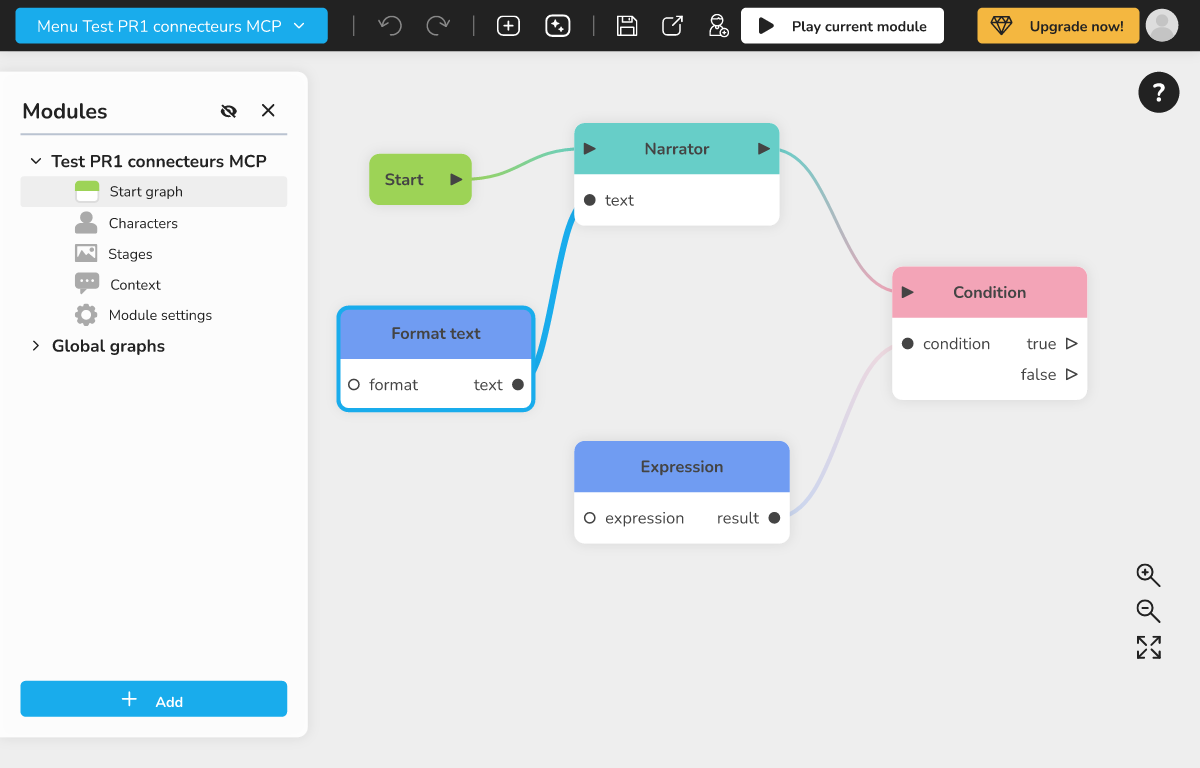 A graph where data links are pale and the logic flow is clearly marked, with a selected block whose links stand out.
Get links back in full color
Open your profile (the Your Profile window), Account tab, then turn off the Fade the data links in the graph (the logic flow stays fully visible) switch. Turn it on again to return to the default.
This setting is remembered by your browser, not by your account: you have to set it again on another computer or browser. It does not change the project itself, nor what your collaborators see.
Delete a resource from its edit window
When you choose Edit on a resource picker (image, color, style, etc.), the Edit resource window opens. It no longer has a confirm button: closing the window applies your changes.
Instead, at the bottom right, there is a red button with a trash icon:
- Delete resource: deletes the resource, like Clear in the picker's menu. Changes in progress in the window are discarded and the window closes. A single Cmd + Z or Ctrl + Z brings the resource back;
- Detach variable: when the picker is linked to a variable, the button has this name and only breaks the link. The variable itself is not deleted.
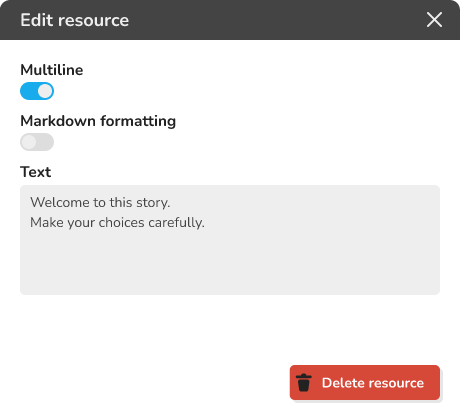 the "Edit resource" window open, with the red "Delete resource" button at the bottom right
The button does not appear when you create a resource (Create resource), nor when the slot must always hold a resource.
Move a paragraph by its handle
In the text editor of the Comment block and in Markdown texts, each paragraph, heading or list has a handle on its left (tooltip: "Drag to move this block, click for its options"). Drag it to move the paragraph; this handle now works as intended. A click opens a menu with Turn into, Duplicate, Move up, Move down and Delete.