
Updated for version 6.0.30
The Unity and Godot exports turn your story into a package that you open in the game engine. It contains your story, your files and an open player (in C# for Unity, in GDScript for Godot) that you can use as is or replace with your own interface. These exports never carry a Celestory watermark.
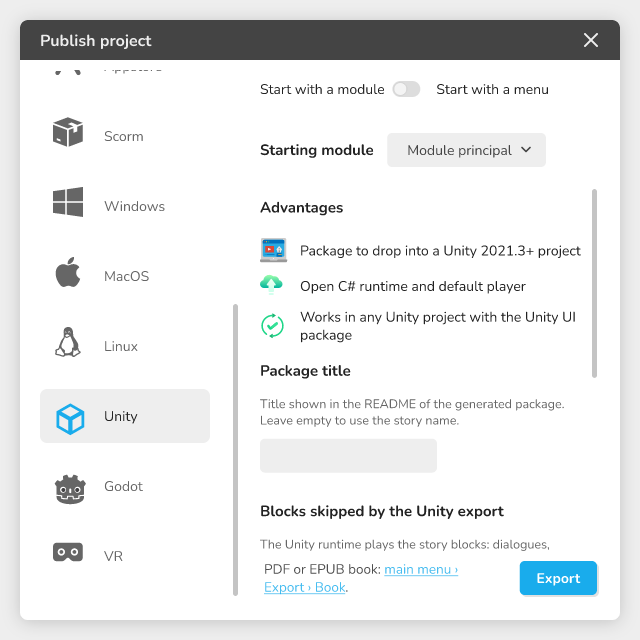 the Publish project window open on the Unity tab, with the "Package title" field and the list of skipped blocks
What the package contains
| Unity | Godot | |
|---|---|---|
| Engine and version | Unity 2021.3 LTS or newer, with the Unity UI package | Godot 4.2 or newer |
| Package shape | An Assets/Celestory folder to copy into your project |
A complete Godot project, ready to open |
| Your story | story.json and your files (images, sounds...) |
story.json and the assets/ folder |
| Player | Open C# runtime and default player | Open GDScript runtime and default player scene |
| Files | A runtime folder, an editor folder, a README.md |
Plain text files only, editable and versionable |
A README.md with installation steps, carrying your title, comes with the package.
Where to find these exports
Click Publish in the top bar (shortcut Shift + B): the Publish project window opens. Click Unity or Godot in the left column. These exports are not in the Export window of the main menu, which is for the book, modules, data and files.
🔺 Note: these exports require a Pro plan or higher. Otherwise, the Upgrade button replaces Export.
Export
- Choose the Starting module. If your project has menus, leave the switch on Start with a module: menus are not played by these exports (see the limits below).
- In the Unity tab, fill in Package title. In the Godot tab, fill in Project name. This field is optional: if empty, Celestory uses the story name.
- Check the New app version.
- Read the section Blocks skipped by the Unity export (or Godot), see below.
- Click Export.
A message says "App exported! You will receive an email with the link to download it." You receive an email with the download link.
The package title
- For Unity, the Package title is shown in the
README.mdof the package. - For Godot, the Project name is shown in the Godot editor and in the game window.
Open the package in Unity
- Create or open a Unity project (any render pipeline), version 2021.3 LTS or newer.
- Make sure the Unity UI package is installed: Window > Package Manager, then Unity Registry > Unity UI. Most project templates include it, an empty project does not.
- Copy the
Assets/Celestoryfolder of the package into your project'sAssets/folder. - Let Unity import, then open the menu Celestory > Create Player Scene.
- Press Play: the default player plays your story.
The default player reads the mouse and keyboard through the classic Input Manager. If your project only enables the new Input System, set Edit > Project Settings > Player > Active Input Handling to Both.
Open the package in Godot
- Install Godot 4.2 or newer.
- In Godot, click Import and choose the
project.godotfile of the folder. - Press F5: the default player scene plays your story.
The window size depends on your project's ratio (for example 720 x 1280 for a portrait, 1280 x 720 for a landscape or responsive ratio).
Blocks skipped by the export
The player plays the story blocks: dialogues, choices, conditions, variables, sub-graphs, images and sounds. In the export tab, the Blocks skipped by the Unity export section (or Godot) lists, as orange tags, the block types of your project that are not played yet. The story skips these blocks and goes on through their first output: check that it still makes sense without them. If the list is empty, Celestory shows "Every block of this project is played by the Unity export."
Not included yet: menus, saved data, integrations and API calls, JavaScript code, lists and objects. Two blocks (Analytics and QTE) are played by Godot but skipped by Unity.
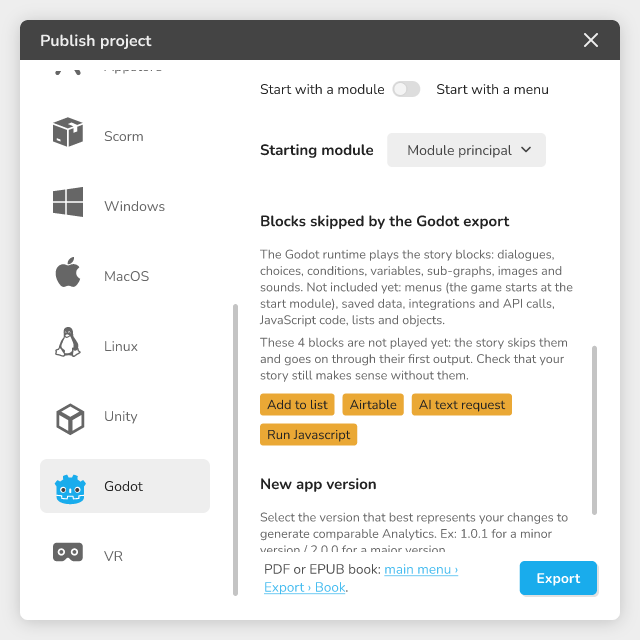 the "Blocks skipped by the Godot export" section with a few tags
💡 Tip: for skipped blocks, you can write their behavior in your own code: the player reports each unsupported block (the
OnUnsupportedBlockevent for Unity, theunsupported_blocksignal for Godot) before following its first output.
Update the story in the game
Each export regenerates the whole package. If you changed the player, keep your changes in your own scripts and scenes. To update, replace only story.json and the files of assets/ (Unity: in Assets/Celestory/Resources/Celestory/) with those of the new export.
Limits
- Menus are not shown: the game starts directly at the starting module.
- Blocks listed in that section are skipped.
- The default player is deliberately simple (background, dialogue box, choices).
- Unity: no scene file is provided, the scene is created with the Celestory > Create Player Scene menu.
- Godot: the icon provided is the Godot Engine logo (CC BY 4.0 license, mentioned in the
README.md); replace it with your own if you do not want to keep this credit.